How to Track Leads from Google Ads: Complete Setup Guide
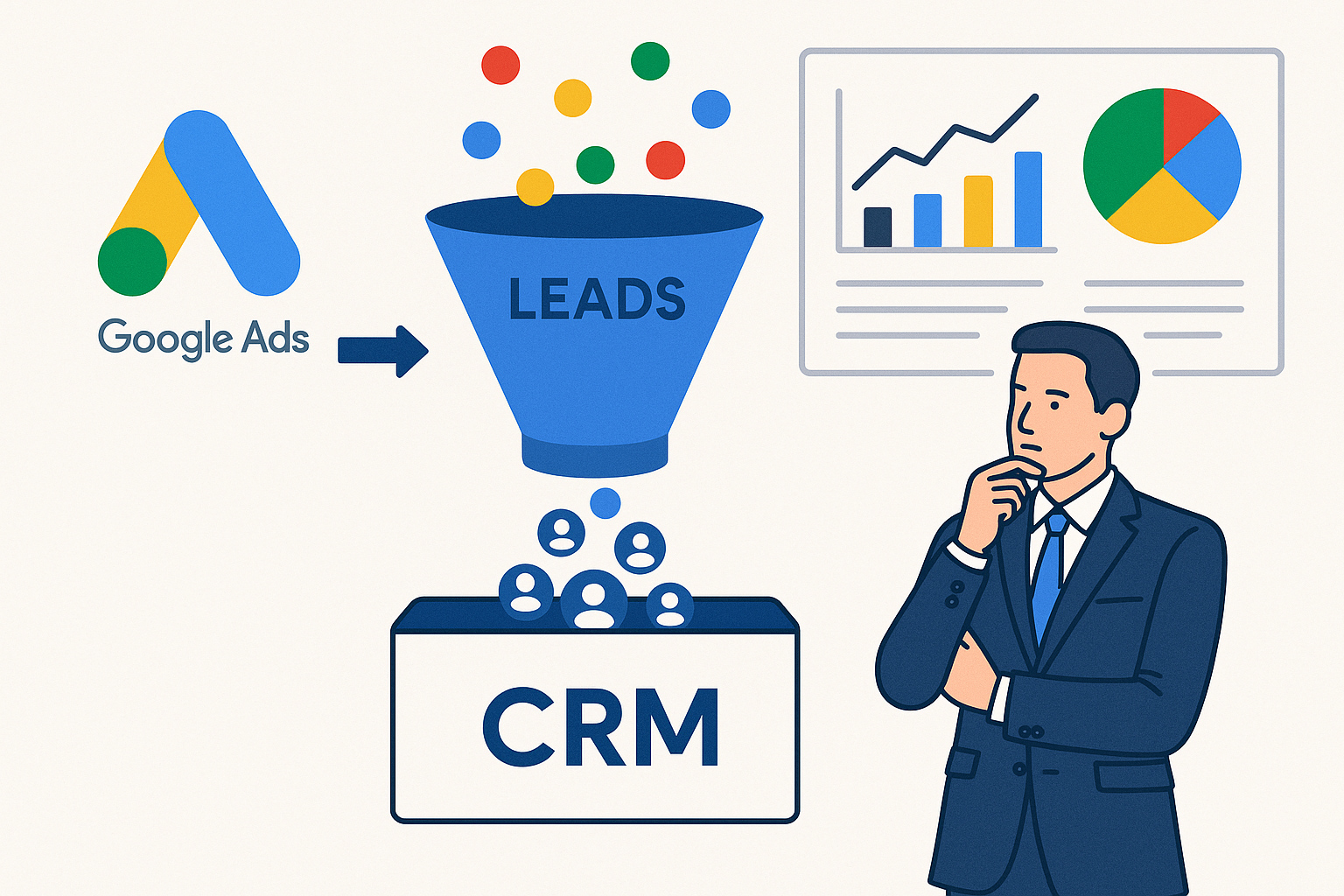
Tracking leads from Google Ads effectively is essential for optimizing your marketing campaigns and ensuring that your advertising budget is well spent. In this comprehensive guide, we'll cover everything you need to know about setting up lead tracking through Google Ads, from understanding different lead conversion types to integrating with CRM systems for offline conversions.
Quick Summary
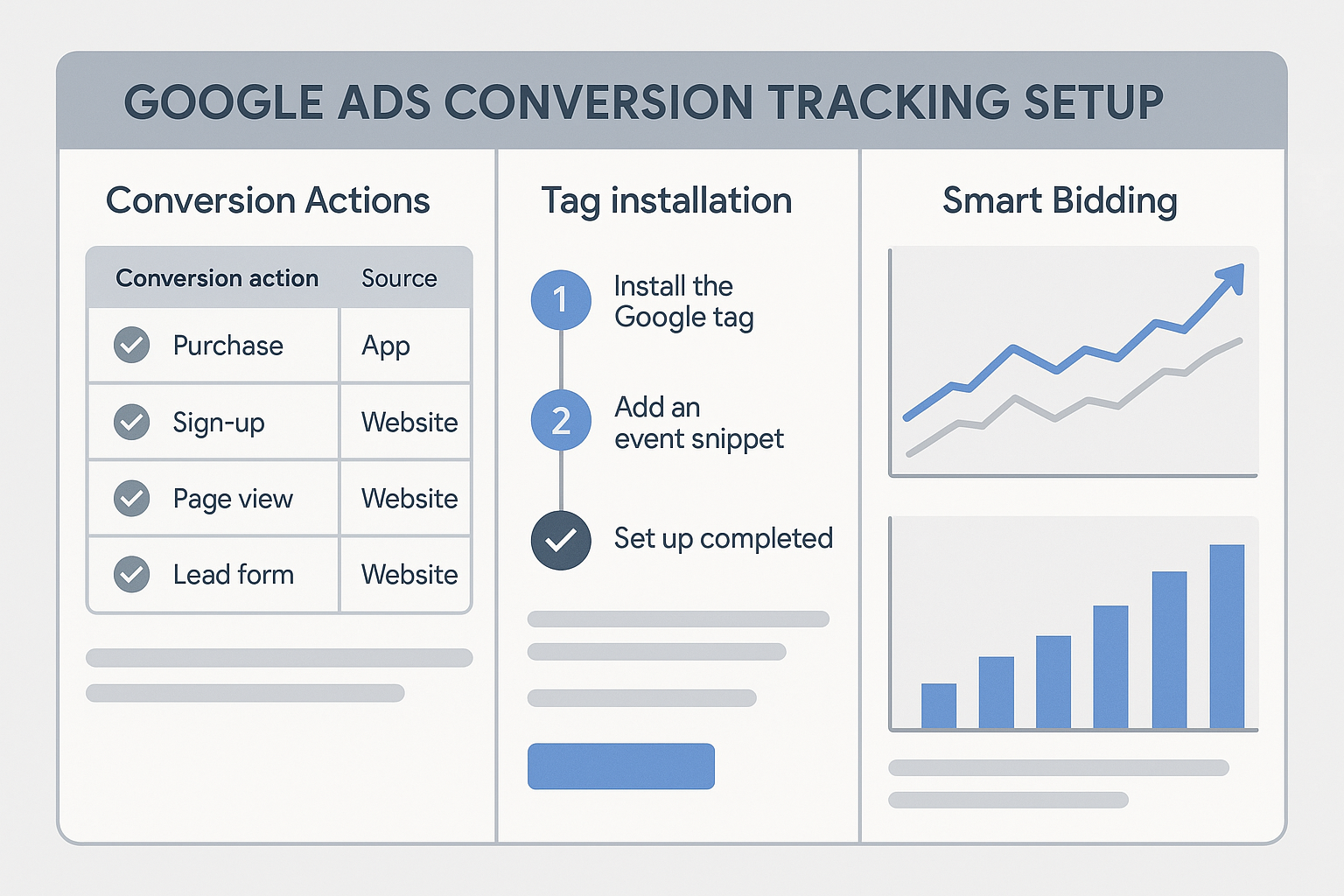
This guide explores various lead conversion types such as form fills, phone calls, live chats, and email clicks. We delve into setting up GTM conversion triggers, importing GA4 goals into Google Ads, and utilizing Enhanced Conversions for leads. Additionally, we'll discuss CRM integration for offline conversions and testing using Tag Assistant.
Types of Lead Conversions
Before diving into setup, it's crucial to understand the different types of lead conversions:
- Form Fills: Leads that fill out forms on your website, such as contact forms or signup forms.
- Phone Calls: Leads that call your business directly from a phone number displayed in your ads or on your website.
- Live Chat: Leads that engage with your business via live chat tools embedded on your site.
- Email Clicks: Leads that click on email links provided on your website or in your ads.
All these conversion types can be tracked and attributed to specific Google Ads interactions to measure effectiveness.
Setting Up GTM Conversion Triggers
Google Tag Manager (GTM) is a powerful tool for managing tracking scripts on your website. Here's how you can set up conversion triggers for different lead types:
Form Fill Tracking
- Create a Form Submission Trigger in GTM that fires when a form is successfully submitted on your site.
- Configure a Google Ads Conversion Tracking tag to fire upon this trigger.
- Ensure the conversion label and ID are accurately set to match your Google Ads account.
Phone Call Tracking
- Use Call Extensions in Google Ads to generate phone numbers that can be tracked.
- Set up a Click-to-Call Trigger in GTM for phone number links.
- Link this trigger to a Google Ads Conversion Tracking tag.
Live Chat Tracking
- Identify the event that signifies a successful chat initiation or completion.
- Create a Custom Event Trigger in GTM for this event.
- Attach a Google Ads Conversion Tracking tag to this trigger.
Email Click Tracking
- Create a Link Click Trigger for mailto: links in GTM.
- Configure a conversion tag to fire on email link clicks.
Importing GA4 Goals to Google Ads
With the transition to GA4, importing goals into Google Ads is more streamlined:
- Ensure your GA4 property is correctly linked to your Google Ads account.
- In GA4, configure the events or conversions you want to track as goals.
- Navigate to the Google Ads interface, and import these goals under the Tools & Settings > Conversions section.
For more detailed guidance, consider our GA4 implementation service.
Enhanced Conversions for Leads
Enhanced Conversions allow for more accurate conversion tracking by using first-party data to improve the measurement of conversions:
- Enable Enhanced Conversions in your Google Ads account under the conversions settings.
- Configure your website's tags to collect and send hashed customer data, such as email and phone numbers.
- Leverage server-side tagging to securely transmit this data, enhancing privacy compliance. Learn more in our Server-Side Tracking Explained in Plain English post.
CRM Integration for Offline Conversions
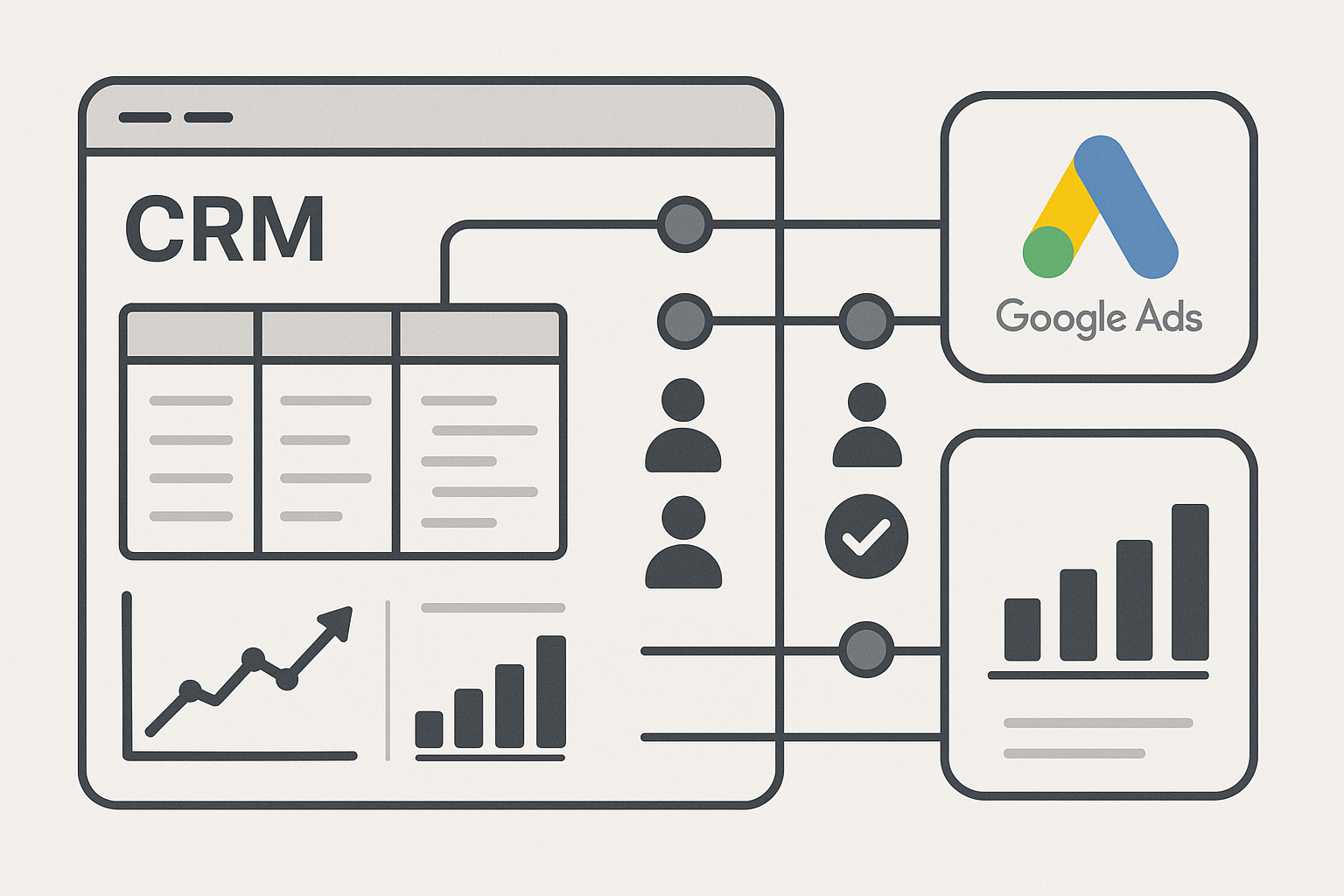
Integrating your CRM with Google Ads can provide insights into offline conversions:
- Ensure your CRM supports Google Ads integration, or use a middleware tool.
- Map out the customer journey and identify key offline conversion points.
- Use the BigQuery analytics service to upload offline conversion data into Google Ads.
This approach helps bridge the gap between online clicks and offline sales activities.
Testing with Tag Assistant
Testing your setup is crucial for ensuring accuracy in lead tracking:
- Install the Google Tag Assistant Chrome extension.
- Use Tag Assistant to test the firing of tags on your website.
- Check for any errors or issues that prevent tags from firing correctly.
- Debug and refine your GTM configurations as needed.
Frequently Asked Questions (FAQ)
- What are Enhanced Conversions in Google Ads?
Enhanced Conversions use customer data to improve conversion tracking accuracy, particularly useful in privacy-focused environments.
- How can I track phone call conversions from Google Ads?
Use Call Extensions in Google Ads, set up a click-to-call trigger in GTM, and link it to a conversion tracking tag.
- Why is CRM integration important for tracking leads?
CRM integration allows you to track offline conversions and attribute them to online ad interactions, providing a fuller picture of customer journeys.
- How do I test my conversion tracking setup?
Use Google Tag Assistant to test and verify that your conversion tracking tags are firing as expected on your website.
- What is the role of GA4 in tracking Google Ads leads?
GA4 allows you to configure and import goals directly into Google Ads, providing seamless integration for tracking and optimizing campaigns.
Start Optimizing Your Lead Tracking Today
Tracking leads effectively from Google Ads is a multi-step process that requires precise configuration and testing. By following this guide, you can ensure that your conversion tracking is accurate and insightful. For further assistance or to address any specific needs, don't hesitate to contact Adslytics. Our team of experts is ready to help optimize your digital analytics and tracking setups.
Need expert tracking setup?
Our Google Tag Manager experts have delivered 500+ tracking setups with a 98% success rate.
Get a Free Consultation →