Quick Summary
Google Ads Conversion Tracking is an essential tool for understanding the effectiveness of your campaigns. By setting up conversion tracking, you can gather valuable data to enhance your Smart Bidding strategies, optimize ad performance, and drive more conversions. This guide will walk you through the comprehensive steps to set up Google Ads Conversion Tracking in 2025, from creating a conversion action to implementing tags via Google Tag Manager (GTM) or gtag.js. We will also explore Enhanced Conversions, cross-device and cross-account tracking, and common troubleshooting errors.
What is Google Ads Conversion Tracking?
Google Ads Conversion Tracking is a tool that helps advertisers measure the actions users take on their websites after interacting with ads. These actions, known as conversions, can include purchases, sign-ups, or any other valuable interactions.
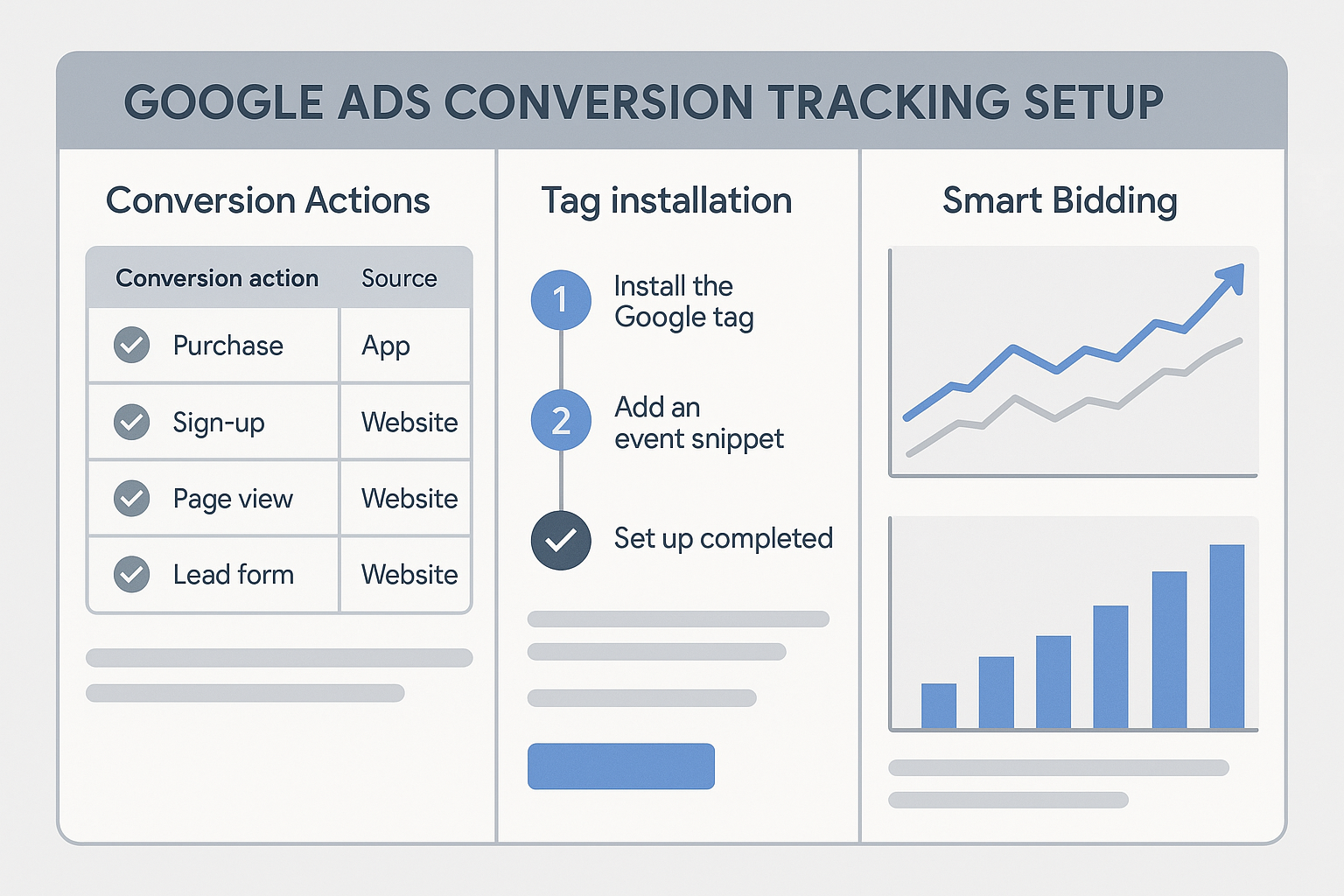
Conversion tracking is crucial for Smart Bidding strategies, as it allows Google Ads to automatically set bids to maximize conversions. By understanding which ads drive the most valuable actions, you can allocate your budget more effectively and improve your ROI.
Setting Up Google Ads Conversion Tracking: Step-by-Step Guide
1. Accessing Google Ads Conversion Actions
To start, log into your Google Ads account. Navigate to the 'Tools & Settings' menu, and under the 'Measurement' section, select 'Conversions.' This will lead you to the Conversions action page where you can track existing conversions or create new ones.
2. Creating a New Conversion Action
- Click on the + button to create a new conversion action.
- Choose the type of conversion you want to track. You can select from Website, App, Phone calls, or Import, depending on your business needs.
- For this guide, we’ll focus on Website conversions.
3. Setting Conversion Value and Count
- Conversion Value: Assign a monetary value to your conversion. This is particularly useful for e-commerce businesses using Enhanced Ecommerce tracking.
- Conversion Count: Decide whether you want to count every conversion or just one conversion per click.
4. Installing the Conversion Tag via Google Tag Manager
Google Tag Manager (GTM) simplifies the process of managing tags. If you haven't set up GTM yet, consider our Google Tag Manager setup service.
- In the conversion action settings, select 'Use Google Tag Manager.'
- Copy the Conversion ID and Conversion Label provided.
- Log into your GTM account and create a new tag.
- Choose 'Google Ads Conversion Tracking' as the tag type.
- Enter the Conversion ID and Label, and set up the trigger to fire the tag on the conversion page.
- Publish the changes in GTM.
Testing Your Setup with Tag Assistant
To ensure your conversion tracking is working correctly, use the Tag Assistant browser extension. This tool verifies your tags are firing as expected and helps identify any errors in implementation.
gtag.js vs. GTM Methods
While GTM offers a centralized platform for managing multiple tags, gtag.js is a JavaScript framework for directly managing Google tags on your website. For most businesses, GTM is recommended due to its user-friendly interface and enhanced functionality.
Enhanced Conversions Setup
Enhanced Conversions improve the accuracy of conversion measurement by using first-party data. To set up Enhanced Conversions:
- In Google Ads, navigate to the conversion action you wish to enhance.
- Select 'Enhanced Conversions' and follow the setup instructions.
- Ensure your website collects necessary data such as email addresses.
Cross-Device and Cross-Account Conversions
Cross-device tracking allows you to see how users engage with your ads across different devices. Cross-account tracking consolidates data from multiple Google Ads accounts, providing a holistic view of performance. Both features require linking your Google Ads account with GA4 for seamless integration.
Common Errors and Troubleshooting
- Tags not firing: Verify that the GTM container is published and the triggers are correctly set up.
- Conversion not recording: Check that the conversion label matches the one in your Google Ads account.
- Data discrepancies: Ensure your tags are not blocked by browser extensions or privacy settings. Consider implementing Consent Mode v2 for compliance with user consent regulations.
FAQs
1. Why is conversion tracking important for Smart Bidding?
Conversion tracking provides data that Smart Bidding algorithms use to optimize bids for better ad performance and ROI.
2. Can I track conversions on multiple websites?
Yes, you can track conversions across multiple websites by setting up cross-domain tracking in GTM and linking them to a single Google Ads account.
3. How do I verify my conversion tracking setup?
Use the Tag Assistant extension to test and verify that your conversion tags are properly firing and recording data.
4. What is the difference between gtag.js and GTM?
gtag.js is a direct JavaScript framework for managing Google tags, while GTM is a tag management system that offers a user-friendly interface and additional features.
5. How can I track offline conversions?
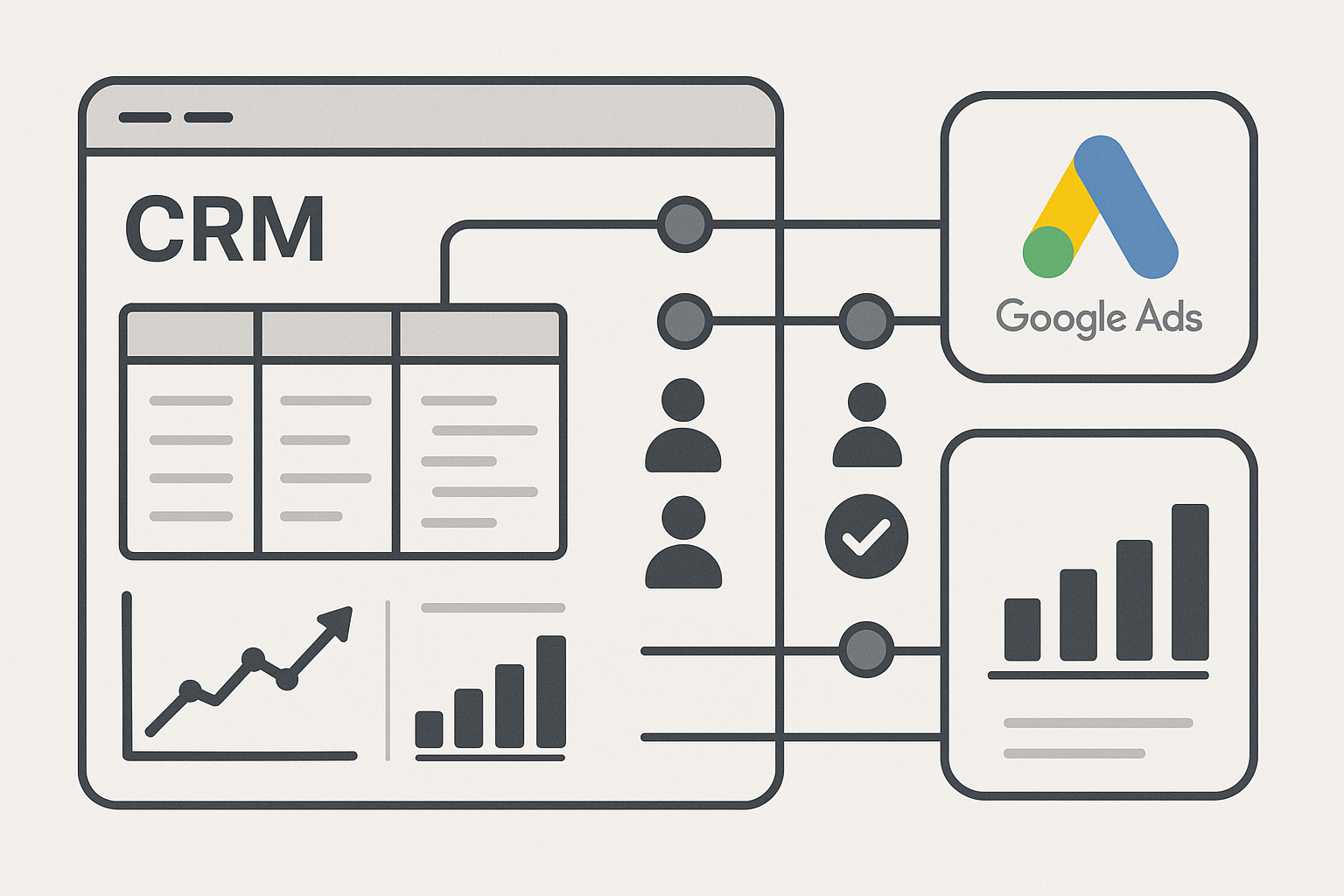
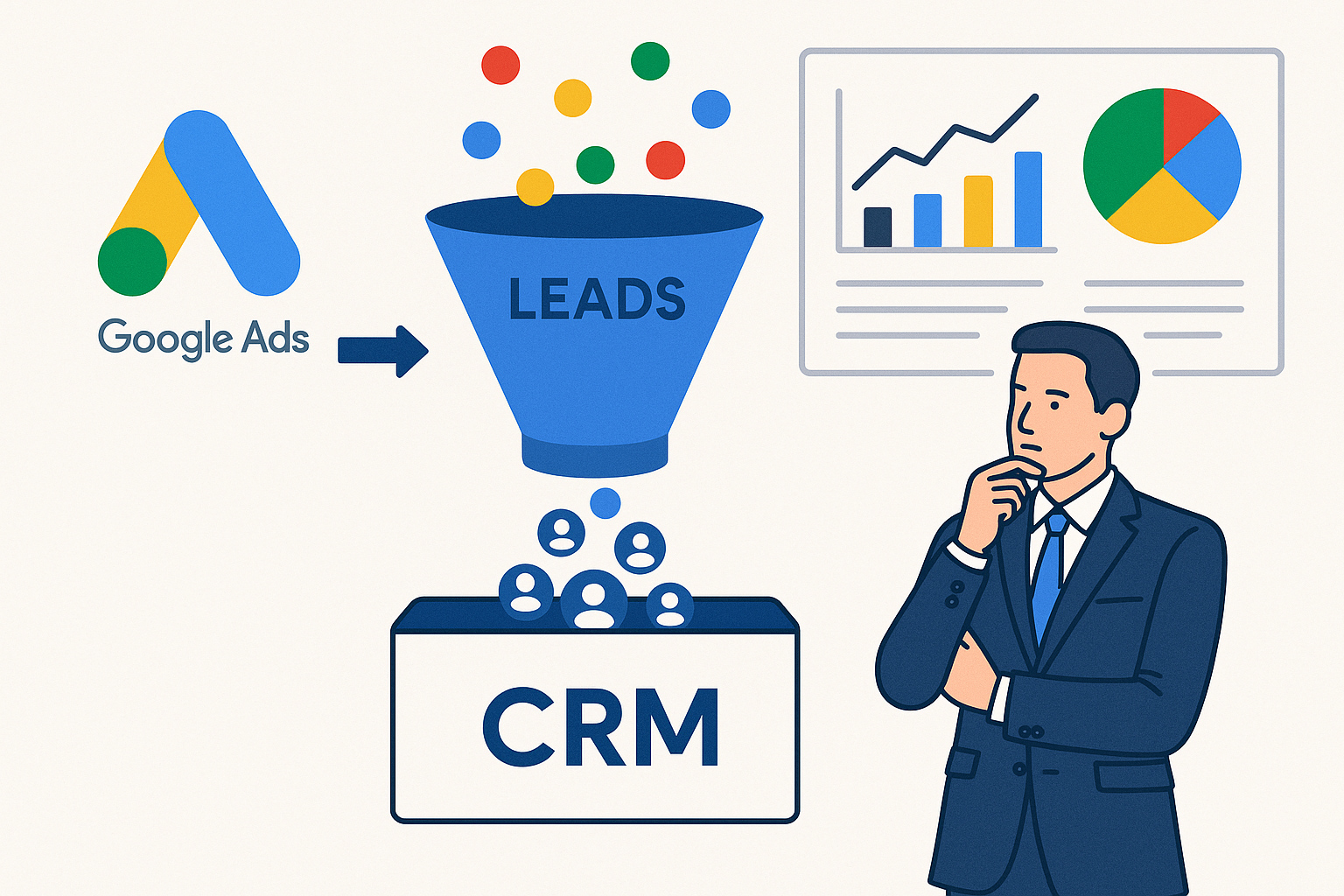
Offline conversions can be tracked by importing data into Google Ads, using a CRM system, or through Server-Side Tracking solutions.
Conclusion
Setting up Google Ads Conversion Tracking is vital for measuring ad performance and enhancing your advertising strategies. Whether you choose to implement tags via GTM or gtag.js, ensure proper testing and verification to avoid data discrepancies. For expert assistance with your Google Ads setup, contact Adslytics today and optimize your digital marketing efforts.
Need expert tracking setup?
Our Google Tag Manager experts have delivered 500+ tracking setups with a 98% success rate.
Get a Free Consultation →