Quick Summary
Ensuring your Meta Pixel and Facebook Pixel are functioning correctly is crucial for effective ad tracking and optimization. This guide covers how to check the functionality of your pixels using tools like the Facebook Pixel Helper Chrome extension and Meta Events Manager. We’ll also explore how to verify standard events such as PageView, Purchase, and Lead, address common issues like pixels not firing, and debug GTM-based pixel installations. For a deeper dive into tracking solutions, consider our Server-Side Tracking and Google Tag Manager setup services.
Checking Your Meta Pixel and Facebook Pixel
Using the Facebook Pixel Helper Chrome Extension
The Facebook Pixel Helper is a Chrome extension that helps you verify if your pixel is correctly integrated and if it is firing events as expected. Here's how to use it:
- Install the Extension: Search for "Facebook Pixel Helper" in the Chrome Web Store and add it to your browser.
- Visit Your Website: Once installed, navigate to the website where your pixel is installed.
- Check for Pixel Activity: Click on the Pixel Helper icon in your browser toolbar. It will display the number of pixels found and any issues detected.
- Analyze the Data: Look for green check marks indicating successful pixel firing. Any warnings or errors will be displayed in yellow or red and should be investigated further.
The Pixel Helper provides insights into the types of events detected, allowing you to ensure all intended tracking is active. If you encounter issues, it’s essential to address them to maintain accurate data collection.
Testing with Meta Events Manager
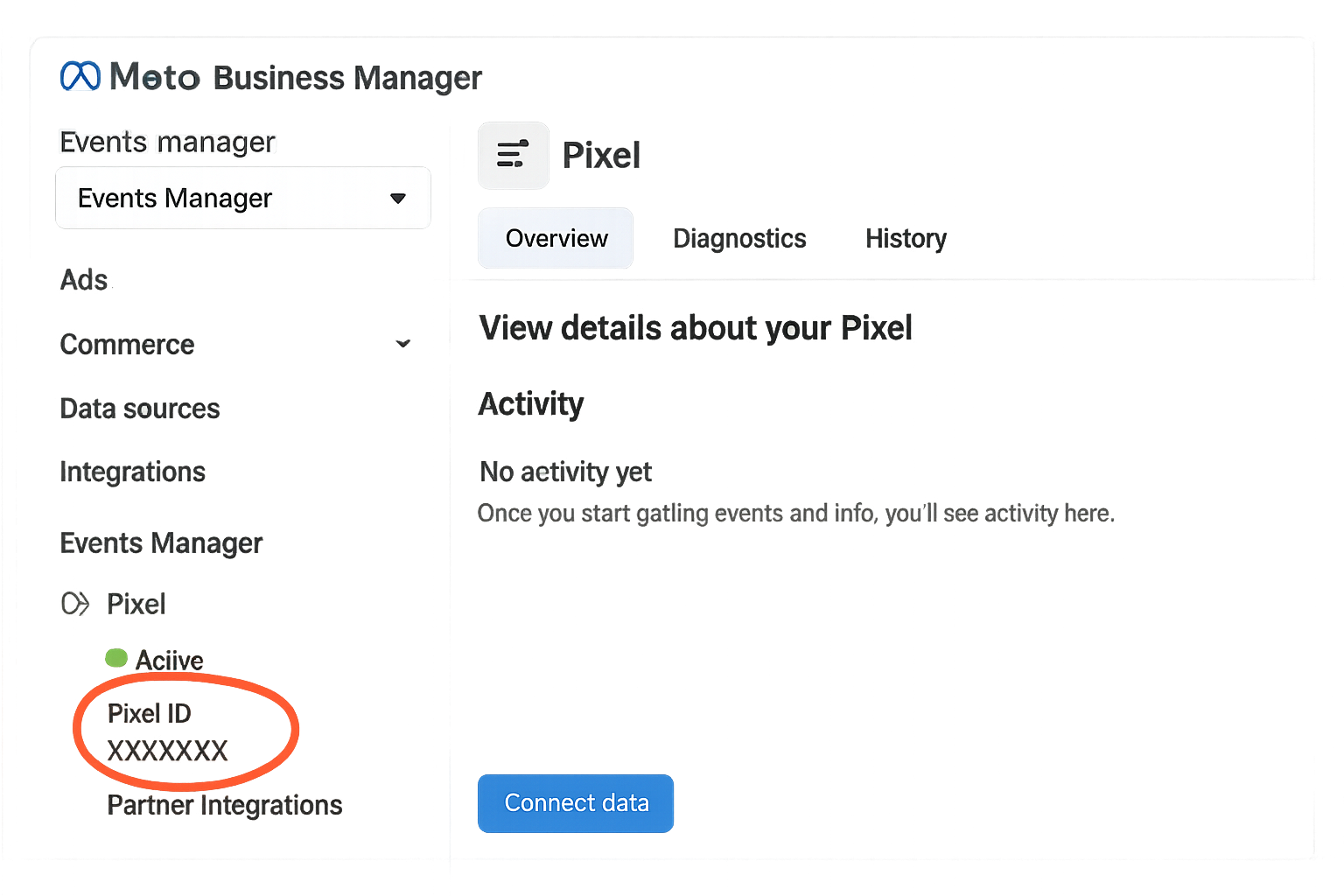
The Meta Events Manager is a tool within Facebook's Business Suite that allows you to test and verify your pixel events in real-time. Follow these steps to use it:
- Access Events Manager: Log in to your Facebook Business Suite and navigate to the Events Manager.
- Select Your Pixel: Choose the pixel you want to test from the list.
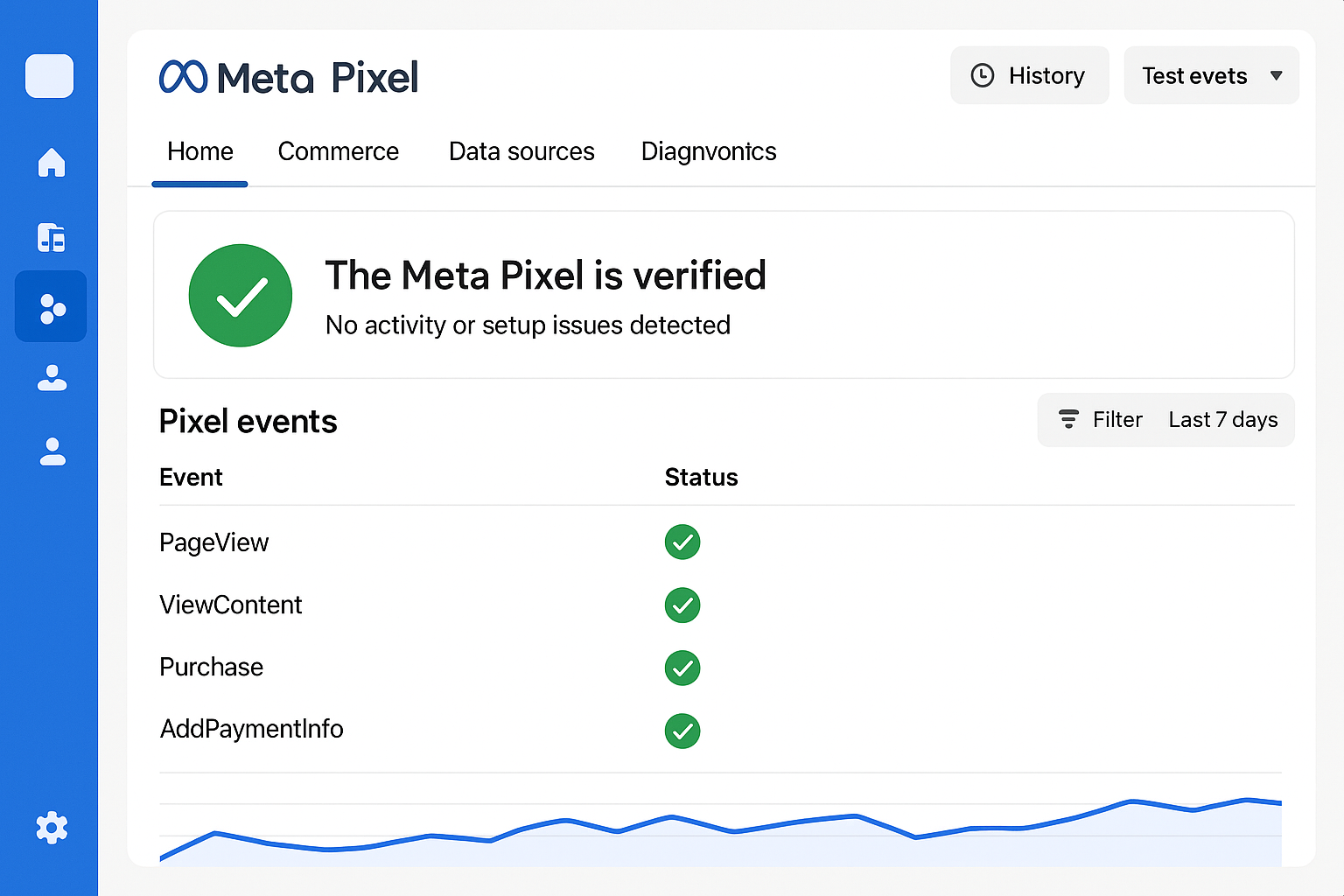
- Use the Test Events Tab: Click on "Test Events" to see a real-time feed of activities associated with your pixel.
- Trigger Events: Perform actions on your website to trigger the events (e.g., page views, form submissions).
- Monitor the Feed: Verify that the triggered events appear in the Events Manager, confirming successful tracking.
The Test Events tab is particularly useful for ensuring that your pixel is capturing the expected data and for diagnosing any issues with event tracking.
Verifying Standard Events
Standard events are predefined actions that Facebook recognizes, such as PageView, Purchase, and Lead. Verifying these events ensures that you're capturing essential user interactions:
- PageView: This event should fire on every page load to track user visits. Check your Pixel Helper for consistent PageView events across your site.
- Purchase: Verify that purchase events are correctly capturing transaction details. These should include parameters like value, currency, and content IDs.
- Lead: Ensure lead events are firing when users submit forms or perform similar actions. Check for correct parameters to capture lead value and source.
These standard events form the backbone of your tracking setup, providing critical insights into user behavior and conversion paths.
Common Issues and How to Fix Them
Pixel Not Firing
If your pixel isn't firing, consider the following troubleshooting steps:
- Verify Installation: Double-check that the pixel code is correctly placed within the
<head>section of your website. - Check for JavaScript Errors: Use browser developer tools to identify any JavaScript errors that might prevent the pixel from firing.
- Inspect Ad Blockers: Ensure that browser extensions or ad blockers aren't interfering with pixel loading.
Wrong Event Firing
Sometimes, the wrong events might fire due to incorrect setup. Here's how to address this:
- Review Event Setup: Check your event configuration in Facebook Business Manager to ensure all parameters are correctly set.
- Test Specific Scenarios: Use the Test Events tool to simulate user actions and verify the correct events are triggered.
Missing Parameters
Missing parameters can lead to incomplete data collection:
- Check Parameter Completeness: Ensure that all necessary parameters are included in your event setup.
- Audit GTM Tags: If using Google Tag Manager, audit your tags to confirm all required data is being passed.
Debugging GTM-Based Pixel Setups
Using Google Tag Manager for pixel management allows for flexible setups but can introduce complexity. Here’s how to debug GTM-based pixel issues:
- Preview Mode: Use GTM’s Preview mode to test your tags in a live environment without publishing changes. This helps identify misconfigurations.
- Check Triggers: Ensure that your triggers are set to fire at the correct times. Incorrect trigger settings can prevent tags from firing.
- Review Variables: Verify that all necessary variables are correctly defined and pulling the expected data.
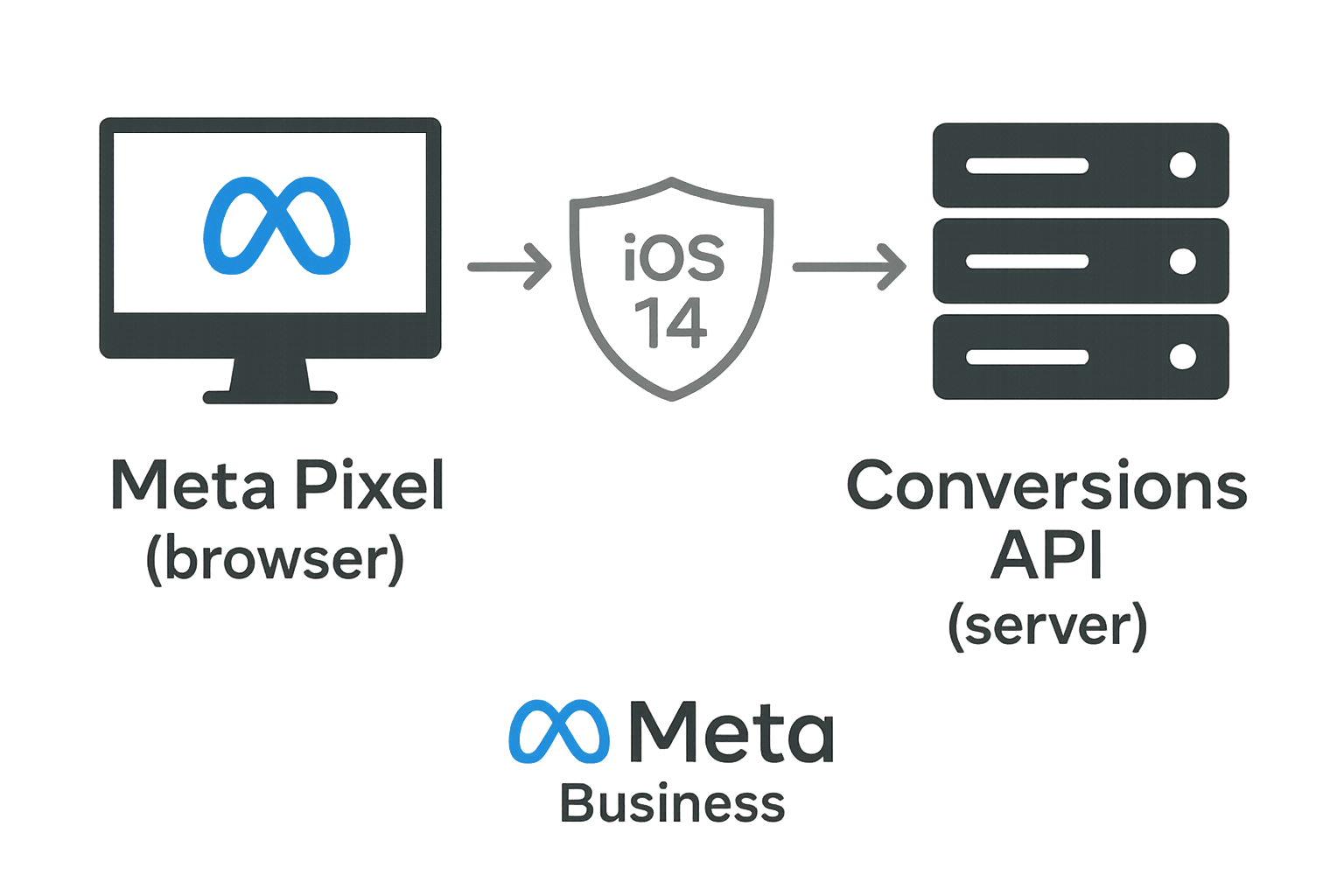
For more advanced setups, consider exploring our Meta Conversions API service for server-side tracking solutions or our Consent Mode v2 implementation to ensure compliance with user consent preferences.
FAQ
How can I tell if my Facebook Pixel is working?
Use the Facebook Pixel Helper Chrome extension and the Meta Events Manager's Test Events tab to verify pixel activity and ensure events are firing correctly.
What should I do if my pixel isn't firing?
Check for correct installation, JavaScript errors, and interference from ad blockers. Use browser developer tools to diagnose issues.
Why are my events missing parameters?
Ensure all necessary parameters are defined in your event setup and verify that GTM variables are correctly configured to pass data.
What are standard events in Facebook Pixel?
Standard events include actions like PageView, Purchase, and Lead, which help track user interactions and conversions on your website.
How do I debug a GTM-based pixel setup?
Use GTM’s Preview mode, check trigger configurations, and verify variables to ensure tags fire correctly. Consider using server-side tracking for advanced setups.
Conclusion
Ensuring your Meta Pixel and Facebook Pixel are functioning correctly is essential for accurate ad tracking and optimization. By using tools like the Facebook Pixel Helper and Meta Events Manager, you can verify event tracking and troubleshoot common issues. For advanced tracking solutions, explore Adslytics’ services, including Server-Side Tracking, Google Tag Manager setup, and Meta Conversions API setup. If you need personalized assistance, contact Adslytics today to optimize your digital analytics strategy.
Need expert tracking setup?
Our Google Tag Manager experts have delivered 500+ tracking setups with a 98% success rate.
Get a Free Consultation →