Quick Summary
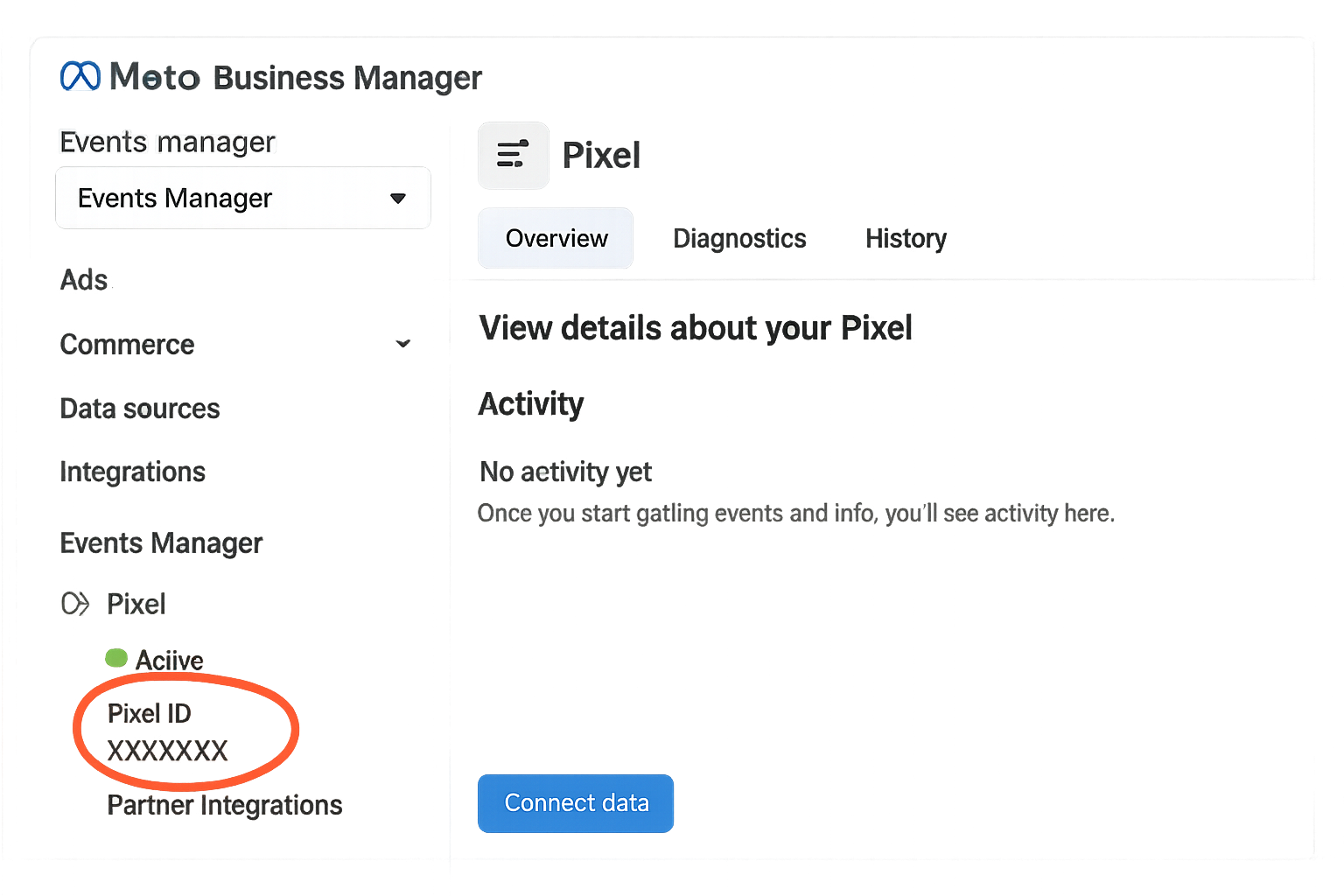
Finding your Meta Pixel ID is crucial for effective tracking and optimization of your Facebook and Instagram ads. In this comprehensive guide, we will explore three methods to locate your Pixel ID, which is a 15-17 digit number unique to your Pixel. We will also provide insights on how to use your Pixel ID for various integrations such as Google Tag Manager and Shopify. Additionally, we will cover what to do if you have multiple Pixels and answer common questions in our FAQ section.
Understanding the Meta Pixel ID
The Meta Pixel ID is a unique identifier, typically a 15-17 digit number, associated with your Facebook Pixel. This ID is essential for tracking user interactions on your website and optimizing your advertising efforts. It helps in collecting data that can be used for server-side tracking, retargeting ads, and measuring the effectiveness of your campaigns.
Methods to Find Your Meta Pixel ID
1. Meta Events Manager
The Meta Events Manager is a straightforward tool provided by Facebook to manage your Pixels and track events. Here's how to find your Pixel ID using this method:
- Log in to your Facebook account and navigate to the Meta Events Manager.
- In the left-hand menu, click on Data Sources.
- Select Pixels from the dropdown list.
- A list of your Pixels will appear. Your Pixel ID, a 15-17 digit number, will be listed next to the Pixel name.
This method is ideal for those who use multiple Pixels as it provides a comprehensive view of all your Pixel IDs in one place.
2. Facebook Business Manager
The Facebook Business Manager offers another way to access your Pixel ID. Follow these steps:
- Log in to your Facebook Business Manager account.
- Go to the Business Settings section.
- Under the Data Sources tab, click on Pixels.
- Here you will find the list of Pixels associated with your account. The Pixel ID will be displayed alongside the Pixel name.
This method is particularly useful if you manage multiple ad accounts and need to ensure you're using the correct Pixel for each campaign.
3. Browser DevTools
If you have the Pixel installed on a webpage and want to retrieve its ID directly from the source code, you can use your browser's Developer Tools:
- Open the webpage where the Pixel is installed.
- Right-click on the page and select Inspect or use Ctrl+Shift+I (Windows) or Cmd+Option+I (Mac) to open DevTools.
- Go to the Elements tab and search for
fbq("init"). - The Pixel ID will be located within this line of code, usually following the
fbq("init")command.
This method is handy for developers and those with technical expertise looking to verify the Pixel ID directly from the website's source code.
Using Your Meta Pixel ID
Once you've located your Meta Pixel ID, you can integrate it with various platforms and tools to enhance your marketing efforts:
- Google Tag Manager: Use the Pixel ID to set up Facebook Pixel tracking within your Google Tag Manager account for streamlined data management.
- Shopify: Input the Pixel ID in your Shopify admin to track conversions and optimize your ad strategies. For more on this, refer to our blog on Setting Up Google Ads Conversion Tracking for Shopify.
- Meta Conversions API: Implement server-side tracking with the Pixel ID for enhanced data accuracy using our Meta Conversions API setup.
Handling Multiple Pixels
If you have multiple Pixels, it's crucial to manage them effectively to avoid data mix-ups. You can differentiate between Pixels by:
- Keeping a record of each Pixel's name and ID in a spreadsheet for quick reference.
- Using descriptive names for each Pixel to indicate its purpose or associated website.
- Regularly checking your Pixel settings within Meta Events Manager or Business Manager to ensure each Pixel is correctly assigned to the right campaigns.
Frequently Asked Questions
1. What does a Meta Pixel ID look like?
A Meta Pixel ID is a numeric identifier, consisting of 15-17 digits, that uniquely represents your Facebook Pixel.
2. Why can't I find my Pixel ID in Meta Events Manager?
If you can't find your Pixel ID, ensure that you have the necessary permissions to access the relevant ad account and data sources. You might need to request access from the account administrator.
3. Can I use the same Pixel ID for multiple websites?
Yes, a single Pixel ID can be used across multiple websites, but it's often recommended to use separate Pixels for different sites to maintain data integrity and clarity.
4. How do I verify my Pixel is working correctly?
Use the Facebook Pixel Helper browser extension to check if your Pixel is firing correctly on your website. This tool will provide insights into any issues with the Pixel setup.
5. What is the difference between a Pixel ID and a Google Ads Conversion ID?
While a Pixel ID is used for tracking and optimizing Facebook ads, a Google Ads Conversion ID is used for tracking conversions from Google Ads. Each serves its platform-specific functions.
Conclusion
Finding and utilizing your Meta Pixel ID is a vital step in optimizing your advertising strategies on Facebook and Instagram. Whether you're integrating it with GA4, setting up Consent Mode, or leveraging BigQuery analytics, your Pixel ID plays a critical role. For further assistance with managing your Pixel ID or enhancing your digital marketing strategies, contact Adslytics today. Our experts are ready to help you achieve your marketing goals.
Need expert tracking setup?
Our Google Tag Manager experts have delivered 500+ tracking setups with a 98% success rate.
Get a Free Consultation →