How to Set Up Meta Conversions API on Shopify to Fix Purchase Tracking After iOS 14
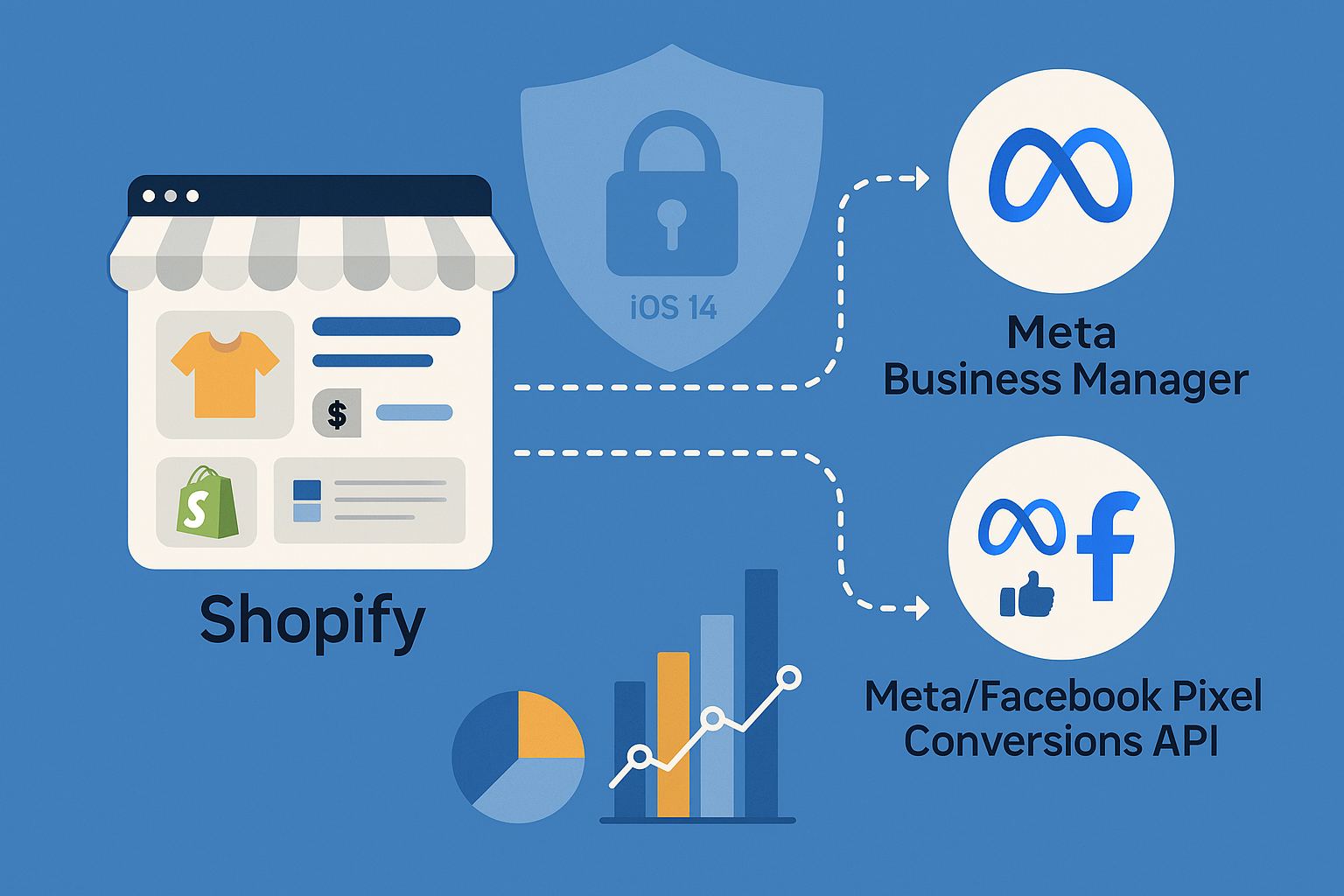
In the wake of iOS 14's privacy updates, many Shopify store owners have struggled with accurate purchase tracking on Meta platforms. This guide will walk you through setting up the Meta Conversions API (CAPI) on Shopify, providing a robust solution to these tracking challenges.
Quick Summary
The iOS 14 update significantly impacted the ability of Meta to track user activities due to enhanced privacy settings. The Meta Conversions API (CAPI) offers a reliable alternative to traditional tracking methods by sending events directly from your server. This blog post explores how to set up CAPI on Shopify using various methods, including native integration, Google Tag Manager (GTM) server-side, and Shopify apps, while also addressing deduplication and testing in Events Manager.
Understanding the Impact of iOS 14 on Meta Tracking
With the release of iOS 14, Apple introduced App Tracking Transparency (ATT), requiring apps to get user permission to track their activities across other apps and websites. This change severely impacted Meta's ability to track and attribute user actions, such as purchases, which are crucial for effective ad targeting and performance measurement.
Previously, the Meta Pixel handled tracking, but due to the new privacy settings, its efficacy has diminished. Thus, the need for alternative solutions like the Meta Conversions API has become more apparent.
What is Meta Conversions API (CAPI)?
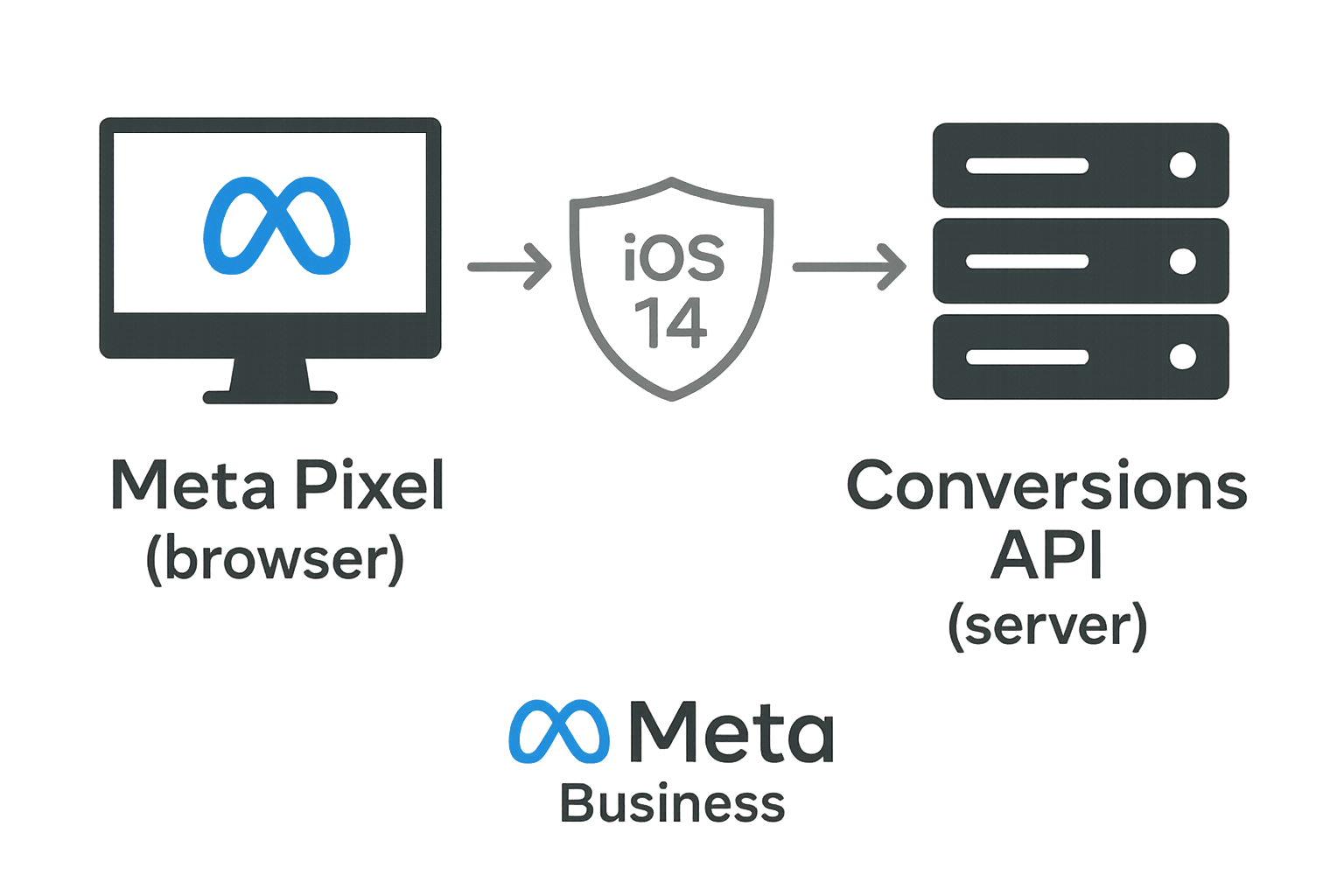
The Meta Conversions API is a solution designed to improve data accuracy by allowing businesses to share data directly from their server to Meta's servers. Unlike the Pixel, which tracks user actions through the browser, CAPI facilitates server-to-server communication, ensuring data integrity and reliability.
By using CAPI in conjunction with the Pixel, businesses can establish a redundant setup that enhances data accuracy and robustness, countering the limitations introduced by iOS 14.
How CAPI Works Alongside the Pixel
When used together, the Meta Pixel and CAPI can track the same events, ensuring that no data is lost due to browser restrictions or ad blockers. This redundant setup helps in deduplication, ensuring that events are not double-counted, thus maintaining accurate data reporting.
Setting Up Meta Conversions API on Shopify
There are several methods to set up the Meta Conversions API on Shopify. Below, we'll explore three primary methods: native integration, GTM server-side, and using a Shopify app.
Native Integration
- Log into your Shopify account and navigate to the Sales Channels section.
- Click on Facebook and ensure your store is connected to your Facebook account.
- Once connected, navigate to the Data Sharing Settings.
- Select the maximum data sharing level (preferably Maximum) to enable server-side tracking.
- Save your settings to activate the CAPI setup.
This native integration is straightforward, but it may not offer the flexibility and customization that more advanced users may require.
Google Tag Manager Server-Side Setup
Using GTM server-side offers more control and customization for advanced tracking needs. Here's how to set it up:
- Set up a GTM server-side container. Refer to our Server-Side Tracking Explained in Plain English for detailed instructions.
- Configure the server-side container to forward events to Meta's servers.
- Integrate your Shopify store with the GTM setup by adding necessary tags and triggers.
- Test your setup using the Google Tag Manager setup service to ensure data accuracy.
This method is ideal for those looking to leverage the full capability of server-side tracking for precise Google Ads conversion tracking and other analytics needs.
Using a Shopify App
Several third-party apps offer seamless integration with Meta CAPI. These apps usually provide an easy interface to configure and manage your CAPI setup without technical expertise.
- Visit the Shopify App Store and search for a Conversions API app.
- Install the app and follow on-screen instructions to link it to your Meta account.
- Configure the events you wish to track and ensure deduplication settings are enabled.
- Test the setup to verify that events are being transmitted correctly.
This method is user-friendly and requires minimal technical knowledge, making it suitable for small business owners and beginners.
Deduplication and Testing in Events Manager
Deduplication is crucial to ensure that the same event is not reported twice, which could distort your analytics data. Meta provides a mechanism to handle this by matching event IDs from both the Pixel and CAPI, ensuring accurate attribution.
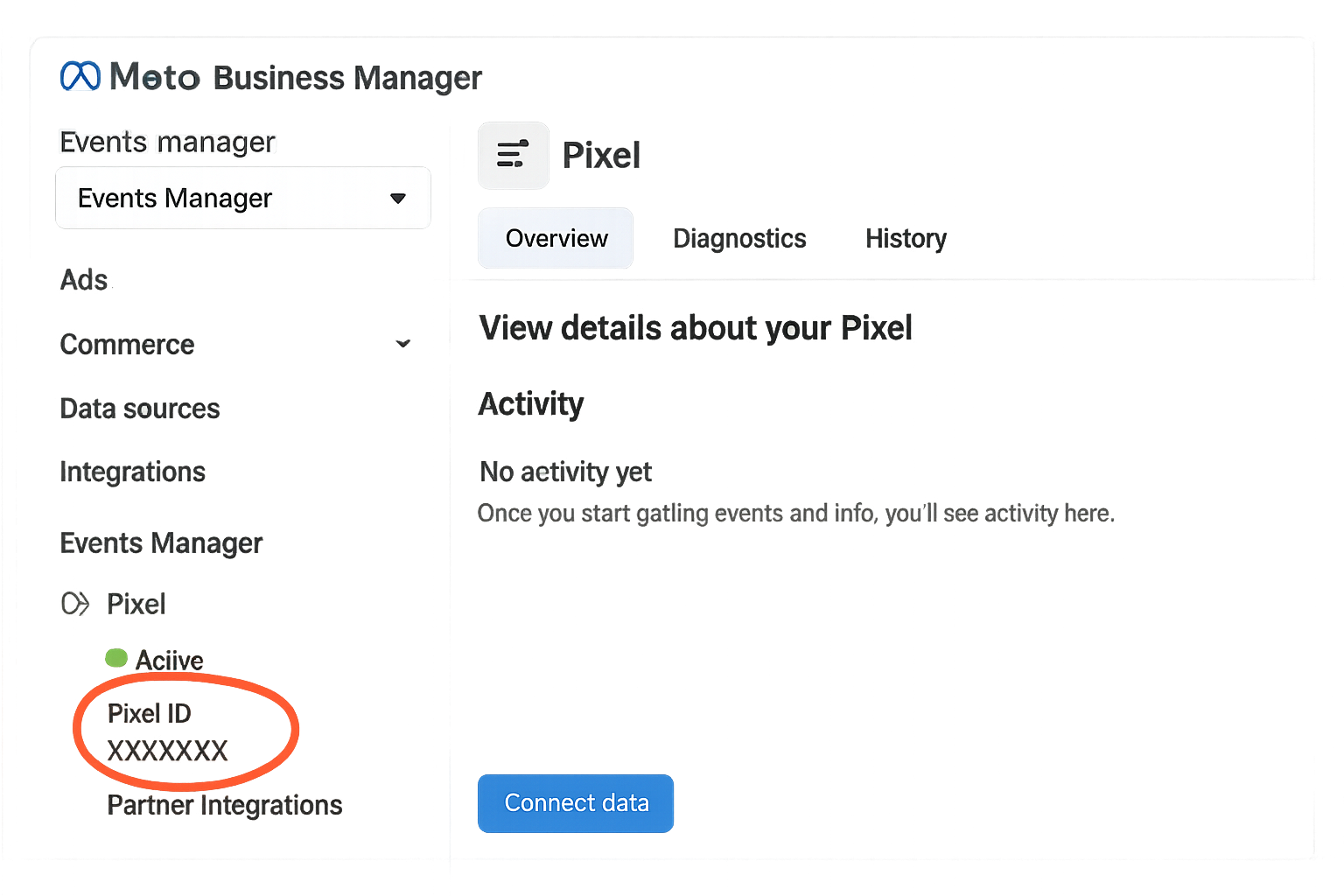
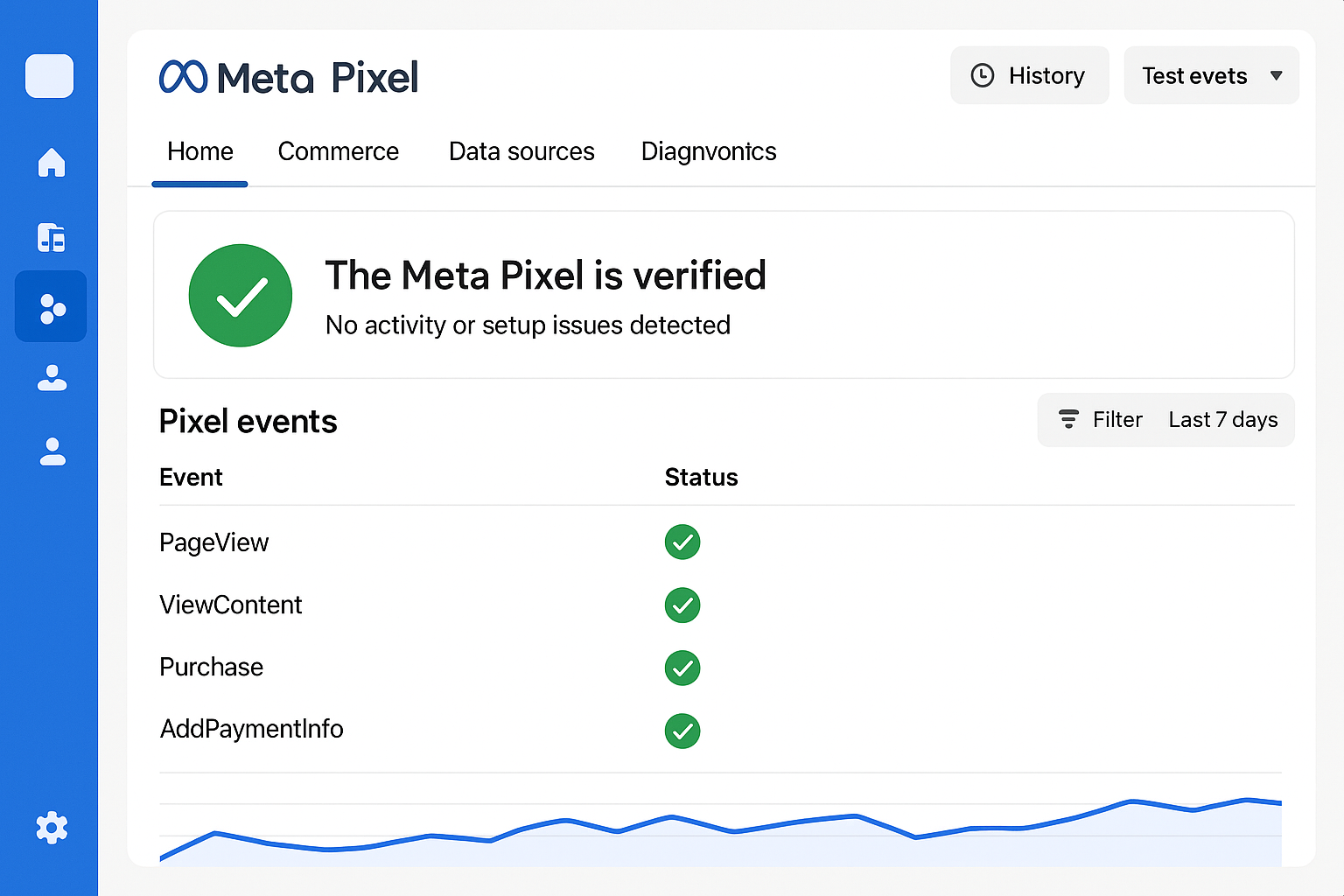
Once your setup is complete, use Meta's Events Manager to test your configurations. The Events Manager allows you to view real-time data, ensuring that both Pixel and server events are being tracked as expected.
Expected Improvement in Attribution
By implementing Meta CAPI, you can expect a significant improvement in data accuracy and attribution. This improvement is due to the API's ability to overcome the limitations of browser-based tracking, providing a more comprehensive view of user activities.
Ultimately, a well-implemented CAPI setup will enable better ad targeting and performance measurement, thereby enhancing your marketing ROI.
FAQ
- What did iOS 14 change about Meta tracking?
iOS 14 introduced App Tracking Transparency, reducing the effectiveness of browser-based tracking by requiring explicit user consent for data collection.
- Why should I use Meta CAPI?
Meta CAPI allows you to bypass browser restrictions by sending data directly from your server, ensuring more accurate tracking and attribution.
- Can I use Meta CAPI without the Pixel?
While you can use CAPI alone, it's recommended to use it alongside the Pixel for redundancy and data verification.
- How does deduplication work?
Deduplication involves matching event IDs from both the Pixel and CAPI to ensure the same event isn't counted twice.
- What are the benefits of using GTM server-side for CAPI?
GTM server-side offers greater control and flexibility, allowing for more sophisticated tracking setups and integrations.
Conclusion
Setting up the Meta Conversions API on Shopify is essential for overcoming the tracking challenges posed by iOS 14. Whether you choose native integration, GTM server-side, or a Shopify app, each method has its advantages. Accurate tracking is crucial for effective marketing strategies, and implementing CAPI ensures you stay ahead of the curve.
If you need assistance with setting up Meta CAPI or any other digital analytics needs, don't hesitate to contact Adslytics for expert guidance and support.
Need expert tracking setup?
Our Google Tag Manager experts have delivered 500+ tracking setups with a 98% success rate.
Get a Free Consultation →