A Setting That Silently Wrecks Bidding Performance
Most Google Ads accounts have multiple conversion actions defined — purchases, lead forms, phone calls, micro-conversions like pricing page visits. But many advertisers do not realise that only some of these conversions should be used to guide bidding, while others should be tracked for reporting only.
The primary vs secondary conversion distinction controls exactly this. Misconfiguring it means Smart Bidding optimises for the wrong signal — often with significant cost consequences. Proper setup is a core part of any solid Google Ads conversion tracking configuration.
What Is a Primary Conversion?
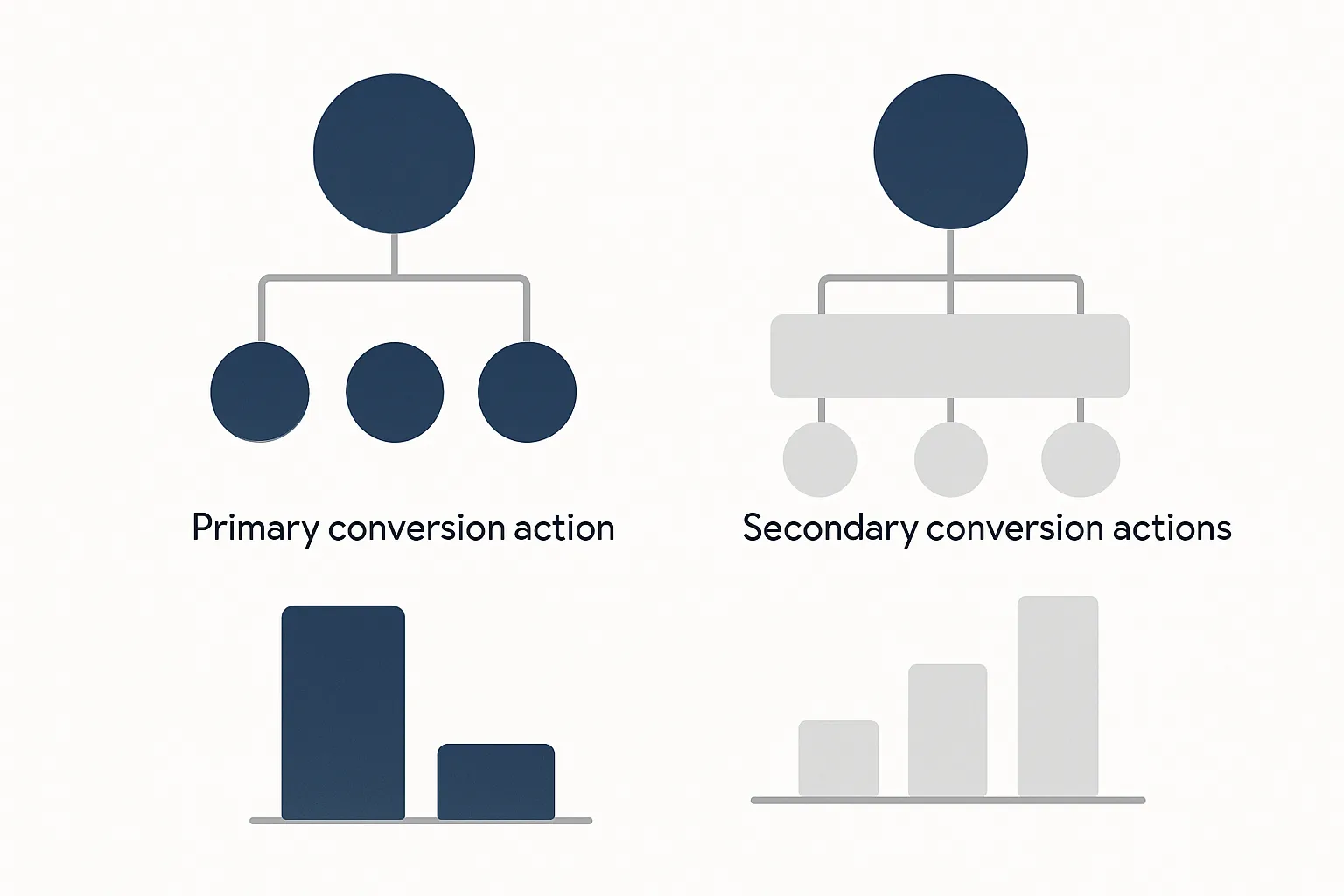
A primary conversion action is one that Smart Bidding uses when making bid decisions. It appears in the "Conversions" column in Google Ads reports and directly influences Target CPA, Target ROAS, and Maximize Conversions bidding.
Primary conversions should represent your most important business outcome — the action that actually defines success for the campaign. For an ecommerce store, that is a purchase. For a lead generation business, that is a qualified lead submission or a closed deal imported via offline conversion.
What Is a Secondary Conversion?
A secondary conversion action is tracked and reported (it appears in the "All conversions" column) but is NOT used by Smart Bidding to make bid decisions. It is purely for observation and reporting.
Secondary conversions are ideal for micro-conversions — actions that indicate interest or intent but do not directly represent business value:
- Pricing page visits
- Video views past 75 percent
- PDF downloads
- Chat widget opens
- Newsletter sign-ups (if not the primary goal)
- Add-to-cart events (if purchase is the primary goal)
Why This Distinction Matters for Smart Bidding
Smart Bidding uses a machine learning model trained on your conversion history. If you include micro-conversions like "pricing page visit" as primary conversions, the algorithm sees many more "conversions" and assumes the account is performing well. It bids confidently on queries that generate pricing page visits — which may or may not generate actual leads or sales.
The result: budget flows to high-volume but low-intent queries. CPA appears low (lots of pricing page visits are cheap) but actual leads or sales are expensive and scarce.
How to Set Primary vs Secondary Status
- In Google Ads: click Tools and Settings (wrench icon), then Measurement, then Conversions
- Click on a conversion action to open its settings
- Scroll to "Include in Conversions" setting
- Set to Yes for primary conversions (these appear in the Conversions column and influence bidding)
- Set to No for secondary conversions (these appear only in All Conversions — tracking only, no bidding influence)
You can also set this at the campaign level if you want different primary conversions for different campaigns — useful when running both brand and non-brand campaigns with different goals.
Campaign-Level Conversion Goal Overrides
Google Ads allows you to override the account-level conversion goal at the campaign level. This means you can have:
- Lead generation campaigns optimising for form submissions
- Brand awareness campaigns optimising for video views or site visits
- Retargeting campaigns optimising for purchases
- All in the same account, each with the right primary conversion for its goal
To set campaign-level goals: open the campaign settings, scroll to Conversions, and select "Choose conversion actions for this campaign" rather than using account defaults.
The Right Configuration for Common Scenarios
Lead Generation Business
- Primary: Contact form submission, Phone call (30+ second duration), Offline deal close (if uploading to Google Ads)
- Secondary: Pricing page visit, Resource download, Chat widget open
Ecommerce Store
- Primary: Purchase (with dynamic transaction value)
- Secondary: Add to cart, Checkout initiated, Product page view
SaaS / Free Trial Business
- Primary: Free trial sign-up or demo request
- Secondary: Pricing page visit, Feature page visit, Blog article read (high-intent topics)
Reading the Conversion Columns in Reports
Understanding the columns once you have configured primary and secondary correctly:
- Conversions: counts only primary conversion actions. This is what Smart Bidding sees. Use this for performance reporting.
- All Conversions: counts both primary and secondary. Use this to monitor micro-conversions and funnel health without letting them influence bidding.
- All Conv. Value: total value from both primary and secondary (if values are assigned to secondary too).
If your "Conversions" and "All Conversions" columns show the same number, you likely have no secondary conversions configured — everything is primary. If the numbers are very different, check whether any high-volume micro-conversions are accidentally set as primary.
Common Mistakes
- Setting micro-conversions as primary: the most common error. Pricing page visits, scroll depth events, and video views do not represent business value. Keep them as secondary.
- Setting GA4 imported events as primary without checking what they are: when you import GA4 events into Google Ads, they default to primary. Review each imported event and set the appropriate status.
- Having no secondary conversions at all: you miss valuable funnel data. Set up at least one or two micro-conversions as secondary for audience building and reporting.
- Mixing primary and secondary for the same campaign type: if a campaign optimises for lead forms, do not also have phone calls set as primary unless you want the algorithm to treat them equally.
Summary
Primary conversions drive Smart Bidding decisions — they should be your most valuable, most reliable signals. Secondary conversions provide visibility into the broader funnel without polluting the bidding algorithm.
Review your conversion action settings today. Check every action listed under Tools and Settings then Conversions and make a deliberate decision about whether each one should be primary or secondary. This single configuration change can dramatically improve Smart Bidding performance on accounts where it has been misconfigured.
See also our Google Ads Conversion Tracking service for a complete setup and audit, and our Conversion Tracking Fix and Debugging service if you suspect existing issues.
Need help auditing and fixing your conversion action configuration? Contact Adslytics.
Need expert tracking setup?
Our Google Tag Manager experts have delivered 500+ tracking setups with a 98% success rate.
Get a Free Consultation →