Why Regular Audits Are Non-Negotiable
Conversion tracking breaks silently. A site update removes the thank-you page. A plugin conflict causes a double-fire. A developer adds a redirect that strips URL parameters. None of these produce error messages in Google Ads — they just silently corrupt your data until someone runs a proper audit.
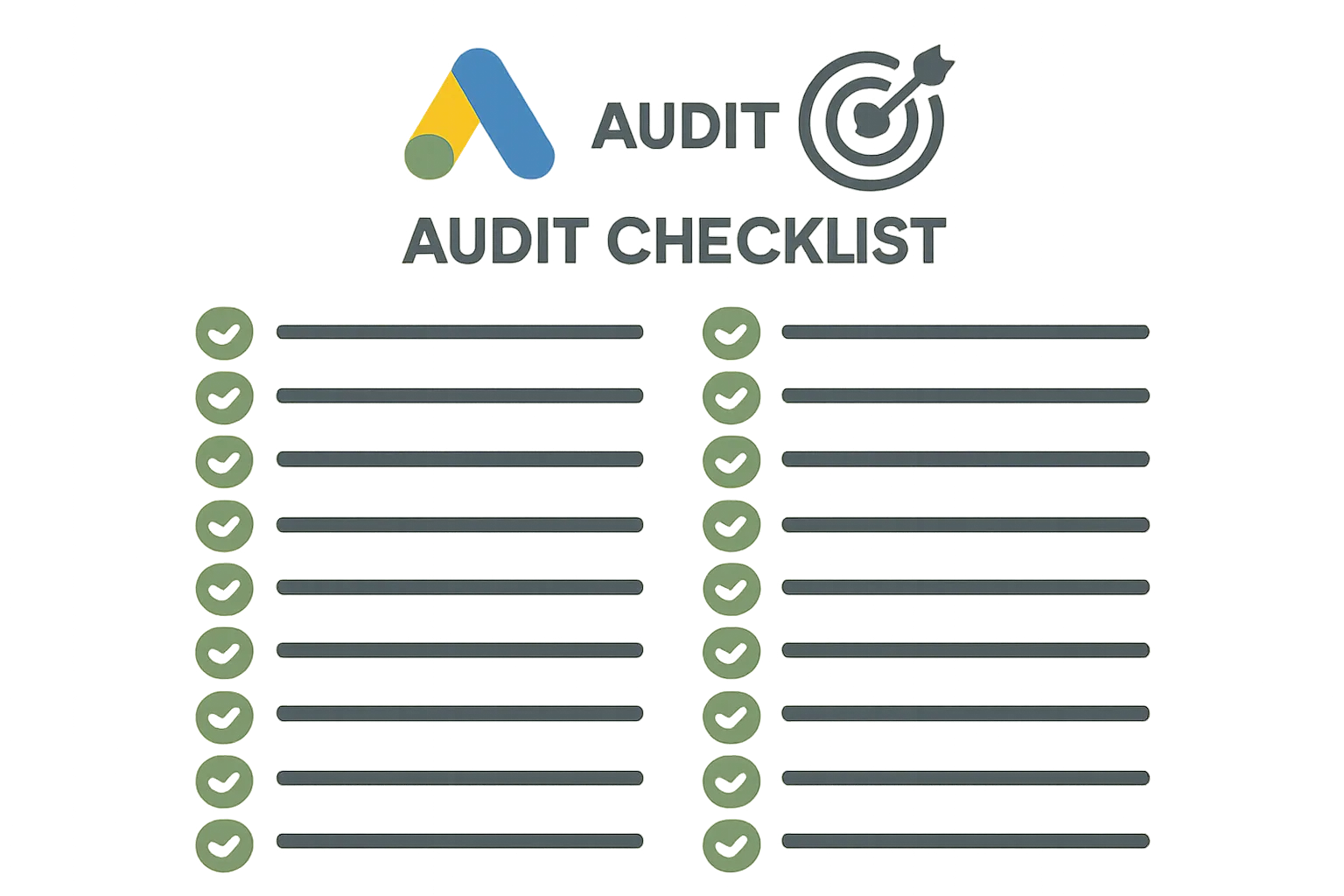
This 25-point checklist covers every layer of a professional Google Ads conversion tracking audit. Run it quarterly, after every major site change, and after any significant performance shift.
Tag and Firing Checks (1–8)
- Tags firing correctly: use GTM Preview or Google Tag Assistant to confirm each conversion tag fires on the correct page/event — not before, not after.
- Tags NOT firing incorrectly: confirm conversion tags do NOT fire on non-conversion pages (homepage, product pages, category pages).
- Single firing per conversion: complete one test conversion and verify the tag fires exactly once — not zero times, not twice.
- Thank-you page accessible without form submit: directly visit your thank-you URL — confirm no conversion fires unless a form was actually submitted.
- Correct Conversion ID and Label: check the Conversion ID and Label in your GTM tag matches exactly what is in Google Ads (Tools and Settings then Conversions then tag setup).
- Auto-tagging enabled: in Google Ads account settings, confirm auto-tagging is ON. Without it, GCLID is never appended and attribution fails.
- GCLID preserved through redirects: click a real ad and check the landing page URL. The gclid= parameter should be present in the final URL after all redirects.
- No BOM or script loading errors: check browser console for JavaScript errors on conversion pages. Any error above the conversion tag can prevent it from executing.
Conversion Action Configuration (9–15)
- Primary vs secondary correct: verify each conversion action's "Include in Conversions" setting. Micro-conversions should be secondary (No). Revenue-driving conversions should be primary (Yes).
- Conversion counting correct: lead forms should use "One" counting. Ecommerce purchases may use "Every" only if the same customer making multiple purchases should each count.
- Conversion window appropriate: confirm the click-through conversion window matches your actual sales cycle (7 days for impulse, 30 for typical, 90 for B2B).
- Attribution model set correctly: check all active conversion actions show "Data-driven" or a chosen attribution model. "Last click (insufficient data)" indicates too few conversions to qualify for DDA.
- No duplicate conversion actions: check for two or more conversion actions measuring the same underlying event (e.g. both a direct tag and a GA4 import for "Purchase").
- Conversion value correct: for ecommerce, confirm the conversion value is dynamic and accurate. Check a recent conversion in the conversion path report and compare to your actual order value.
- Order ID / transaction ID present: for ecommerce, confirm the Order ID field is populated in your conversion tag. This is essential for deduplication.
Enhanced Conversions (16–18)
- Enhanced conversions enabled: check Tools and Settings then Conversions then your conversion action then Enhanced conversions. Toggle should be on.
- Hashed data being sent: in GTM Preview or Tag Assistant, after a test conversion, confirm the Google Ads tag is sending an "em" parameter (hashed email). Its value should be a 64-character hex string.
- User data variable configured: in GTM, confirm the User Provided Data variable is correctly mapping to email (and optionally phone, first name, last name) from your data layer or form field.
Attribution and Cross-Domain (19–21)
- Cross-domain linker configured: if users journey across multiple domains before converting, confirm the Google tag linker is configured with all relevant domains.
- _gl parameter present on cross-domain links: click a link from domain A to domain B and confirm _gl= appears in the destination URL.
- Offline conversion uploads current: if you use offline conversion imports (CRM data, store visits), confirm the last upload was within the past 30 days and processed without errors.
Bidding and Reporting (22–25)
- Conversion data matches reality: compare last month's Google Ads conversion count to actual leads or sales from your CRM or payment processor. A ratio above 1.3x suggests duplicates; below 0.7x suggests missing conversions.
- Smart Bidding strategy appropriate: confirm campaigns with sufficient conversion data use Target CPA or Target ROAS rather than Maximize Clicks or Manual CPC.
- Conversion goals at campaign level correct: if any campaigns use campaign-level conversion goal overrides, confirm the correct conversion actions are assigned.
- No stale or inactive conversion actions in primary position: check for old or test conversion actions that are still set as primary. Remove or set to secondary any obsolete conversion actions.
Summary
This 25-point checklist covers the full range of conversion tracking issues we encounter in professional audits. Most accounts have at least 3-5 items that need attention. Run this audit quarterly and after any significant site or campaign change.
For a professional audit performed by our team, see our Conversion Tracking Fix and Debugging service or our Google Ads Conversion Tracking service.
Want us to run this audit for your account? Contact Adslytics.
Need expert tracking setup?
Our Google Tag Manager experts have delivered 500+ tracking setups with a 98% success rate.
Get a Free Consultation →