Why Testing Before Launch Is Non-Negotiable
Launching a Google Ads campaign with broken conversion tracking is like running a race blindfolded. You are spending budget, the algorithm is trying to optimise — but without accurate conversion data, Smart Bidding has nothing to learn from, and you have no way to know what is working.
Worse, a silent tracking failure can cost thousands before anyone notices. The conversion column shows zero, the account manager assumes the campaigns are new and just need time, and the budget keeps flowing.
Testing Google Ads conversion tracking before launch takes 30 to 60 minutes. It saves weeks of wasted spend and corrupted data.
The Five-Tool Testing Stack
You will use these tools during verification:
- GTM Preview Mode: tests tag firing in your Google Tag Manager container before publishing
- Google Tag Assistant (Chrome Extension): verifies tags on live pages, shows what fired and any errors
- Google Tag Assistant Legacy: shows the exact data sent in each tag hit (useful for checking conversion values)
- Google Ads Conversion Status: shows whether Google has received conversion data for each conversion action
- GA4 DebugView: verifies events if you are using GA4 import for conversions
Step 1: Test in GTM Preview Mode (Before Publishing)
Before publishing any GTM container change, always preview it first.
- In GTM: click Preview (the button in the top right)
- Enter your website URL and click Connect
- A new browser tab opens with your website, and the GTM Debug panel appears at the bottom
- Navigate through the exact conversion flow you want to test (e.g. fill out and submit the contact form, or complete a test purchase)
- In the GTM Debug panel, check the summary view and find the event that should trigger your conversion tag (e.g. form_submission_confirmed or purchase)
- Click on that event and check the Tags tab — your Google Ads Conversion Tracking tag should appear under "Tags Fired"
- Click the tag name and check the output values: Conversion ID, Conversion Label, Conversion Value, Order ID (if applicable), and User Provided Data (if enhanced conversions are enabled)
What to check:
- The tag fires exactly once per conversion (not twice, not zero)
- The Conversion ID matches what is in your Google Ads conversion action settings
- The Conversion Label matches exactly (it is case-sensitive)
- The Conversion Value is correct and is a number (not undefined or null)
- The Order ID is present and unique (for ecommerce)
Step 2: Check That the Tag Does NOT Fire Incorrectly
Equally important: verify the tag does NOT fire when it should not.
- Load your homepage — the conversion tag should not fire
- Load a product or service page — conversion tag should not fire
- Navigate directly to the thank-you page URL without submitting the form — if the tag fires, you need server-side protection on the thank-you page
- Submit the form with invalid data and trigger a validation error — the tag should not fire
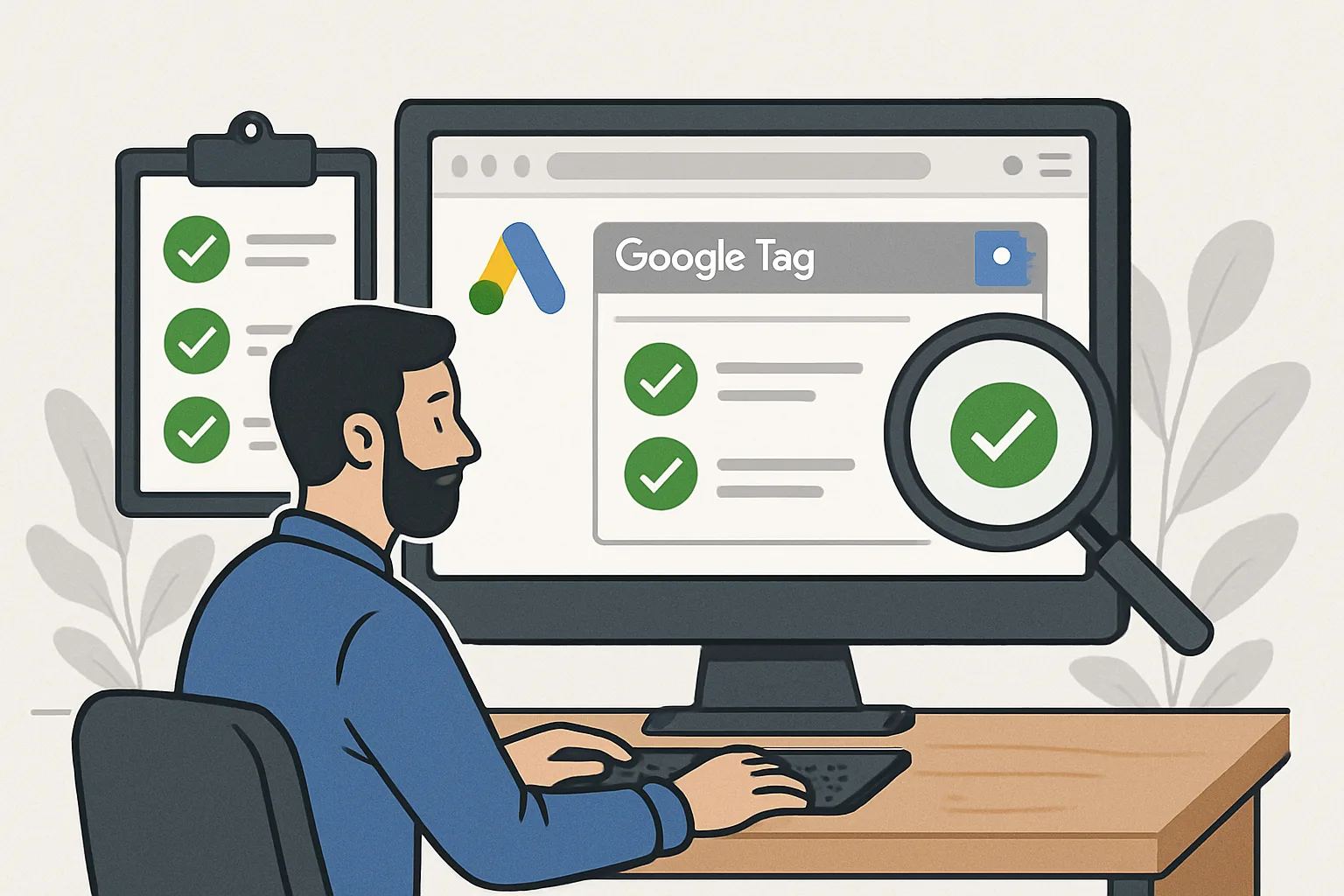
Step 3: Verify on Live Pages with Google Tag Assistant
After publishing the GTM container, verify on live pages:
- Install the Google Tag Assistant Chrome extension
- Click the extension icon and enable recording
- Navigate to your landing page and complete the full conversion flow (real form submission or test purchase)
- Click the extension icon again to see all tags that fired during your session
- Look for your Google Ads Conversion Tracking tag — it should appear with a green status
- Click the tag to see the full hit details: verify Conversion ID, Label, and Value are correct
Red status icons in Tag Assistant indicate errors. Common ones include: tag not found (script blocked), conversion ID mismatch, or missing value.
Step 4: Verify the Conversion Data in Google Ads
After your test conversion fires, Google takes 24 to 48 hours to process and show it in the interface. However, you can check the conversion action status sooner:
- In Google Ads: Tools and Settings then Conversions
- Find your conversion action in the list
- Check the Status column:
- Recording conversions: tag has fired and data is being received. Good.
- No recent conversions: tag has not fired recently. May be normal for low-volume sites, or indicates a problem.
- Unverified: tag has never fired, or there is a configuration problem.
- Tag inactive: the tag is no longer sending hits. Usually means it was removed from the site.
After a live test conversion, the status should change from Unverified to Recording conversions within 24 to 48 hours.
Step 5: Check for Enhanced Conversion Data
If you have enhanced conversions enabled, verify the hashed customer data is being sent:
- In Google Tag Assistant, after your test conversion, click on the Google Ads Conversion tag hit
- Look for an "em" parameter in the hit data — this is the hashed email
- The value should be a 64-character hex string (SHA-256 hash), not a plain email address
- If em is missing or is a plain email, your enhanced conversion configuration needs fixing
Step 6: Confirm No Duplicate Tags
- In GTM Preview Mode, complete a single conversion
- Check the Tags Fired section — count how many times your Google Ads Conversion Tracking tag appears
- It should appear exactly once. If it appears twice, you have a duplicate tag or overlapping triggers.
- Also check whether any other tags are sending data to the same Conversion ID and Label (possible with multiple tag templates)
Pre-Launch Checklist
| Check | How to Verify | Expected Result |
|---|---|---|
| Tag fires on conversion page | GTM Preview | Tag appears in Tags Fired |
| Tag does NOT fire on other pages | GTM Preview | Tag absent in Tags Fired |
| Conversion ID is correct | GTM Preview or Tag Assistant | Matches Google Ads account |
| Conversion Label is correct | GTM Preview or Tag Assistant | Exact match (case-sensitive) |
| Conversion value is correct | GTM Preview | Correct number, not null |
| Order ID is present | GTM Preview | Unique string per transaction |
| Tag fires only once | GTM Preview | One tag fire, not two |
| Enhanced conversions data present | Tag Assistant hit details | em parameter is 64-char hex |
| Conversion status in Google Ads | Google Ads Conversions page | Recording conversions |
| No duplicate conversion actions | Google Ads Conversions page | One action per event type |
What to Do If Something Fails
If the tag is not firing: check the GTM trigger configuration — is the trigger type correct? Does the condition match the actual page URL or event name?
If the Conversion ID is wrong: go to Google Ads, find the correct conversion action, and copy the ID from the tag setup page. Update the GTM tag.
If the value shows as null or 0: check your Data Layer Variable configuration. Verify the data layer is actually pushing the value before the conversion tag fires.
If the tag fires twice: look for duplicate tags in GTM or a conflict with another Google Ads tag from a plugin or external script. See our guide on fixing duplicate conversions.
Summary
A thorough pre-launch conversion tracking test takes under an hour and prevents weeks of wasted spend and bad data. Use GTM Preview for initial testing, Google Tag Assistant for live verification, and the Google Ads conversion status page to confirm data is flowing.
Never launch a campaign and assume the tracking is working. Always verify — every time.
For professional tracking setup and verification, see our Google Ads Conversion Tracking service and our Conversion Tracking Fix and Debugging service.
Want your conversion tracking verified by experts before launch? Contact Adslytics.
Need expert tracking setup?
Our Google Tag Manager experts have delivered 500+ tracking setups with a 98% success rate.
Get a Free Consultation →