Why CRM Integration Is the Most Valuable Tracking Upgrade
If your business generates leads online and closes them offline, you have a fundamental measurement problem. Google Ads only sees the leads. Your CRM sees the closed customers. Without a connection between them, Smart Bidding optimises for the wrong thing — lead volume instead of revenue.
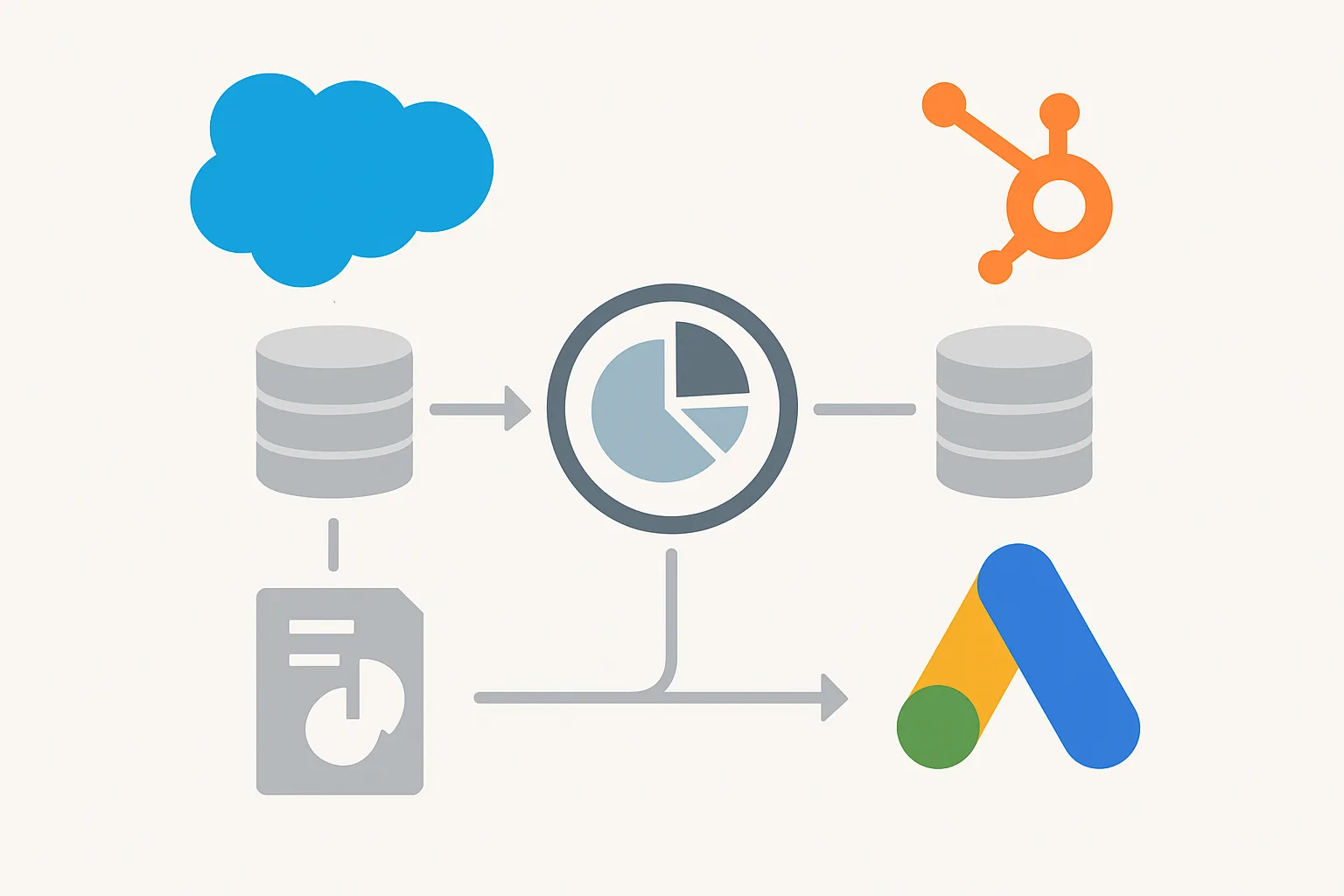
Importing your CRM data into Google Ads as offline conversions bridges this gap. It is the most impactful upgrade available for B2B and service businesses running Google Ads conversion tracking — and both Salesforce and HubSpot have well-documented integration paths.
The Core Concept: GCLID as the Bridge
Every Google Ad click generates a unique Google Click ID (GCLID) that is appended to the landing page URL. When a user submits a lead form, you capture this GCLID and store it alongside their contact record in your CRM.
When the lead closes as a customer, you upload a file to Google Ads that includes the GCLID and the deal value. Google attributes that closed deal back to the exact ad click, keyword, and campaign that generated the lead.
This is what enables Smart Bidding to optimise for real revenue — not just lead form submissions.
Step 1: Capture the GCLID on Your Lead Forms
Before integrating your CRM, you need to capture the GCLID from the URL when a lead submits a form.
Universal Method: Hidden Form Field
Add a hidden form field named gclid to every lead form on your site. Use JavaScript to populate it from the URL parameter:
<input type="hidden" name="gclid" id="gclid_field">
<script>
var gclid = new URLSearchParams(window.location.search).get("gclid");
if (gclid) {
    document.getElementById("gclid_field").value = gclid;
    // Also store in localStorage as backup
    localStorage.setItem("gclid", gclid);
}
// Restore from localStorage if URL parameter is gone (multi-step forms)
if (!gclid) {
    var stored = localStorage.getItem("gclid");
    if (stored) document.getElementById("gclid_field").value = stored;
}
</script>
The localStorage backup handles multi-step forms where the GCLID may be in the URL on page 1 but not on the final submission page.
HubSpot Integration
Method A: Native Google Ads Integration (Recommended)
HubSpot has a built-in Google Ads integration that automatically captures the GCLID for HubSpot form submissions.
- In HubSpot: go to Marketing then Ads
- Connect your Google Ads account
- HubSpot automatically creates a hidden GCLID property on all contacts (Google Ads Original Source Drill-Down 2)
- When a visitor submits a HubSpot form after clicking a Google Ad, the GCLID is stored on their contact record automatically
This method requires HubSpot forms. If you use a third-party form builder, use the hidden field method instead.
Setting Up the Offline Conversion Upload from HubSpot
- In Google Ads: Tools and Settings then Conversions then New Conversion Action then Import then CRMs, files, or other data sources
- Name the conversion action appropriately (e.g. "HubSpot - Qualified Lead" or "HubSpot - Closed Won")
- Set the conversion window to match your sales cycle (90 days for most B2B)
- In HubSpot: create a workflow that triggers when a deal stage changes to "Closed Won"
- The workflow action: use the Google Ads integration to upload the conversion, passing the contact GCLID and deal amount
HubSpot Pro and Enterprise tiers have a native Google Ads offline conversion sync in the Ads integration settings. Enable it and map your deal stages to Google Ads conversion actions.
Salesforce Integration
Method A: Salesforce Google Ads Connector (Recommended)
The official Google Ads Salesforce connector is available in the Salesforce AppExchange. It syncs Google Ads offline conversions directly from your Salesforce opportunities.
- Install the Google Ads for Salesforce package from the AppExchange
- In Google Ads: connect Salesforce under Tools and Settings then Conversions then Data Sources
- Create a custom Salesforce field on Lead (GCLID__c) to store the Google Click ID
- Update your web forms to populate this field using the hidden form field method
- Map Salesforce opportunity stages to Google Ads conversion actions
- The connector automatically syncs closed opportunities to Google Ads as offline conversions
Method B: Manual CSV Upload
If you cannot use the native connector, export from Salesforce and upload manually:
- In Salesforce: create a report showing closed opportunities with the GCLID field, close date, and amount
- Export as CSV
- Format the CSV to match Google Ads requirements:
Parameters:TimeZone=+0000
Google Click Id,Conversion Name,Conversion Time,Conversion Value,Conversion Currency
Cj0KCQiA...,SF Closed Won,2026-07-15 10:00:00,15000,GBP- In Google Ads: Tools and Settings then Conversions then select your offline conversion action then Uploads then Upload file
- Review the upload summary — successful rows will show as processed, error rows will show the specific issue
What Happens When GCLID Is Missing
Some leads will not have a GCLID captured — they arrived via direct, organic, or referral traffic rather than a Google Ad click. For these, no attribution to Google Ads is possible, and that is correct — they should not appear in your offline conversion data.
If your GCLID capture rate is below 60 percent of all leads, investigate:
- Are your landing pages stripping URL parameters?
- Is auto-tagging enabled in your Google Ads account?
- Are multi-step form users losing the GCLID between steps?
For maximum GCLID recovery, also implement Enhanced Conversions for Leads — this uses hashed email matching to recover attribution even when the GCLID cookie is lost.
Timing Your Uploads
Offline conversions must be uploaded within the conversion window of the original click. If your conversion window is 90 days and a deal closes on day 95, it cannot be attributed.
Best practice: upload closed deals within 30 days of closing, and run the upload at least weekly. Most CRM integrations can automate this on a daily or real-time basis.
Using Offline Conversion Data in Smart Bidding
Once your offline conversions are flowing reliably:
- Set your primary conversion action to the offline closed deal conversion
- Use Target CPA bidding with your acceptable cost per closed deal as the target
- Once you have 50 or more closed deal conversions tracked, switch to Target ROAS using actual deal values
Smart Bidding will learn which campaigns, keywords, and audiences generate actual customers — not just form fills — and allocate budget accordingly.
Summary
Salesforce and HubSpot both offer robust paths for importing leads and closed deals into Google Ads as offline conversions. The key prerequisites are GCLID capture on your forms, a clean CRM field to store it, and a reliable upload process.
Once this is set up, your Google Ads Smart Bidding stops optimising for vanity metrics and starts optimising for the deals that actually matter.
For hands-on help connecting your CRM to Google Ads, see our Google Ads Conversion Tracking service or our Conversion Tracking Fix and Debugging service.
Ready to connect your CRM to Google Ads? Get in touch with Adslytics.
Need expert tracking setup?
Our Google Tag Manager experts have delivered 500+ tracking setups with a 98% success rate.
Get a Free Consultation →