How to Create UTM Links and Build UTM Tracking URLs
Understanding how to create UTM links and build UTM tracking URLs is an essential skill in digital marketing. These tracking parameters help you determine the effectiveness of your marketing campaigns, providing critical insights into where your traffic is coming from and how it behaves once it reaches your website.
Quick Summary
UTM parameters are tags added to a URL, enabling you to track the performance of campaigns across different marketing channels. They consist of five main parameters: source, medium, campaign, term, and content. This post will guide you through the process of creating UTM links using Google's URL Builder and manually, discuss naming conventions, and show you how to interpret UTM data in Google Analytics 4 (GA4). We'll also cover common mistakes and how to avoid them.
What are UTM Parameters and Why Do They Matter?
UTM (Urchin Tracking Module) parameters are snippets of text added to the end of a URL. These parameters help marketers track the success of online campaigns across traffic sources and publishing media. By appending UTM parameters to your URLs, you can gather crucial data about where your website traffic comes from, which campaigns are driving traffic, and how visitors interact with your site.
The 5 UTM Parameters
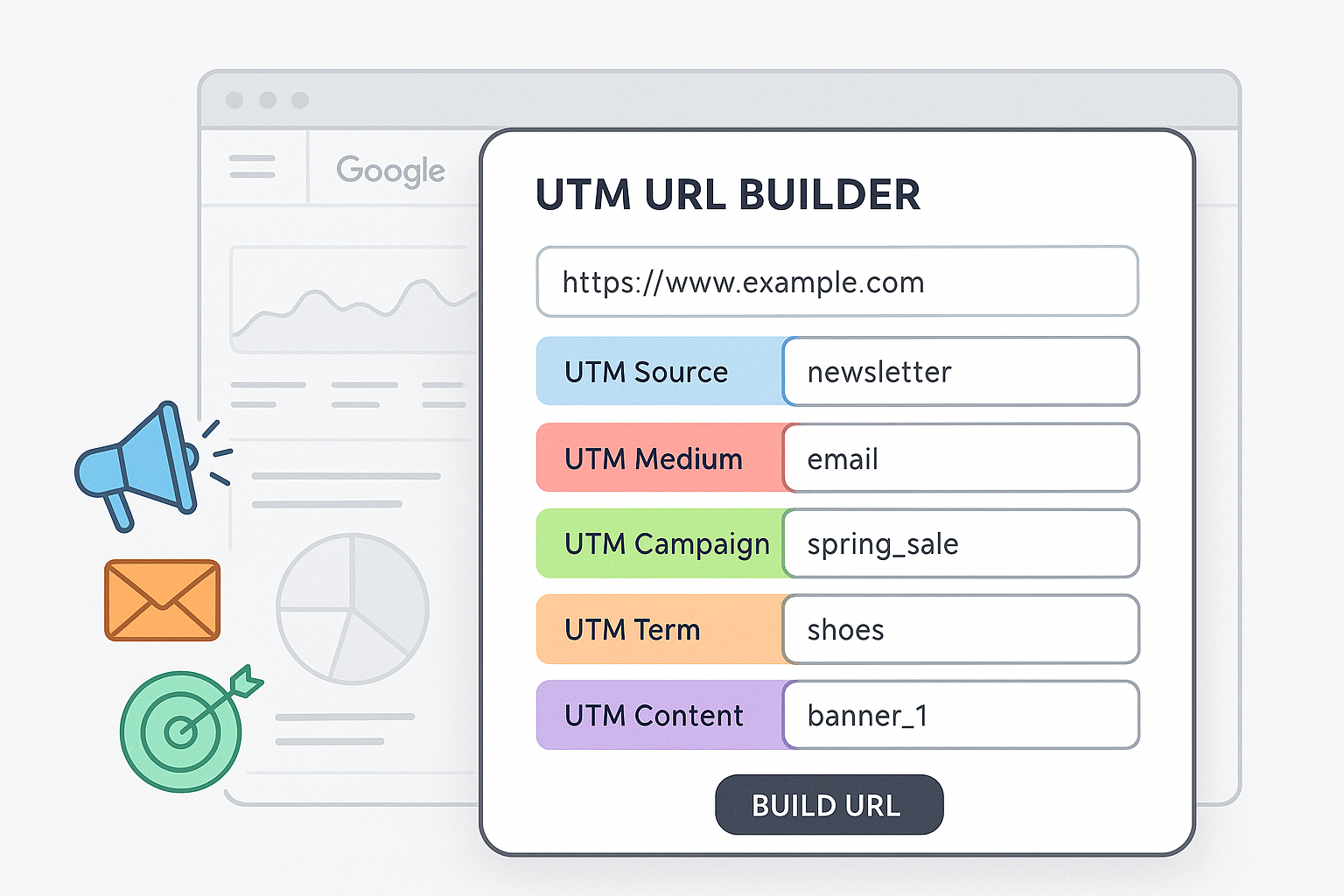
There are five main UTM parameters you can use:
- utm_source: Identifies the source of your traffic, such as a search engine (e.g., Google), newsletter, or another website.
- utm_medium: Describes the medium of the traffic, such as email, CPC, or social.
- utm_campaign: Refers to the specific campaign you are running, such as a product launch or a seasonal promotion.
- utm_term: Used for paid search to track specific keywords.
- utm_content: Differentiates similar content or links within the same ad. Useful in A/B testing and content-targeted ads.
Naming Convention Best Practices
Consistent naming conventions are crucial for maintaining clean and usable data. Here are some best practices:
- Use lowercase letters: UTM parameters are case-sensitive, so using lowercase ensures consistency.
- Be descriptive: Use clear and descriptive terms that you and your team will easily understand.
- Avoid spaces: Use underscores or hyphens instead of spaces to prevent encoding issues.
- Keep it simple: While being descriptive, try to keep your parameters concise.
How to Build UTM Links
Using Google's URL Builder
Google offers a handy tool called the Campaign URL Builder, which simplifies the process of creating UTM links. Here's how to use it:
- Visit the Campaign URL Builder tool.
- Enter the URL of your website in the "Website URL" field.
- Fill out the required UTM parameters: source, medium, and campaign.
- Optionally, add term and content parameters if needed.
- The tool will generate a URL with UTM parameters that you can copy and use in your campaigns.
Building UTM Links Manually
If you prefer to create UTM links manually, here’s how you can do it:
- Start with your website URL.
- Add a question mark (?) at the end of the URL, followed by your first UTM parameter.
- Separate each parameter with an ampersand (&).
- Ensure that each parameter is prefixed with "utm_" and includes an equal sign (=) before its value.
Example: https://www.yourwebsite.com/?utm_source=newsletter&utm_medium=email&utm_campaign=spring_sale
Using UTM Parameters Across Different Channels
UTM for Email Campaigns
For email marketing, use UTMs to track clicks from your newsletters and campaigns. Set the source to the name of the newsletter, the medium to "email," and the campaign to the specific email campaign.
UTM for Social Media
When sharing links on social media, use UTMs to differentiate between platforms and posts. For example, use "facebook" or "twitter" as the source, "social" as the medium, and a unique identifier for each post as the campaign.
UTM for Paid Ads
UTMs are invaluable for tracking paid advertising campaigns. Set the source to the ad platform (e.g., Google, Facebook), the medium to "cpc," and the campaign to the specific ad campaign name.
Reading UTM Data in GA4
Once your UTM links are being used, you can analyze the results in Google Analytics 4 through the Traffic Acquisition report. Follow these steps:
- Log in to your GA4 account.
- Navigate to "Reports" and then "Acquisition."
- Select "Traffic Acquisition" to view traffic sources, mediums, and campaigns.
- Use the available filters to drill down into specific UTM parameters and assess campaign performance.
For more detailed customization, consider leveraging our GA4 implementation services.
Common Mistakes and How to Avoid Them
- Overriding Organic Traffic: Do not use UTM parameters on internal links, as it can override organic traffic data.
- Case Sensitivity: Ensure consistency in parameter values to avoid data fragmentation due to case sensitivity.
- Incorrect Parameter Use: Always use the correct parameter names and avoid typos.
FAQ
What are UTM parameters?
UTM parameters are text fragments added to URLs that help track the effectiveness of online marketing campaigns by identifying the source, medium, campaign, term, and content of the traffic.
Why are UTM links important?
UTM links are crucial for tracking the performance of marketing campaigns, enabling marketers to understand where their traffic comes from and how different campaigns are performing.
Can I use UTM parameters for offline campaigns?
Yes, you can use UTM parameters in offline campaigns by incorporating them into QR codes or vanity URLs that redirect to the UTM-tagged URL.
What tools can I use to create UTM links?
You can use Google's Campaign URL Builder or create UTM links manually by appending the parameters to your URLs.
How do UTM parameters affect SEO?
UTM parameters do not affect SEO directly, but excessive use of them without canonical tags can lead to duplicate content issues. Always ensure proper use of canonical tags.
Conclusion
Creating UTM links and tracking URLs is a fundamental aspect of digital marketing analytics. By understanding and implementing UTM parameters, you can gain valuable insights into your campaign performance across various channels. For expert guidance and advanced analytics solutions, consider reaching out to Adslytics. Our Google Tag Manager setup and GA4 implementation services are designed to optimize your tracking capabilities. Contact Adslytics today to enhance your marketing analytics strategy.
Need expert tracking setup?
Our Google Tag Manager experts have delivered 500+ tracking setups with a 98% success rate.
Get a Free Consultation →