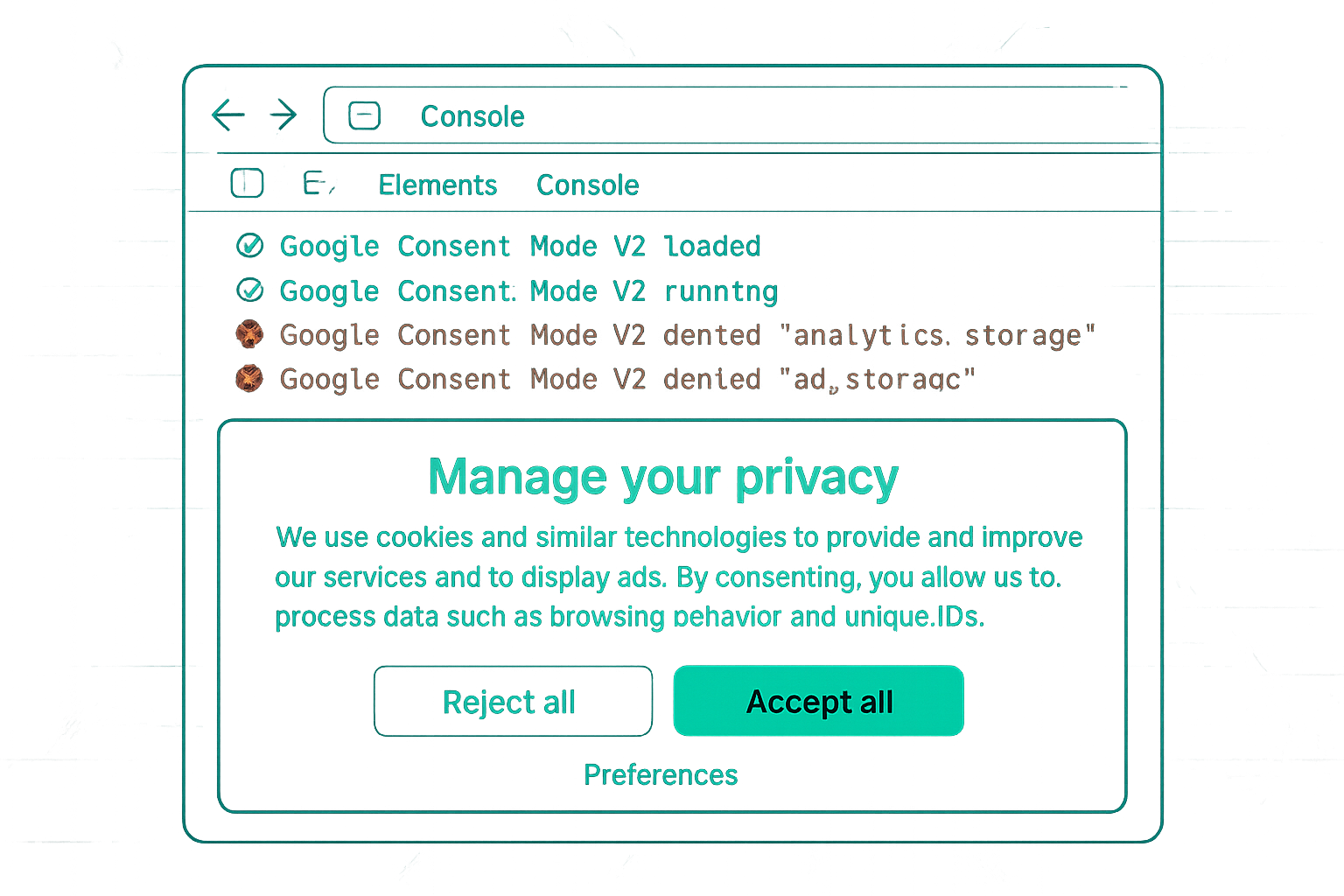
How to Check If Google Consent Mode v2 Is Enabled on Your Website
In the ever-evolving landscape of data privacy and digital marketing, Google Consent Mode v2 emerges as a crucial tool for businesses aiming to comply with regulations while maintaining effective marketing strategies. With the March 2024 deadline looming, it is imperative for website owners to ensure that Consent Mode v2 is properly implemented. This guide will walk you through the steps necessary to verify its activation on your site.
Quick Summary
Google Consent Mode v2 is essential for balancing privacy compliance with data-driven marketing efforts. This article covers:
- Understanding Consent Mode v2 and its significance.
- Checking Consent Mode v2 status using the browser console.
- Verifying through Google Tag Manager Preview mode.
- Utilizing CMP documentation for confirmation.
- Common issues and troubleshooting tips.
- Using Tag Assistant for additional verification.
What is Google Consent Mode v2 and Why It Matters
Google Consent Mode v2 is an enhanced version of the original Consent Mode that allows websites to adjust the behavior of Google tags based on the consent status of users. It helps businesses to comply with data protection regulations, such as GDPR, by respecting user consent for analytics and advertising cookies.
The upgrade to v2 is significant because it improves the flexibility and accuracy of consent management. By the March 2024 deadline, businesses must ensure that their implementations are updated to v2 to avoid compliance issues and to continue leveraging data for marketing purposes. For more detailed insights on how this integrates with other analytics systems, explore our Consent Mode v2 service.
How to Check Google Consent Mode v2 Using the Browser Console
Step-by-Step Guide
- Open your website in a browser like Chrome.
- Press F12 to open the Developer Tools, or right-click and select Inspect.
- Navigate to the Console tab.
- Type
window.dataLayerand press Enter. - Look for
consent_defaultevents. These events should contain signals that reflect the user's consent choices.
The presence of these events indicates that Consent Mode v2 is active and functioning. If these events are not present, further investigation is needed.
Using Google Tag Manager Preview Mode
Google Tag Manager is a powerful tool for managing tags and verifying implementations. To check Consent Mode v2:
Steps to Verify
- Access your GTM account and enter Preview mode.
- Trigger the Consent Initialization event. This can be done by refreshing the page while in Preview mode.
- Check whether the Consent Initialization trigger fires correctly.
If the trigger functions as expected, Consent Mode v2 is likely enabled. Any discrepancies here can indicate configuration issues.
Verifying with CMP Documentation
Consent Management Platforms (CMPs) often provide documentation on how to integrate with Google Consent Mode. To confirm activation:
- Consult your CMP's integration guide for specific instructions.
- Ensure that the signals for analytics_storage and ad_storage are configured as per the CMP's guidelines.
Correct implementation through the CMP is critical for ensuring that consent signals are accurately captured and communicated.
Common Issues and Troubleshooting
Missing ad_personalization Signal
This signal is crucial for personalizing ads based on consent. If missing:
- Revisit your CMP and GTM configurations.
- Ensure that the
ad_personalizationsignal is explicitly set.
Consent Granted by Default
Ensure that default consent is not assumed unless explicitly set by the user. This requires careful configuration in your CMP and GTM settings.
Using Tag Assistant for Verification
Google's Tag Assistant is another tool that can help verify the correct setup of Consent Mode v2:
- Install the Tag Assistant browser extension.
- Navigate to your site and activate the extension.
- Check for any alerts or errors related to consent modes.
Tag Assistant provides a visual representation of the tags and their responses, making it easier to identify issues.
FAQs About Google Consent Mode v2
1. What happens if Consent Mode v2 is not enabled by March 2024?
If not updated to v2 by the deadline, your site may not comply with privacy regulations, risking penalties and reduced marketing effectiveness.
2. How does Consent Mode v2 affect data collection?
It adjusts data collection based on user consent, ensuring compliance while still allowing for aggregated and anonymized data analysis.
3. Can I implement Consent Mode v2 without a CMP?
While possible, using a CMP simplifies compliance management and ensures accurate consent signal transmission.
4. Does Consent Mode v2 work with Google Analytics 4?
Yes, Consent Mode v2 integrates seamlessly with GA4 implementation, respecting user consent for data tracking.
5. How does Consent Mode v2 interact with third-party tags?
It provides consent signals to third-party tags, allowing them to adjust data collection based on the user's consent status.
Conclusion and Call to Action
Ensuring that Google Consent Mode v2 is properly implemented on your site is crucial for compliance and effective marketing. If you encounter any issues or need assistance with setup, our team at Adslytics is here to help. We offer comprehensive services, including Google Tag Manager setup, Server-Side Tracking, and more. For personalized support, don't hesitate to contact Adslytics today.
Need expert tracking setup?
Our Google Tag Manager experts have delivered 500+ tracking setups with a 98% success rate.
Get a Free Consultation →