When Your Conversions Are Too Good to Be True
You check Google Ads and the conversion count looks higher than expected. You cross-reference with your CRM — only half as many actual leads came in. You compare with your payment processor — actual sales are much lower than reported conversions.
Duplicate conversions are one of the most damaging silent problems in Google Ads. They inflate your reported performance, corrupt Smart Bidding's training data, and can lead you to scale campaigns that are actually underperforming — while cutting ones that are genuinely effective.
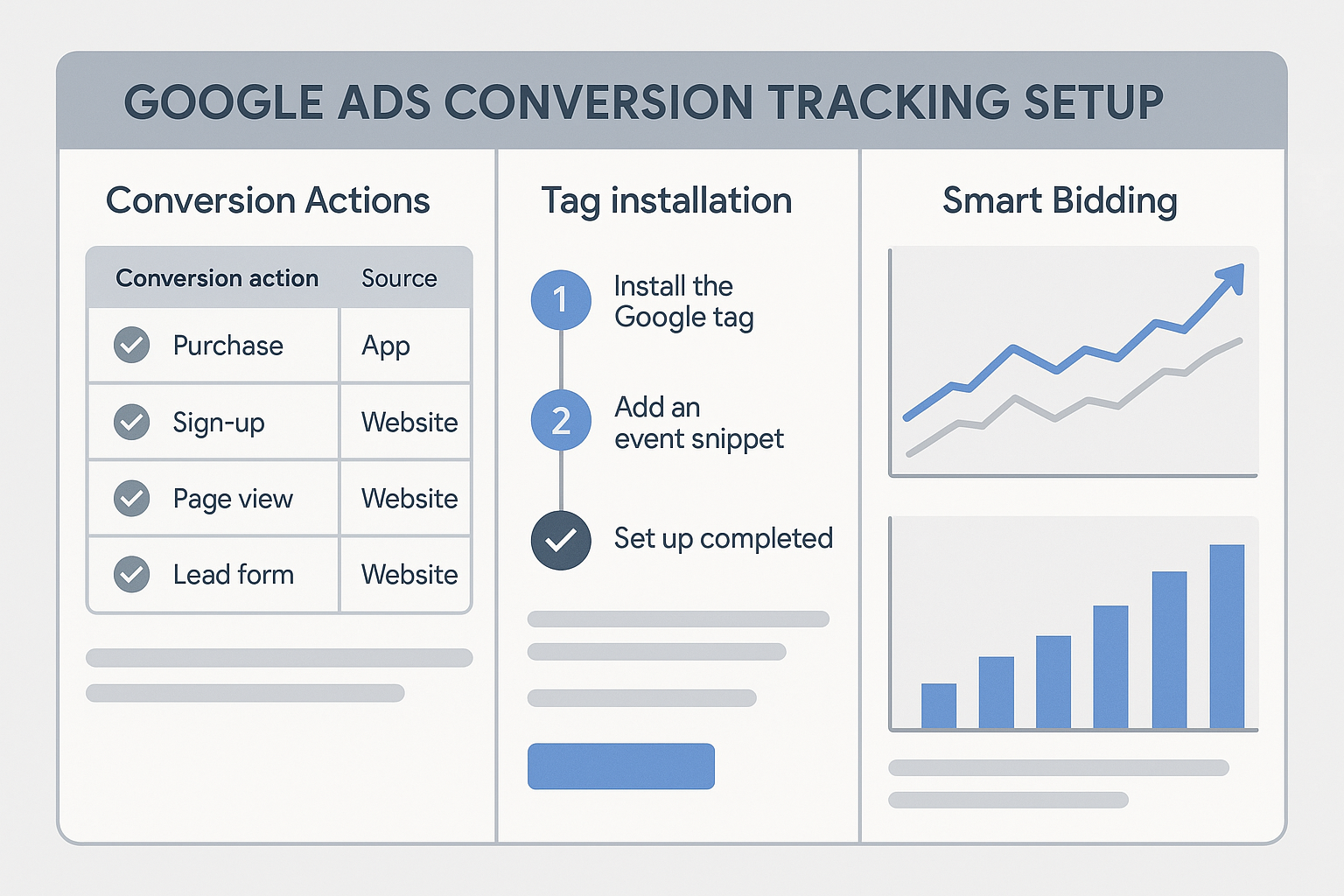
As part of any thorough Google Ads conversion tracking setup, deduplication must be considered from day one.
The 5 Most Common Causes of Duplicate Conversions
1. Running Both a Direct Google Ads Tag AND a GA4 Import
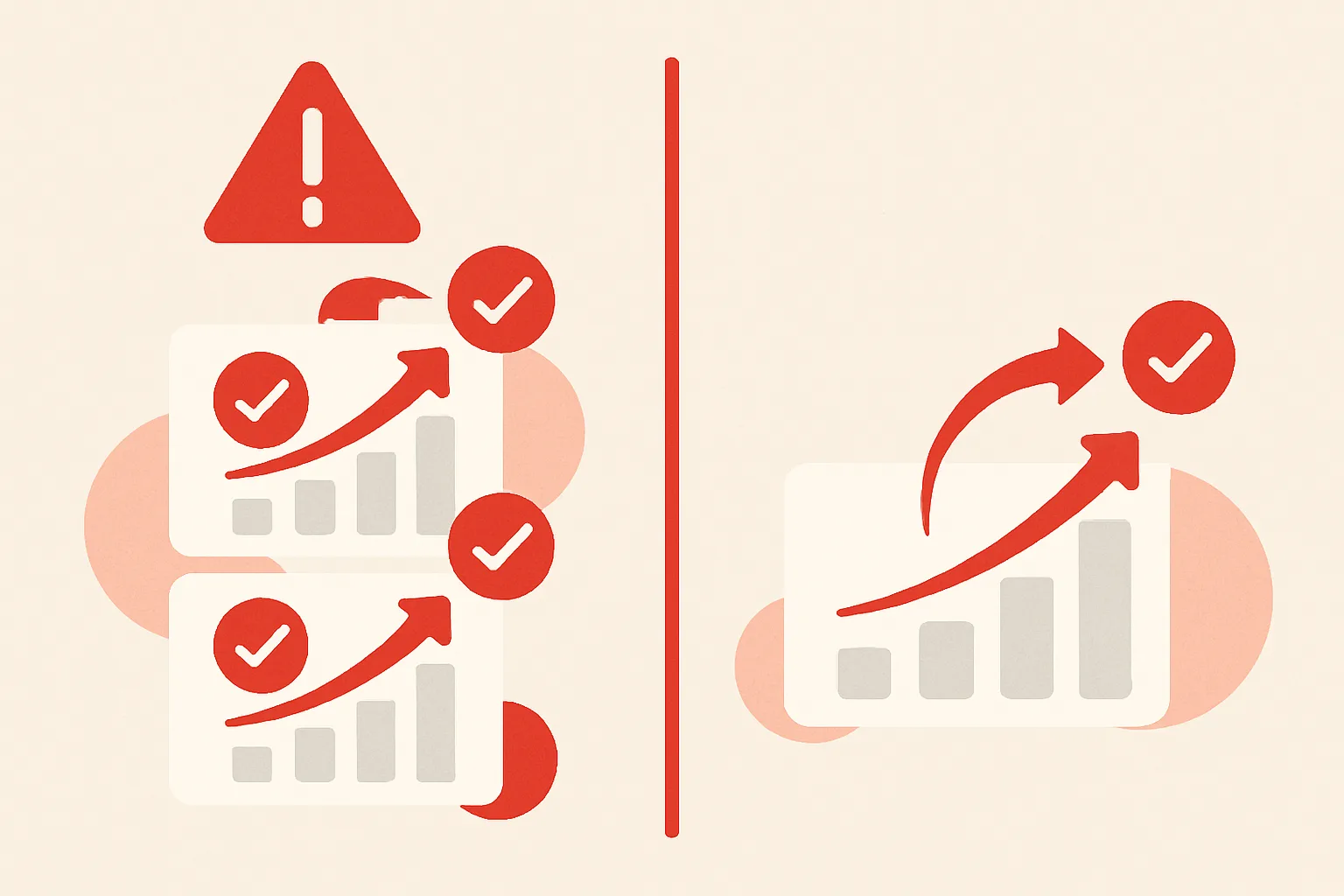
This is by far the most common cause. You install a Google Ads conversion tag directly on your thank-you page. Later, you link GA4 to Google Ads and import the same conversion event. Now every actual conversion fires twice — once from the direct tag and once from the imported GA4 event.
How to identify: In Google Ads, go to Tools and Settings then Conversions. Check if you have two conversion actions that measure the same underlying event (e.g. "Purchase" from a direct tag and "Purchase" imported from GA4). If the total conversion count is roughly double what you expect, this is likely the cause.
Fix: Choose one method and disable or remove the other. The GA4 import is generally recommended for its cross-channel visibility, but if you need precise trigger control, keep the direct tag and do not import from GA4.
2. Tag Firing Multiple Times on the Same Page
Your conversion tag is configured to fire every time the thank-you page loads — including when a user refreshes the page, navigates back and forward, or when a caching issue causes the tag to fire twice on a single load.
How to identify: In GTM Preview Mode, load the thank-you page once without submitting a form. If the conversion tag fires more than once in the tag firing log for a single page load, you have a duplicate firing issue.
Fix: Set conversion counting to "One" in the Google Ads conversion action settings. This is the most effective protection — Google deduplicates server-side, counting at most one conversion per user per click within the conversion window.
3. Conversion Counting Set to Every Instead of One
If your conversion action is set to count "Every" conversion (rather than "One"), every form submission from the same user counts as a new conversion — including test submissions, duplicate form fills, and form resubmissions.
Fix: For all lead generation conversions, set count to "One." Only use "Every" for genuine repeat-purchase actions (like ecommerce where the same customer can buy multiple times).
4. Multiple GTM Tags Firing for the Same Conversion
When multiple people manage a Google Tag Manager account, it is common for duplicate tags to accumulate. One team member sets up a Google Ads conversion tag. Another creates a new one later, not realising one already exists. Both fire on the same event.
How to identify: In GTM, go to Tags and look for multiple Google Ads Conversion Tracking tags. Check whether any two tags have the same or overlapping triggers. In GTM Preview Mode, submit a real test conversion and check if two Google Ads tags appear in the fired tags list.
Fix: Identify which tag is the correct one (matching Conversion ID and Label in Google Ads). Pause or delete the duplicate. Then check Google Ads to confirm only one conversion fires per actual conversion event.
5. Thank-You Page Accessible Without Form Submission
If your thank-you page URL is static and accessible to anyone (without requiring a prior form submission), users who bookmark it and return, or bots that crawl it, all trigger the conversion tag.
Fix: Implement server-side redirect logic — the thank-you page should only be served after a verified POST submission. Any direct GET request to /thank-you should redirect back to the form page.
Using Order IDs for Ecommerce Deduplication
For ecommerce, the most robust deduplication method is passing a unique transaction ID (order number) with each conversion. Google Ads will ignore any conversion with the same transaction ID received within 24 hours.
In your Google Ads conversion tag (via GTM), set the Order ID field to your ecommerce data layer transaction ID variable:
dataLayer.push({
  event: "purchase",
  ecommerce: {
    transaction_id: "ORDER-98765",  // Unique per order
    value: 149.99,
    currency: "GBP"
  }
});
Map this in GTM: in your Google Ads Conversion Tracking tag, set "Order ID" to a Data Layer Variable reading ecommerce.transaction_id.
This ensures that even if the purchase confirmation page is somehow loaded twice, or the conversion tag fires twice, Google only counts one conversion per unique order.
How to Audit for Duplicate Conversions
- Check conversion action count: In Google Ads, count the total active conversion actions. If you have more than 3 to 4, investigate what each one is and whether any overlap.
- Compare to reality: Take last month's Google Ads conversion count and compare it to actual enquiries received (from CRM or inbox). If the ratio is consistently above 1.5, you likely have duplicates.
- Test in GTM Preview: Submit a single test form and confirm only one conversion tag fires. Reload the page and confirm it does not fire again.
- Check the Conversion column vs All Conversions: If these numbers are identical, you have no secondary conversions configured (not necessarily a problem). If All Conversions is significantly higher than Conversions, check which conversions are set as primary.
After Fixing Duplicates: Expect a Dip
When you fix duplicate conversion tracking, your reported conversion count will drop — sometimes by 50 percent or more. This is correct. Your actual business performance has not changed; your data is now accurate.
Smart Bidding will take 2 to 4 weeks to re-calibrate after the fix. Be prepared for some temporary instability in CPA and conversion volume during this re-learning period. Do not make major bid strategy changes during this time.
Summary
Duplicate conversions are a silent performance killer. The most common causes are running both a direct tag and a GA4 import, multiple GTM tags firing, and conversion counting set to "Every" for lead forms.
Fix them, set Order IDs for ecommerce deduplication, and accept the short-term disruption. The long-term result is accurate data that Smart Bidding can actually use to find real customers.
For a complete audit of your conversion setup, see our Conversion Tracking Fix and Debugging service or our Google Ads Conversion Tracking service.
Suspect duplicate conversions in your account? Contact Adslytics for a conversion audit.
Need expert tracking setup?
Our Google Tag Manager experts have delivered 500+ tracking setups with a 98% success rate.
Get a Free Consultation →