Why CMP Integration Matters
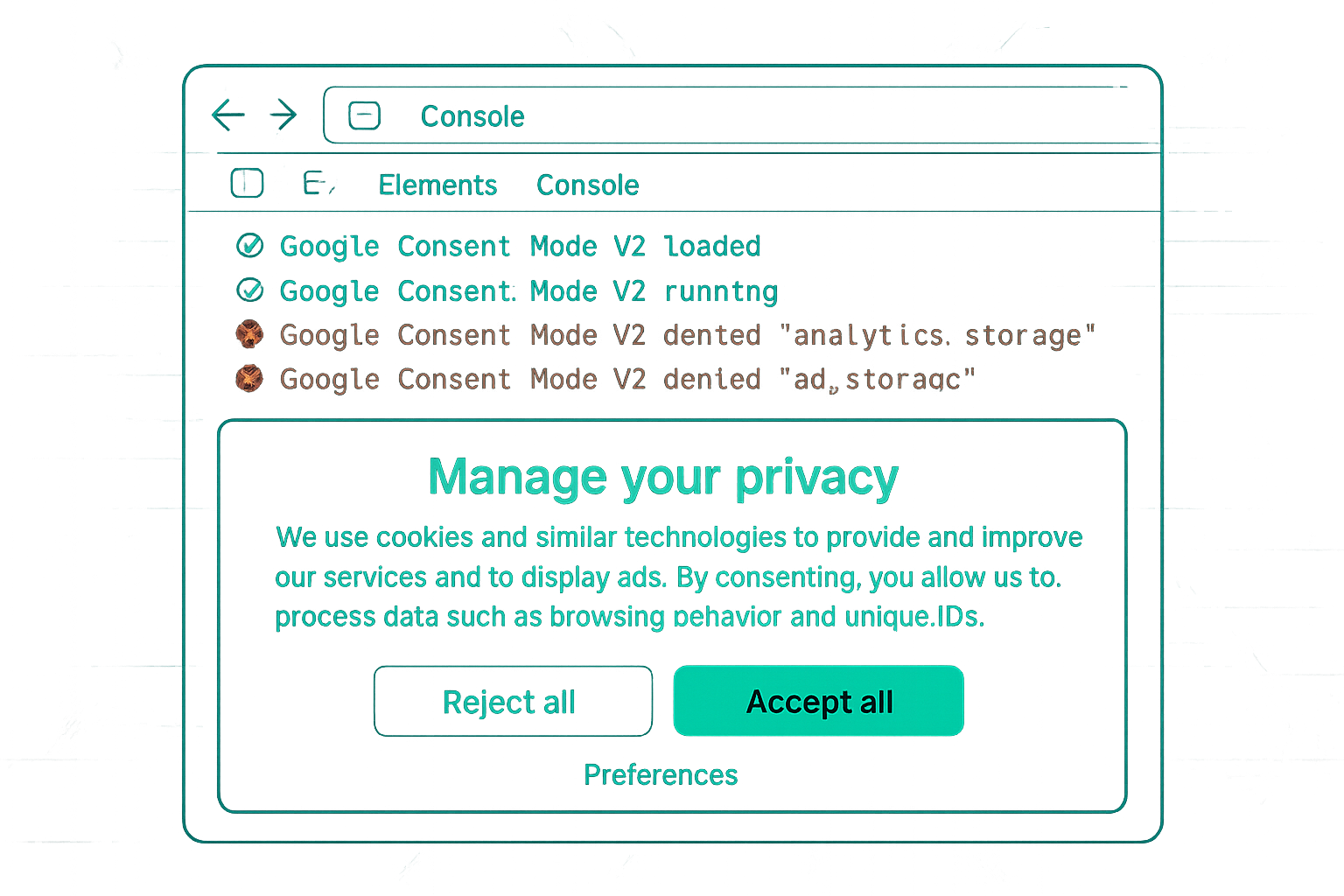
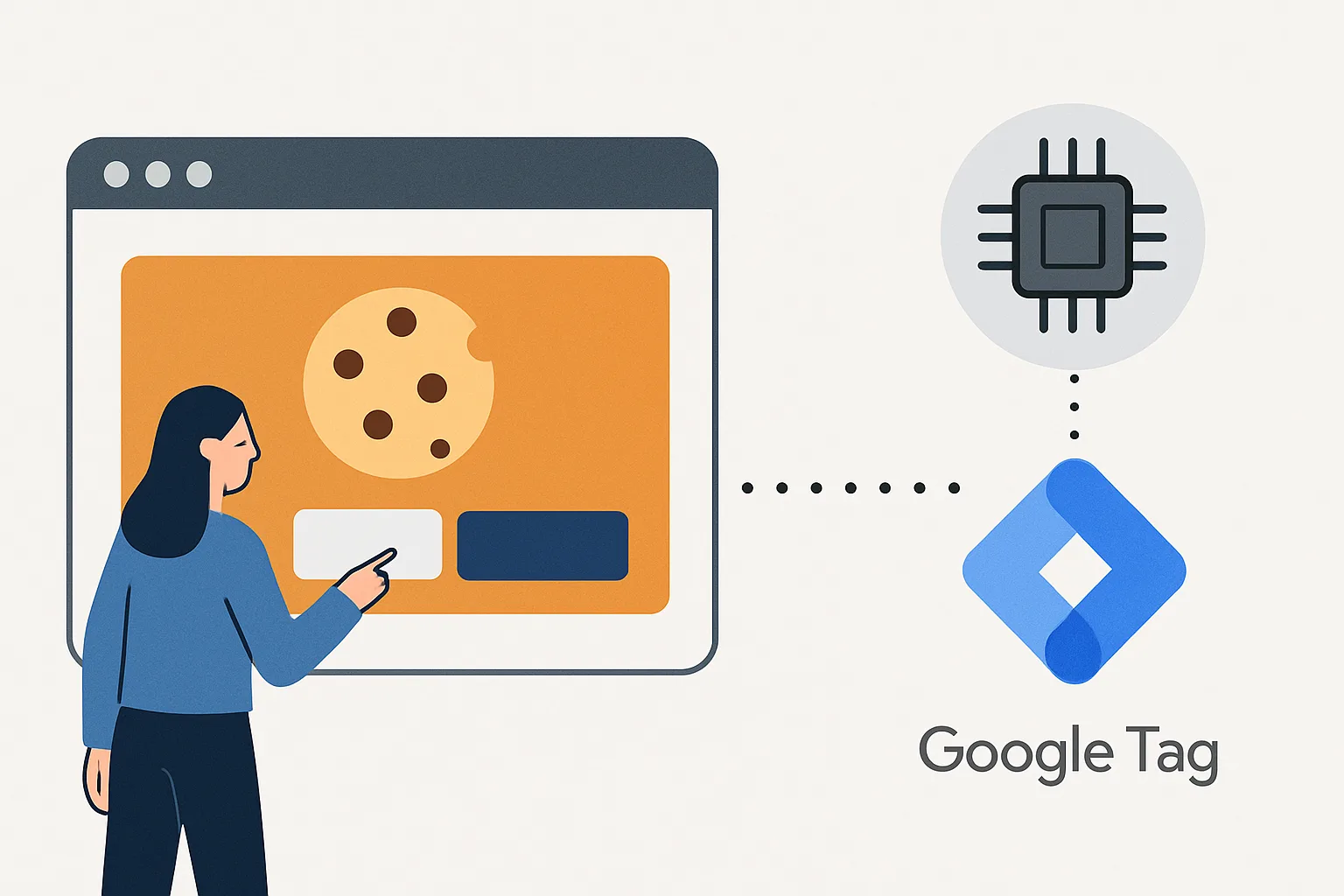
A cookie banner that looks correct to users can be completely non-functional from a Consent Mode perspective. If your CMP is not properly integrated with Google Consent Mode v2 — specifically, if it does not call gtag('consent', 'update', ...) when a user makes a choice — your Google tags never receive the consent signal. The result: all users are tracked as if consent was denied, regardless of what they chose in the banner.
Google-Certified CMP Partners
Google maintains a list of CMPs that have been verified to correctly implement Consent Mode v2. These include:
- Cookiebot (Usercentrics company)
- OneTrust
- Usercentrics
- Complianz (WordPress)
- CookieYes
- Didomi
- TrustArc
Using a Google-certified CMP significantly reduces integration risk — these CMPs publish tested GTM tag templates in the GTM community gallery that handle the consent signal correctly.
The Integration Mechanism
When a user accepts or declines consent in the banner, the CMP must fire:
gtag('consent', 'update', {
  'analytics_storage': 'granted', // or 'denied'
  'ad_storage': 'granted',
  'ad_user_data': 'granted',
  'ad_personalization': 'granted'
});
This update must:
- Fire on the same page as the consent decision, not just on page reload
- Map the CMP's consent categories to the correct Google consent types
- Fire correctly on return visits (reading the stored consent choice from a cookie)
CMP Category Mapping
A common integration issue: the CMP uses different category names ("Statistics", "Marketing") that must be correctly mapped to Google consent types:
- Statistics/Analytics →
analytics_storage - Marketing/Advertising →
ad_storage+ad_user_data+ad_personalization
Verify this mapping in your CMP's Consent Mode integration settings. An incorrect mapping (e.g., Statistics mapped to ad_storage instead of analytics_storage) causes wrong consent signals for wrong Google services.
Verification in GTM Preview
To verify your CMP integration:
- Open GTM Preview Mode and browse to your website in an incognito window (no prior consent cookie)
- The consent banner should appear
- Check the "Consent" tab in Tag Assistant → shows current consent state for all four types (should all be 'denied' initially)
- Click "Accept All" in the banner → the Consent tab should update immediately to show all types as 'granted'
- Accept only "Analytics" (not Marketing) → analytics_storage should be 'granted', ad_storage/ad_user_data/ad_personalization should remain 'denied'
Summary
CMP integration with Consent Mode v2 requires the CMP to fire gtag('consent', 'update') when users make choices, with correct category mapping. Use a Google-certified CMP with a published GTM tag template to reduce implementation risk. Verify integration in GTM Preview Mode's Consent tab — check that consent state updates immediately when the user interacts with the banner, not only on page reload.
See our Consent Mode v2 Implementation service for CMP integration setup.
Need CMP and Consent Mode integrated correctly? Contact Adslytics.
Need expert tracking setup?
Our Google Tag Manager experts have delivered 500+ tracking setups with a 98% success rate.
Get a Free Consultation →