How to Create a New Project in BigQuery: Step-by-Step Guide
Google BigQuery is a powerful analytics tool that allows businesses to harness their data efficiently. This step-by-step guide will walk you through the process of creating a new project in BigQuery, enabling the BigQuery API, setting up billing, creating datasets, and linking to GA4. We'll also touch upon free tier limits, connecting GA4 to BigQuery export, and suggest some initial queries to run.
Quick Summary
- Log in to Google Cloud Console and create a new project.
- Enable the BigQuery API for your project.
- Set up billing to ensure seamless data processing.
- Create a dataset within BigQuery.
- Link your GA4 account to BigQuery for enhanced data analysis.
- Explore free tier limits and initial queries to get started.
Step 1: Google Cloud Console Login
To start with BigQuery, you need to access the Google Cloud Console:
- Go to the Google Cloud Console.
- Log in with your Google account credentials. Ensure this account has administrative permissions.
Once logged in, you'll be greeted by the dashboard, which showcases your current projects, if any, and various Google Cloud Platform services available to you.
Step 2: Create a New Project
Creating a new project is essential for organizing your resources and managing permissions:
- Click on the project dropdown at the top of the page (usually next to the Google Cloud logo).
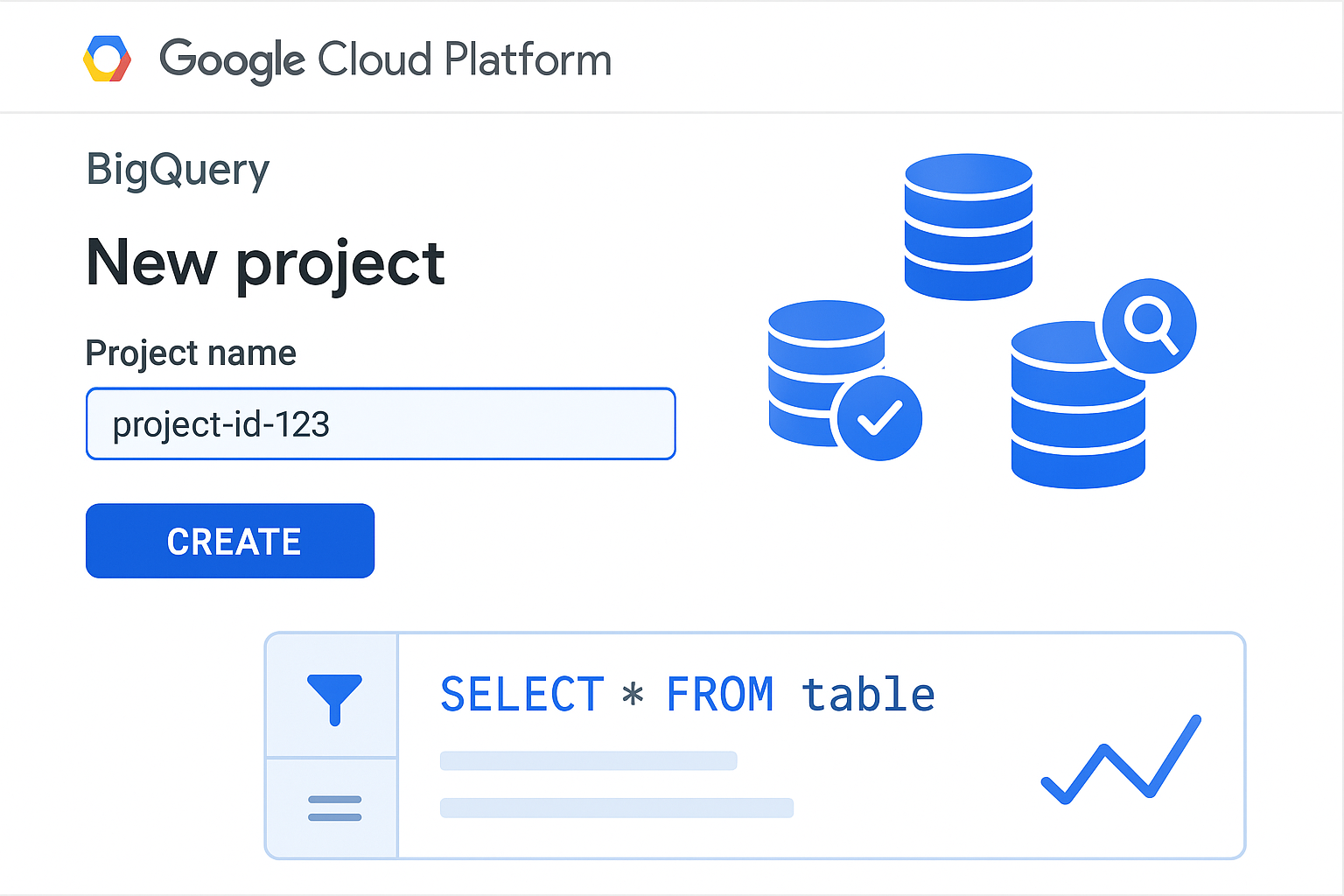
- Click on “New Project.”
- Enter a suitable project name and set your organization or location, if applicable.
- Click “Create.”
Once your project is created, you will be redirected to the project’s dashboard. Here, you can manage various settings related to your project.
Step 3: Enable BigQuery API
For BigQuery to function within your new project, you must enable its API:
- From the project dashboard, go to the “APIs & Services” section.
- Select “Library” from the left-hand menu.
- Search for “BigQuery API” in the search bar.
- Click on “BigQuery API” from the results and click “Enable.”
This action activates the BigQuery service, allowing you to start using it for your data analytics needs.
Step 4: Set Up Billing
Google Cloud Platform requires setting up billing information to prevent service interruptions:
- Navigate to the “Billing” section within your project dashboard.
- Follow the prompts to add a billing account if you haven’t already.
- Enter your payment details and any other required information.
Note that Google offers a free tier with limited usage, which is beneficial for small-scale projects or initial testing phases.
Step 5: Create a Dataset
Datasets are the organizational containers within BigQuery:
- In the BigQuery interface, click on your project ID.
- Select “Create Dataset.”
- Provide a dataset ID and set the data location.
- Adjust any additional settings like expiration date or encryption options.
- Click “Create Dataset.”
Datasets contain your actual tables and data, allowing for structured queries and analysis.
Step 6: Link to GA4
Linking your GA4 property to BigQuery allows you to export raw event data for more comprehensive analysis:
- Within your GA4 property, navigate to the “Admin” section.
- Under the “Property” column, click “BigQuery Linking.”
- Click “Link” to start the process.
- Select your BigQuery project and dataset.
- Follow the prompts to complete the linking process.
This integration enables the seamless flow of data between GA4 and BigQuery, enhancing your analytics capabilities.
Free Tier Limits
Google Cloud offers a generous free tier for BigQuery, including:
- 10 GB of storage per month.
- 1 TB of query processing per month.
These limits are typically sufficient for small-scale testing and exploration. However, ensure you monitor your usage to avoid unexpected charges.
First Useful Queries to Run
Once your data is flowing into BigQuery, consider running these basic queries to gain insights:
- Count Events:
SELECT COUNT(event_name) FROM `project.dataset.table`; - Top Pages:
SELECT page_location, COUNT(*) FROM `project.dataset.table` GROUP BY page_location ORDER BY COUNT(*) DESC; - User Engagement:
SELECT user_pseudo_id, COUNT(event_name) FROM `project.dataset.table` GROUP BY user_pseudo_id;
These queries provide a foundational understanding of user interactions and can be expanded further as needed.
FAQs on Creating a BigQuery Project
1. What are the prerequisites for using BigQuery?
Before using BigQuery, ensure you have a Google Cloud account with billing set up, and administrative access to create projects and enable APIs.
2. How does BigQuery pricing work?
BigQuery charges for storage and query processing. Google offers a free tier with certain limits, and beyond those, you pay based on usage.
3. Can I automate data exports from GA4 to BigQuery?
Yes, once linked, GA4 automatically exports data to BigQuery daily, allowing you to access the latest datasets without manual intervention.
4. How do I manage permissions in BigQuery?
Use the Identity and Access Management (IAM) feature in Google Cloud to manage user permissions, ensuring that only authorized users can access your datasets.
5. What happens if I exceed the free tier limits?
If you exceed the free tier limits, Google Cloud will bill you according to your usage. Monitoring your usage is essential to avoid unexpected charges.
Get Expert Assistance with BigQuery
Setting up BigQuery can be a transformative step for your business analytics needs. However, if you require expert help or more advanced configurations, our team at Adslytics is here to assist. Whether it’s linking GA4 implementation, enhancing eCommerce tracking, or optimizing your Google Ads conversions, we have the expertise you need. Don’t hesitate to contact Adslytics for more information or personalized support.
Need expert tracking setup?
Our Google Tag Manager experts have delivered 500+ tracking setups with a 98% success rate.
Get a Free Consultation →