Shopify and GTM: The Core Limitation
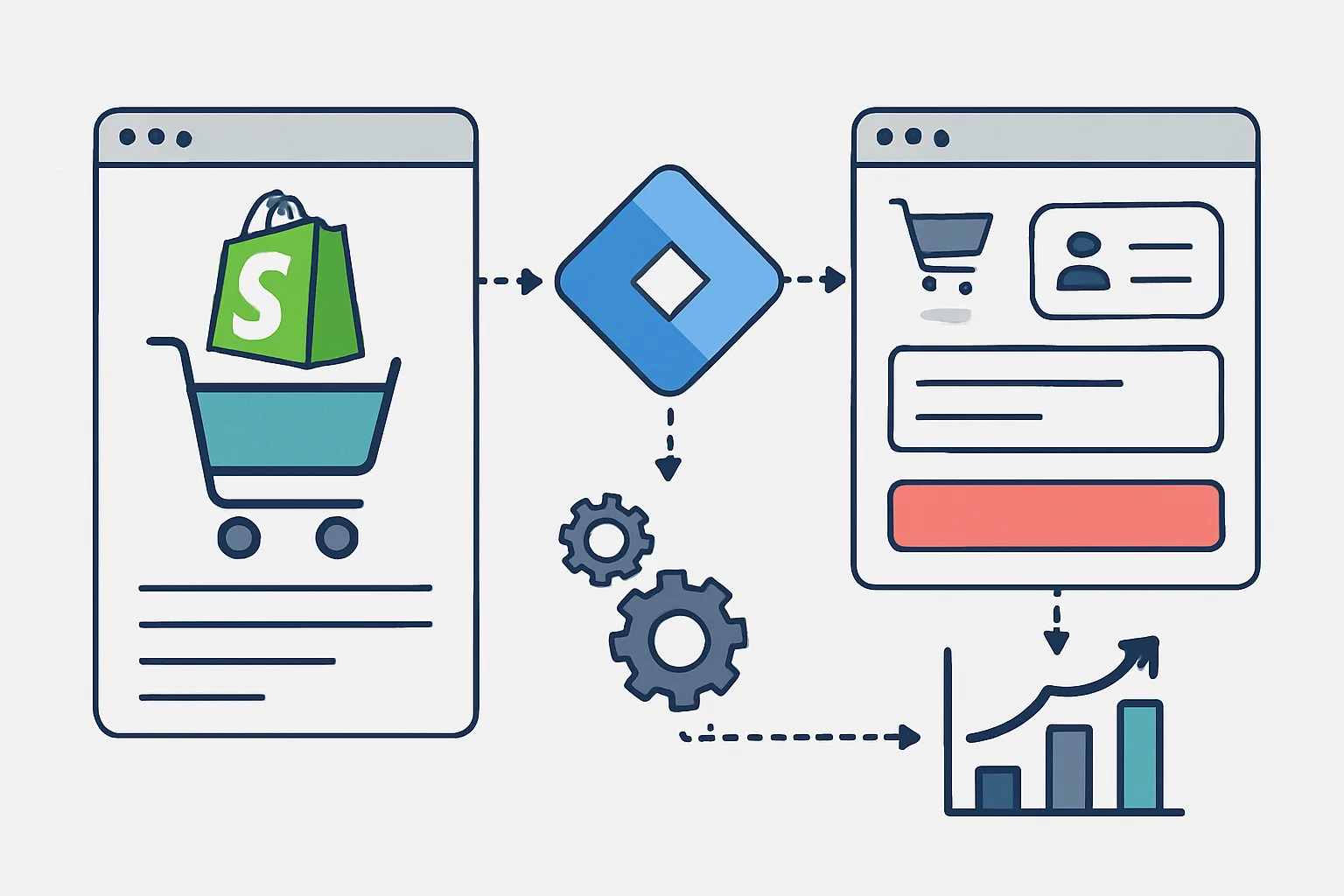
Standard Shopify plans restrict your ability to add custom code to the checkout pages. This means Google Tag Manager can be installed on your storefront (product pages, collection pages, cart page) but NOT on the native Shopify checkout (payment page, shipping address page) unless you are on Shopify Plus.
The one exception: the order status page (thank-you page) is customisable on all Shopify plans via Settings then Checkout then Additional Scripts. This is where your purchase conversion tag fires.
What GTM Can Do on Shopify (All Plans)
- Fire tags on all storefront pages: homepage, product pages, collection pages, search, blog
- Track GA4 page views across the storefront
- Fire custom events: add to cart, view item, begin checkout (on the cart page)
- Track engagement events: scroll depth, video plays, button clicks
- Fire the purchase conversion tag on the order status (thank-you) page via Additional Scripts
- Build remarketing audiences from product page views and cart adds
What GTM Cannot Do on Standard Shopify Plans
- Track activity on the native checkout pages (shipping, payment) — the GTM snippet cannot be placed there
- Fire tags based on checkout step events (begin_checkout with Shopify's own checkout form)
- Access Shopify's native checkout data directly through the data layer (except on Shopify Plus)
GTM Installation on Shopify
- In Shopify Admin: Online Store then Themes then Edit Code
- Open
layout/theme.liquid - Paste the GTM head snippet inside the
<head>element (as high as possible) - Paste the GTM body snippet immediately after the opening
<body>tag - Save the file
- For the order status page: in Settings then Checkout then Additional Scripts, add both the GTM snippet AND a data layer push that sends the purchase event with order data (using Shopify's Liquid template variables)
The Order Status Page Purchase Event
In Additional Scripts, use Shopify's Liquid to populate the data layer:
<script>
window.dataLayer = window.dataLayer || [];
dataLayer.push({
  event: 'purchase',
  ecommerce: {
    transaction_id: '{{ order.order_number }}',
    value: {{ checkout.total_price | divided_by: 100.0 }},
    currency: '{{ shop.currency }}'
  }
});
</script>
Then in GTM, your purchase conversion tags (Google Ads, GA4, Meta) are triggered by the "purchase" custom event.
The Shopify Plus Advantage
On Shopify Plus, you get access to checkout.liquid — a customisable template for all checkout pages. This allows GTM to be installed on every checkout step, enabling full checkout funnel tracking: begin_checkout, add_shipping_info, add_payment_info, and purchase.
Shopify Plus also offers "Checkout Extensibility" (replacing checkout.liquid in newer setups) with Custom Pixels — a sandboxed JavaScript environment for tracking in checkout. Custom Pixels can push to the data layer and work with GTM on the storefront for complete funnel visibility.
Workarounds for Standard Plans
- Begin checkout on cart page: fire a begin_checkout event when users click the checkout button from the cart page (before they reach the restricted checkout) using a GTM click trigger
- Checkout funnel from Additional Scripts: on the order status page, you can infer some funnel data (shipping method, payment method) from Liquid variables and push it to the data layer for post-purchase reporting
- Server-side conversion tracking: for critical conversion events, use server-side tracking triggered by Shopify's Order webhook — firing conversion tags from your server when an order is created, independent of browser-based GTM
Summary
GTM on Shopify is powerful for storefront tracking and the order status page conversion. The main limitation is access to intermediate checkout pages on non-Plus plans. Work around this with cart-page begin_checkout events, Additional Scripts data layer pushes, and server-side conversion tracking for maximum coverage.
See our Google Tag Manager Setup and Audit service for Shopify-specific setup.
Need complete conversion tracking on your Shopify store? Contact Adslytics.
Need expert tracking setup?
Our Google Tag Manager experts have delivered 500+ tracking setups with a 98% success rate.
Get a Free Consultation →