The Choice That Trips Up Most Advertisers
When setting up Google Ads conversion tracking, you have two primary paths: use the native Google Ads conversion tag installed directly or via GTM, or link GA4 to Google Ads and import GA4 events as conversions.
Both work. Both are widely used. But they measure differently, and choosing the wrong one — or accidentally running both — creates problems.
Method 1: Native Google Ads Conversion Tracking
How It Works
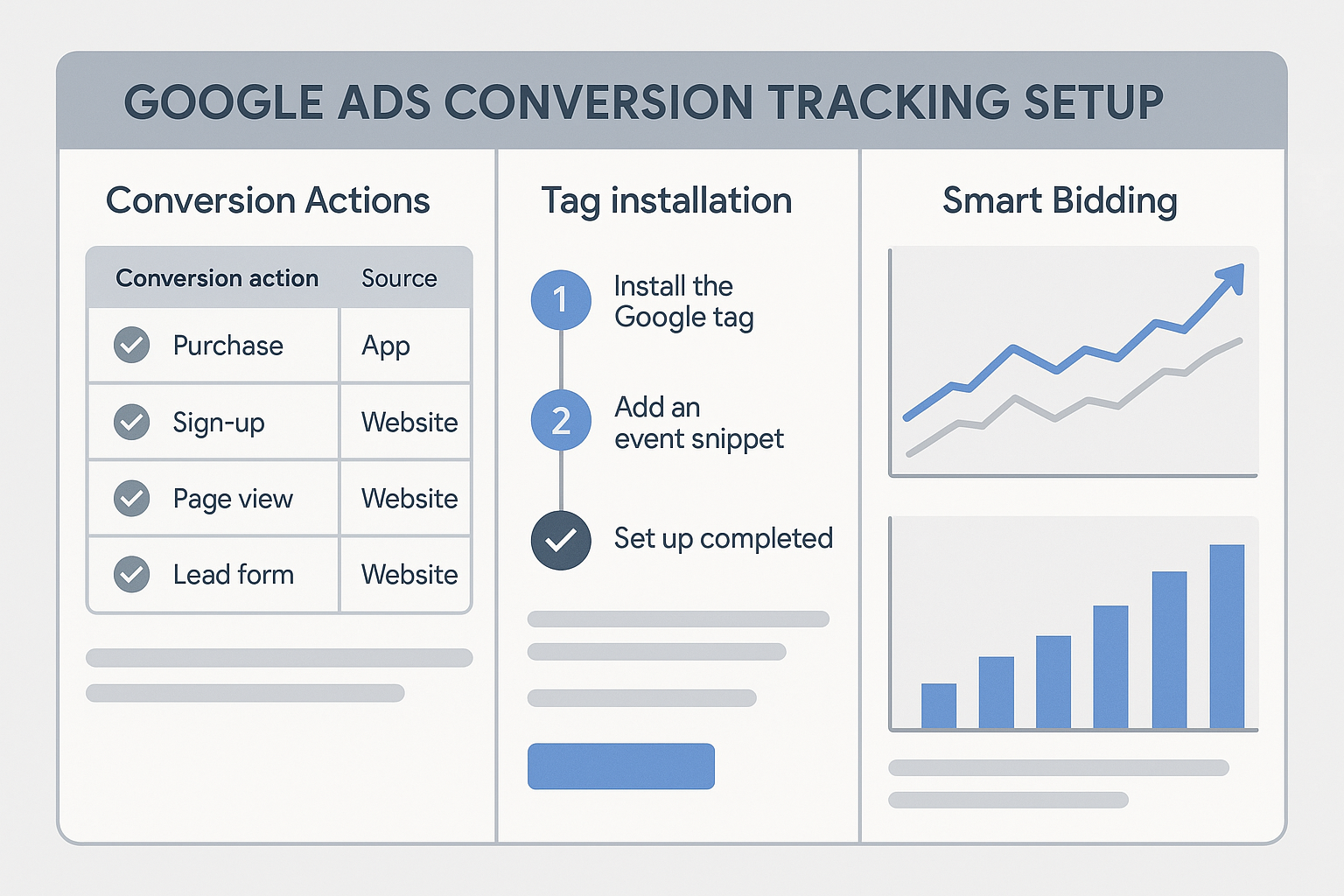
You create a conversion action in Google Ads and install the Google Ads conversion tracking tag on your site via GTM. When a user who clicked your ad reaches the conversion page, the tag fires and sends the conversion back to Google Ads.
Strengths
- Fastest setup: you can have a conversion tracking tag live in under 30 minutes
- Precise trigger control: you control exactly when the tag fires and what data it sends
- Full Smart Bidding integration: Google Ads uses this data directly for its bidding algorithms
- Offline conversion upload compatibility: works seamlessly with offline conversion import via GCLID
- Enhanced conversions support: you can enable enhanced conversions directly on the tag
Weaknesses
- No cross-channel view: you cannot see how Google Ads conversions compare to organic or email in the same place
- Requires separate tracking from GA4: you are running two parallel measurement systems
- Harder to manage at scale: maintaining separate conversion tags for each event gets complicated
Method 2: Import Conversions from GA4
How It Works
You set up conversion events in GA4. You then link your GA4 property to Google Ads and import those GA4 events into Google Ads as conversion actions. Google Ads uses these imported events for reporting and Smart Bidding.
Strengths
- Single source of truth: all your conversion events are defined and managed in GA4
- Cross-channel attribution: you can see how Google Ads fits into the broader customer journey
- Richer audience data: GA4 audience segments can be imported into Google Ads for remarketing
- Simpler to maintain: one event tracking system to maintain, not two
Weaknesses
- Requires a working GA4 setup: if your GA4 tracking is incomplete, your Google Ads data suffers too
- Attribution differences: GA4 uses session-based attribution; Google Ads uses click-based attribution. You will often see different numbers for the same conversion event.
- Slower to set up: you need GA4 fully configured before you can import anything
Side-by-Side Comparison
| Factor | Native Google Ads Tag | GA4 Import |
|---|---|---|
| Setup speed | Fast | Slower |
| Cross-channel view | No | Yes |
| Single source of truth | No | Yes |
| Enhanced conversions | Yes | Yes |
| Offline conversion import | Yes (native) | Possible but complex |
| Remarketing audiences | Limited | Rich GA4 audiences |
| Smart Bidding compatibility | Full | Full |
Which Should You Use?
Use GA4 Import if:
- You already have GA4 set up correctly with conversion events defined
- You want to maintain a single measurement system
- You care about cross-channel attribution and audience building
- You run multiple traffic sources and want a unified view
Use Native Google Ads Tags if:
- GA4 is not set up yet and you need tracking live immediately
- You need very precise control over when and what fires
- You run a B2B business and need offline conversion upload with GCLID
Best Practice for Most Businesses
Use GA4 Import as your primary conversion source once GA4 is set up correctly. Use native Google Ads tags only for conversions that GA4 cannot easily capture. Make sure you are not double-counting — if you import from GA4, disable the equivalent direct Google Ads tag.
The Double-Counting Problem
The most common mistake is running both a native Google Ads conversion tag AND importing the same event from GA4. This doubles your reported conversions and corrupts Smart Bidding data.
How to check: go to Tools and Settings then Conversions. Look for any two conversion actions that measure the same event. If you have a Purchase from GA4 import and a Purchase from a direct tag, you are double-counting.
Why the Numbers Will Never Exactly Match
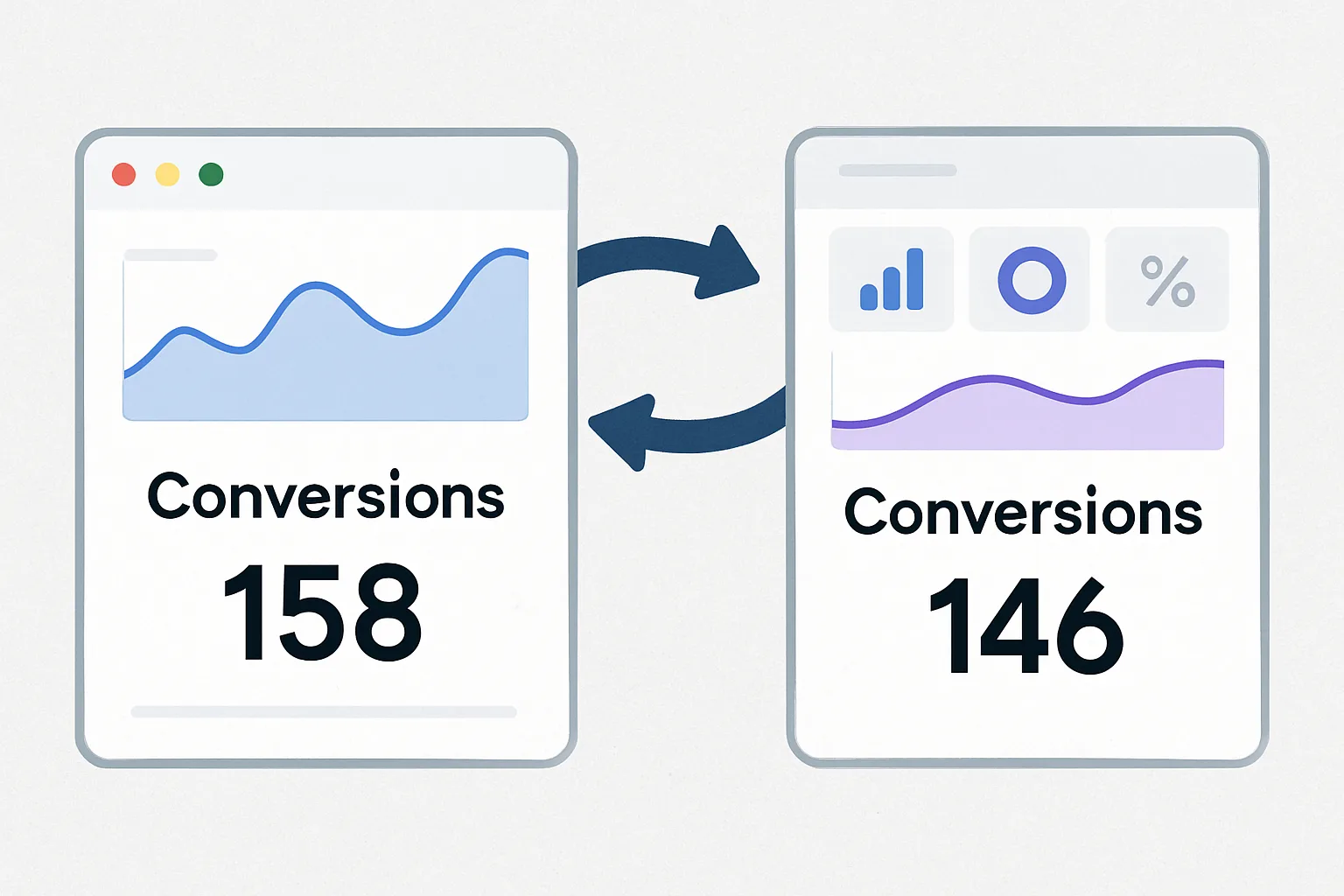
Even with no double-counting, your GA4 conversion numbers will often differ from Google Ads numbers. The main reasons include different attribution models (session-based vs click-based), different conversion windows, and cross-device attribution differences.
The recommendation: use Google Ads conversion data for bidding decisions, and GA4 data for strategic marketing analysis.
Not sure which approach is right for your account? Talk to Adslytics — we will audit your tracking setup and recommend the right configuration.
Need expert tracking setup?
Our Google Tag Manager experts have delivered 500+ tracking setups with a 98% success rate.
Get a Free Consultation →