Pinterest Advertising and the Pinterest Tag
Pinterest is a significant traffic and sales channel for home decor, fashion, food, beauty, and DIY brands. The Pinterest Tag measures conversions from Pinterest campaigns and enables retargeting (showing Pinterest ads to people who have visited your website). Without the tag, you cannot measure the ROI of your Pinterest advertising spend.
Finding Your Pinterest Tag ID
- Pinterest Ads Manager → Conversions → Conversion Tags → Get Tag
- Your Tag ID is a 12-13 digit number
- Download the Pinterest Tag or use the gtag snippet
GTM Installation
- GTM → New Tag → Tag Type: Custom HTML
- Paste the Pinterest base tag code with your Tag ID
- Trigger: All Pages
- Name: "Pinterest Tag - Base Code"
The Pinterest Tag community template is also available in the GTM gallery — search "Pinterest" in the community templates section.
Ecommerce Events
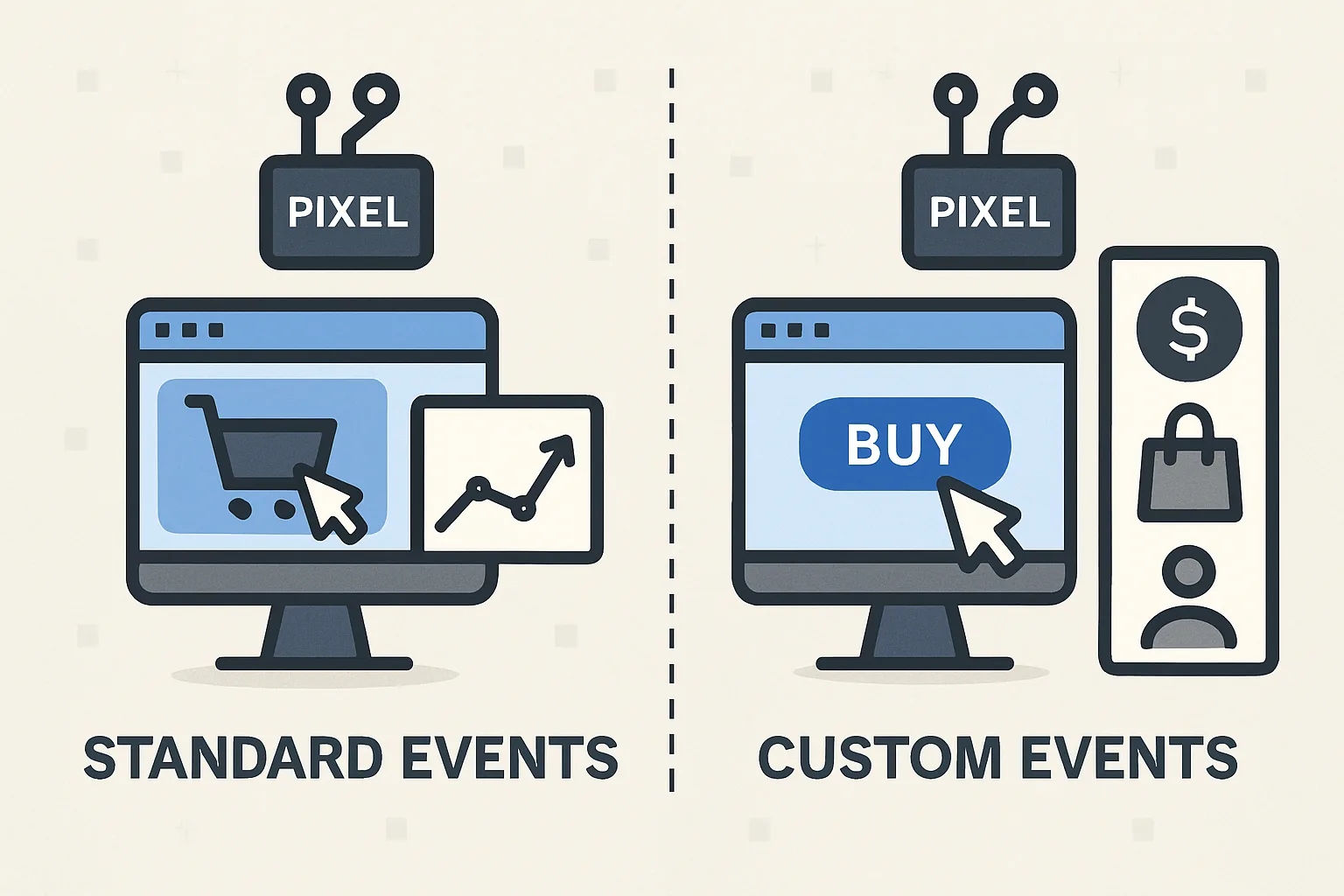
Standard Pinterest events for ecommerce:
- checkout: fires on order confirmation with order_id, value, currency, line_items
- add_to_cart: fires when product added to cart
- page_visit: fires on product pages with product_id and product_name
- signup: fires on newsletter or account registration
Pinterest recommends including line_items with product IDs that match your Pinterest Product Catalog for Dynamic Shopping Ads (ads that automatically show products from your catalog).
Pinterest Conversions API
Like Meta and TikTok, Pinterest provides a server-side API (Conversions API) that sends events from your server to Pinterest's endpoint. This bypasses browser-side ad blockers. For high-value events (purchases), using both the browser tag and Conversions API with a unique event_id for deduplication is recommended.
Verification
Verify in Pinterest Ads Manager → Conversions → Conversion Tags → your tag should show "Active" status. Use Pinterest's Tag Health tool to check for specific issues, and the Pinterest Tag Helper Chrome extension for real-time event verification.
Summary
Pinterest Tag setup: install base code on all pages via GTM, then add checkout and page event tags triggered by your ecommerce data layer events. Include product IDs in line_items to enable Dynamic Shopping Ads. For best conversion data completeness, implement Pinterest Conversions API alongside the browser tag with event_id deduplication. Verify in Pinterest Ads Manager → Conversion Tags → Active status.
See our Marketing Pixel Setup service for Pinterest tag configuration.
Need Pinterest Tag set up? Contact Adslytics.
Need expert tracking setup?
Our Google Tag Manager experts have delivered 500+ tracking setups with a 98% success rate.
Get a Free Consultation →