When Cross-Domain Tracking Is Necessary
If users move between two separate domains during a single session — for example, from your main website to a booking platform, from your marketing site to your SaaS app, or from your storefront to a third-party checkout — your analytics data treats this as a new session with a new user on the second domain. All traffic appears as "direct" on the destination domain, referral traffic is misattributed, and conversion paths break.
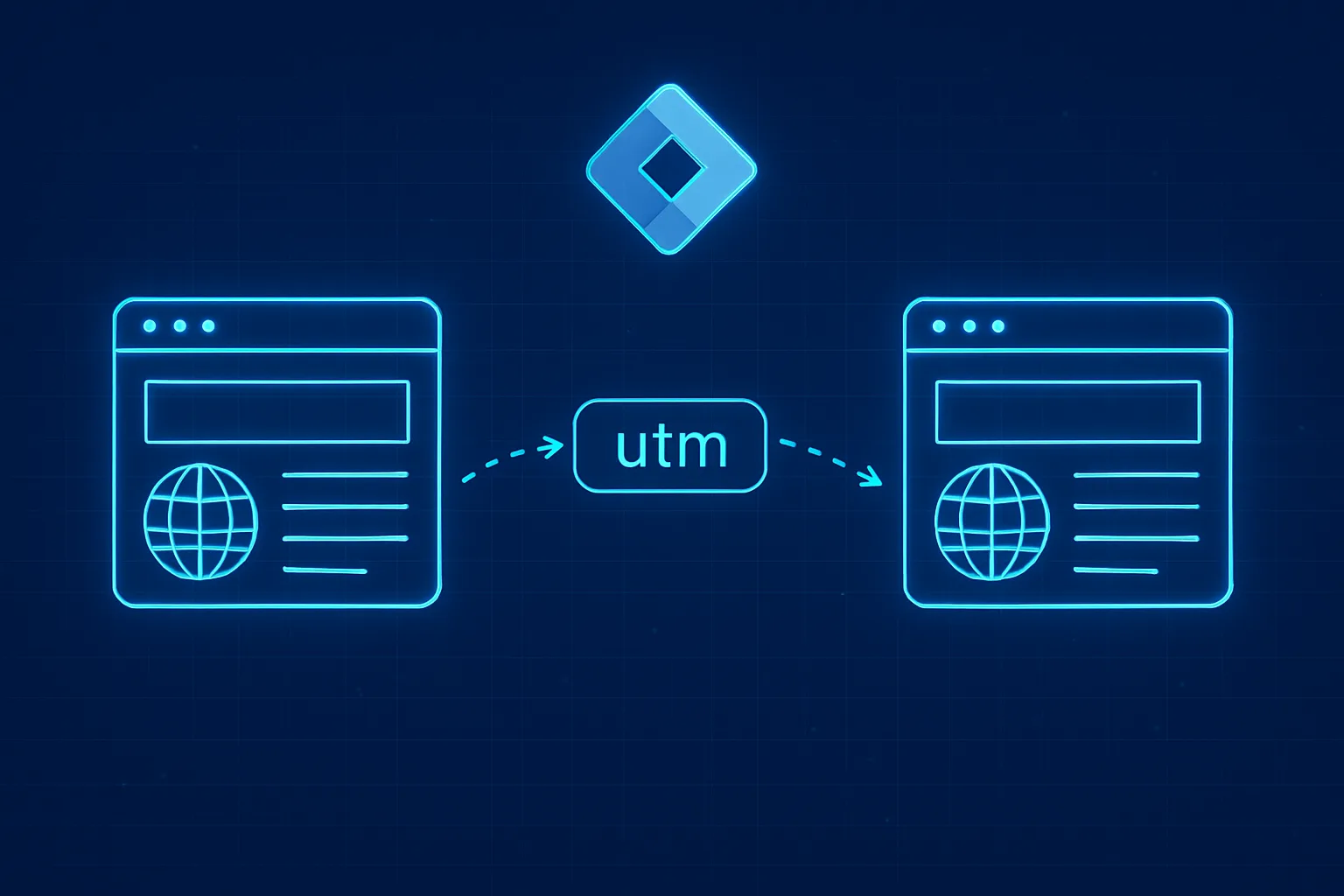
Cross-domain tracking in Google Tag Manager solves this by passing session context from one domain to another through URL parameters.
How It Works
When a user clicks a link from domain A to domain B, the Google tag appends a _gl parameter to the destination URL. This parameter encodes the client ID and session information from the first domain. When domain B's Google tag loads, it reads the _gl parameter and restores the session continuity — so GA4 sees it as one continuous session, not two separate ones.
Step 1: Identify the Domains
List all domains involved in a single user journey. Common scenarios:
- yoursite.com → checkout.yoursite.com (subdomain usually needs linker only if cookies are not shared)
- yoursite.com → yourapp.io (completely separate domains — definitely needs linker)
- yoursite.com → bookings.thirdpartytool.com (third-party — linker or alternative approach needed)
Note: subdomains on the same root domain (e.g. shop.yoursite.com and yoursite.com) share first-party cookies by default if you set the cookie domain correctly. They may not need a linker — just verify your GA4 cookie domain setting.
Step 2: Configure the Google Tag Linker in GTM
- In GTM, go to your Google Tag (configuration tag, not event tags)
- Under "Configuration Settings", add a new field
- Field name:
linker - Value: click the + Variable icon and create a new Custom JavaScript Variable:
function() {
  return {
    domains: ['yoursecondomain.com', 'yourthirddomain.com'],
    decorate_forms: true,
    accept_incoming: true
  };
}domains: list all domains that need to receive the linker parameterdecorate_forms: also adds the linker to form action URLs (for form submissions crossing domains)accept_incoming: reads the _gl parameter when arriving from another domain (always set to true on the receiving domain)
Step 3: Configure GA4 for Cross-Domain
If you are using GA4 (which you should be), also configure cross-domain in the GA4 Data Stream settings:
- In Google Analytics: Admin then Data Streams then select your stream then Configure tag settings
- Under "Configure your domains", add all domains that should share session context
- This tells GA4's measurement protocol to accept cross-domain parameters from those domains
You need to configure this in both GTM (which adds the linker to links) AND GA4 (which accepts the incoming parameters). Configuring only one side breaks the chain.
Step 4: Test the Configuration
- Enable GTM Preview Mode
- Navigate to domain A and click a link that goes to domain B
- Check the destination URL in the browser — it should contain a _gl= parameter
- On domain B, check the Network tab in DevTools for the GA4 request — it should include a client ID that matches domain A
- In GA4 DebugView (Admin then DebugView), confirm events from both domains appear in the same session
Third-Party Domains You Cannot Control
If the second domain is a third-party platform (payment processor, booking tool), you usually cannot install GTM there. Options:
- Store the GA4 client ID server-side when the user initiates the cross-domain action
- Use the GA4 Measurement Protocol to send events server-side with the stored client ID
- Accept the session break and focus on conversion tracking using a direct conversion tag on the thank-you URL when the user returns to your domain
Summary
Cross-domain tracking requires linker configuration in GTM and domain acceptance configuration in GA4. Test carefully — a half-configured setup creates duplicate sessions rather than unified ones, which is worse than no cross-domain setup at all.
See our Google Tag Manager Setup and Audit service for professional configuration.
Need cross-domain tracking set up correctly? Contact Adslytics.
Need expert tracking setup?
Our Google Tag Manager experts have delivered 500+ tracking setups with a 98% success rate.
Get a Free Consultation →