The Problem Without Version Control
Imagine making a change to a conversion tag in Google Tag Manager, publishing it, and immediately realising it broke your tracking. Without version control, you have no clean way to undo — you would need to manually recreate the previous state from memory.
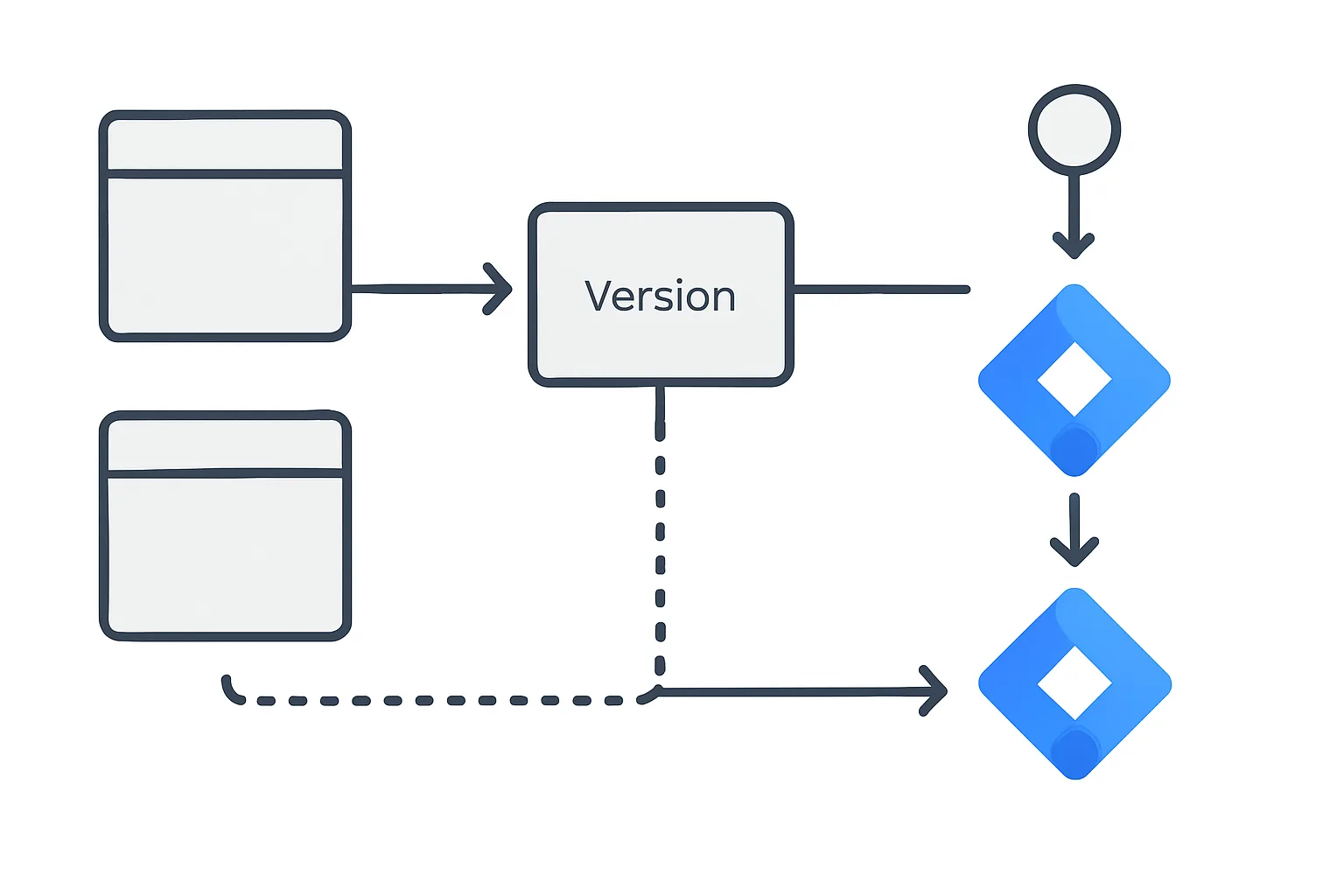
GTM's workspace, version, and environment system solves this. It gives you version history for rollback, isolated workspaces for parallel development, and separate environments for testing vs production.
Workspaces
A workspace is an isolated draft environment within your GTM container. Every container starts with a Default Workspace. You can create additional workspaces for different purposes — each workspace can have its own set of changes without interfering with others.
Use cases for multiple workspaces:
- Developer is building a new tag configuration while marketer is making a separate quick fix
- Testing a major restructure of the container while keeping routine updates in a separate workspace
- Agency and in-house team working on separate initiatives simultaneously
Each workspace shows a count of changes pending vs the current published version. When you publish a workspace, it merges with the current published container and creates a new version.
GTM Free allows 3 workspaces. GTM 360 allows unlimited workspaces.
Versions
Every time you publish a workspace, GTM creates a numbered version snapshot. Version history is permanent and every version can be re-published at any time.
Version best practices:
- Always give versions meaningful names and descriptions: "v12 - Added enhanced conversions to GA4 purchase tag"
- Include the date and your initials in the version name for traceability
- If something breaks after publishing, immediately identify the version before your change and republish it to restore the previous state while you diagnose the issue
To republish an old version: click Versions in the left navigation, find the version you want, click the three-dot menu, and select Publish.
Environments
Environments let you publish different versions of your GTM container to different URLs. Specifically, they let you test a container version on a staging or development website before pushing it to production.
By default, GTM has two environments:
- Live: the published container version that runs on your production website
- Latest: the most recently saved container state (may include unpublished changes)
You can create custom environments (e.g. "Staging") and get a separate GTM snippet with an environment-specific token. Install this snippet on your staging website. When you want to test a container change on staging before going live, publish to the Staging environment — it does not affect the Live environment.
Setting Up a Safe Publish Workflow
- Create a new workspace for each significant change
- Make your changes in the workspace
- Preview and test thoroughly using GTM Preview Mode
- Publish to your Staging environment first (if you have a staging site)
- Verify on staging that the change works correctly
- Publish the workspace to Live (creates a new version)
- Add a descriptive version name and notes
- Monitor for 24-48 hours for any tracking anomalies
Collaborative Working
GTM supports multiple users at the container level. Assign roles carefully:
- Admin: can manage users and container settings
- Publish: can publish changes live — restrict this to senior team members
- Edit: can create and modify tags but not publish
- Read: can view the container but not make changes
Summary
Workspaces enable parallel development, versions enable rollback, and environments enable staged testing. Together, they make it safe to work on GTM continuously without risking live tracking. Always work in a named workspace, always describe your versions, and always preview before publishing.
See our Google Tag Manager Setup and Audit service for container governance best practices.
Need help organising your GTM workflow? Contact Adslytics.
Need expert tracking setup?
Our Google Tag Manager experts have delivered 500+ tracking setups with a 98% success rate.
Get a Free Consultation →