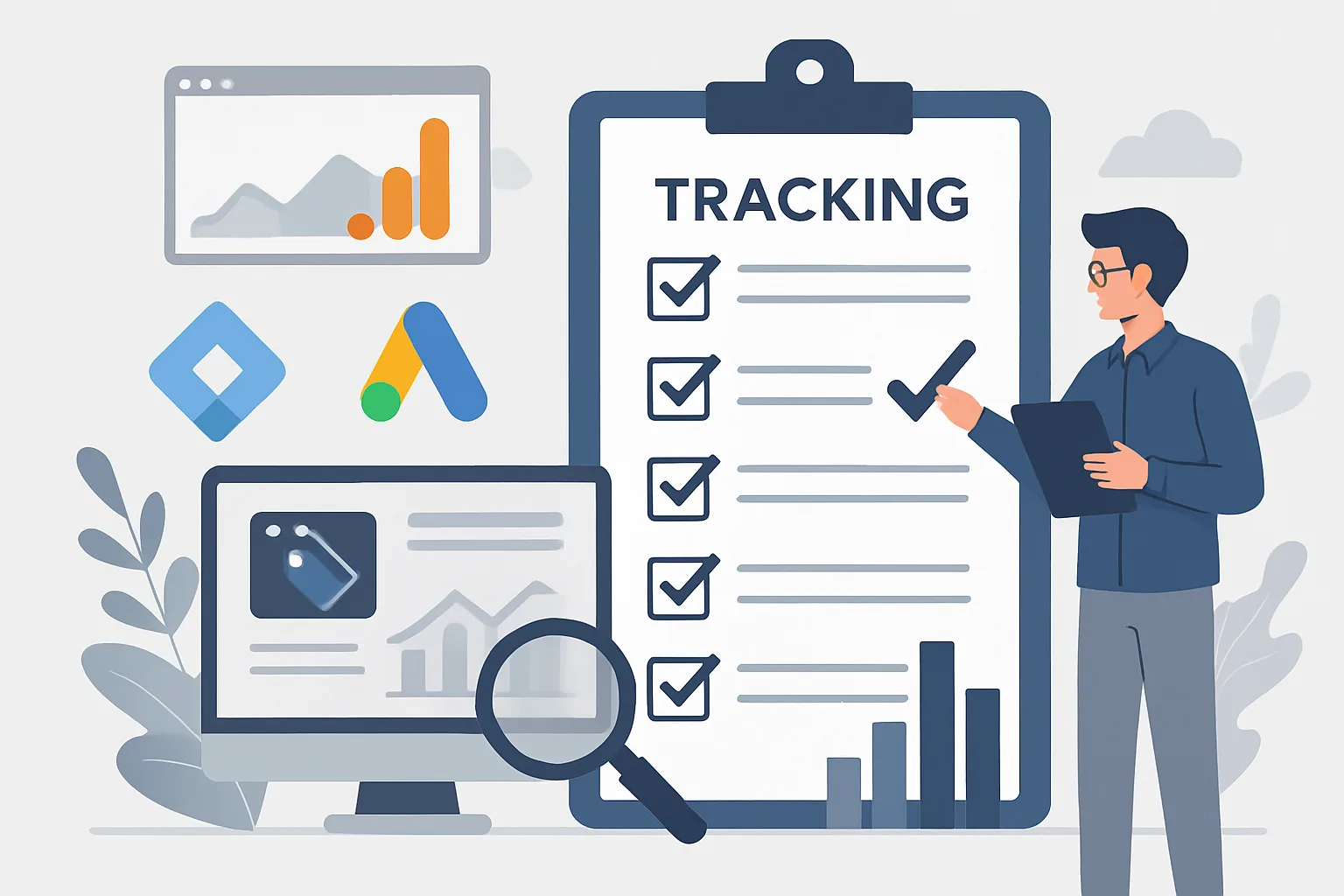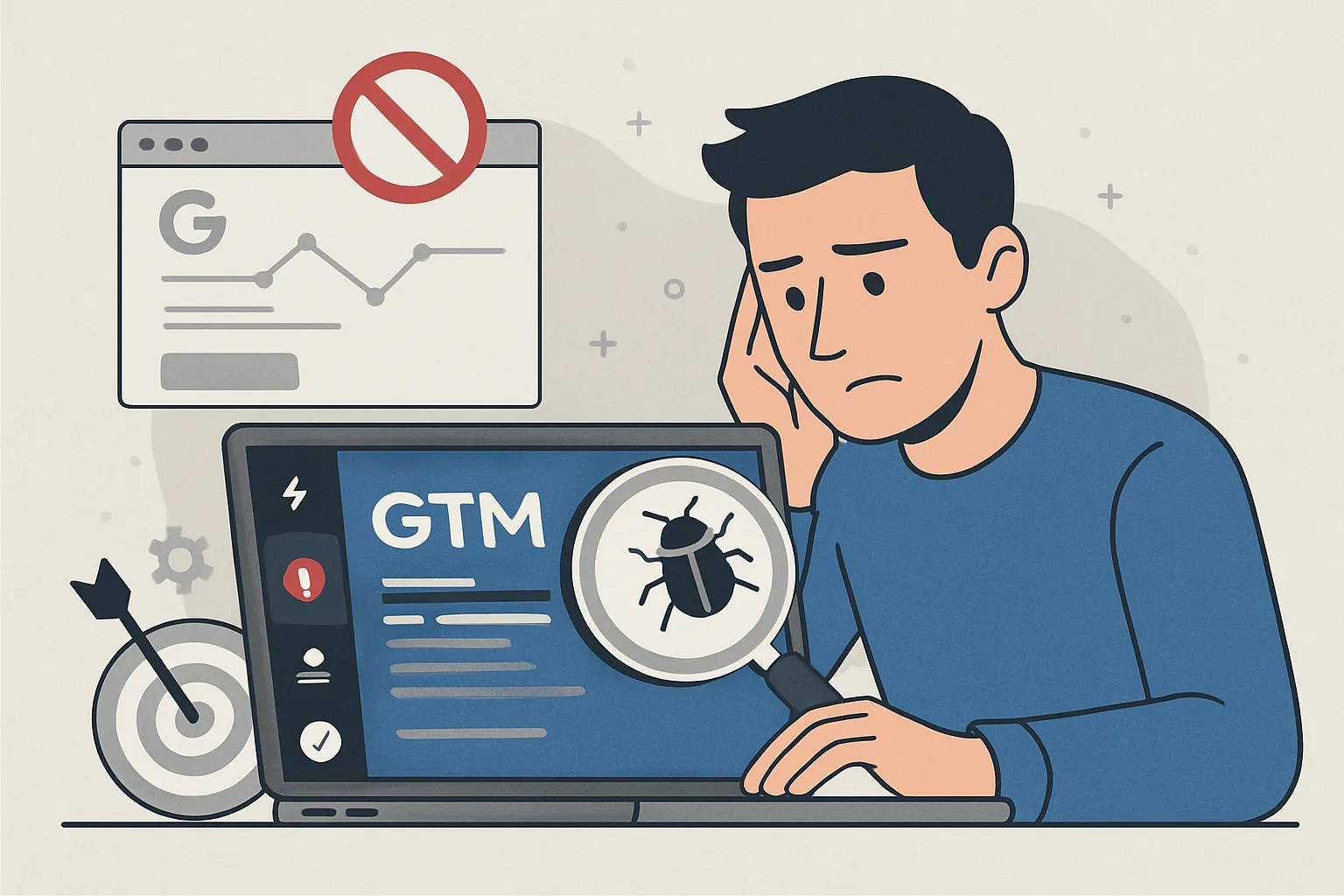
Why Conversion Tracking Failures Go Unnoticed
Unlike website outages that are immediately visible, conversion tracking failures are often silent. Your website continues working normally; customers continue purchasing. What breaks is the attribution data — ad campaigns appear to generate fewer conversions, budgets get reallocated based on wrong data, and bids are optimised against an incomplete signal. Weeks can pass before anyone notices.
Step 1: Confirm the Failure Scope
Before diagnosing, establish what exactly is broken:
- Is it all conversions or one specific event? (purchase vs lead vs all)
- Is it on all platforms or just one? (GA4 vs Google Ads vs Meta)
- Is it all users or a segment? (mobile vs desktop, specific browsers)
- When did it start? (Was there a recent website change, GTM publish, or code deployment?)
Answers to these questions immediately narrow the diagnosis space.
Step 2: Check GTM Preview Mode
Open GTM Preview Mode and trigger the conversion event manually (complete a test purchase, submit a test form):
- Does the custom event appear in the GTM timeline? If NO: the data layer push is not firing — the issue is in the website code, not GTM
- If the event appears: click the event and check Tags — does the conversion tag appear in "Tags Fired"? If NO: check trigger configuration
- If the tag fires: check Variables tab — are all variable values correct? If values show undefined: data layer variable configuration mismatch
Step 3: Verify the Tag Type
Different conversion platforms have different failure modes:
Google Ads conversion tag: in GTM Preview, click the fired GA tag → output shows the conversion label and ID. Verify these match the conversion action in Google Ads (Tools then Conversions then the specific action → details).
GA4 Event tag: check GA4 DebugView (GA4 → Admin → DebugView) — events appear in real time during Preview Mode. If the event fires in GTM but does not appear in DebugView, the GA4 Measurement ID may be wrong.
Step 4: Check for Recent Changes
Most conversion tracking failures are caused by changes. Check:
- GTM version history: was a new version published recently? Compare the current version to the last known-working version
- Website deployments: did a developer change the order confirmation page, form handler, or data layer code?
- Third-party scripts: did a CMP update, A/B testing tool change, or new script block or delay GTM loading?
Step 5: Test in a Clean Environment
Test with ad blockers disabled, in an incognito/private browser window, and without VPN. Some failures are environment-specific — testing in a clean environment isolates whether the problem is systematic or user-context-dependent.
Summary
Systematic conversion tracking diagnosis follows a flow: scope → GTM Preview → tag-type verification → change history → clean environment test. The most common causes are data layer changes from website deployments (the code that pushes events changed), GTM configuration errors from recent publishes (trigger changed), and CMP blocking GTM before consent is given. Document your findings and fix the root cause — not just the symptom.
See our Conversion Tracking Fix service for professional diagnosis.
Need conversion tracking fixed? Contact Adslytics.
Need expert tracking setup?
Our Google Tag Manager experts have delivered 500+ tracking setups with a 98% success rate.
Get a Free Consultation →