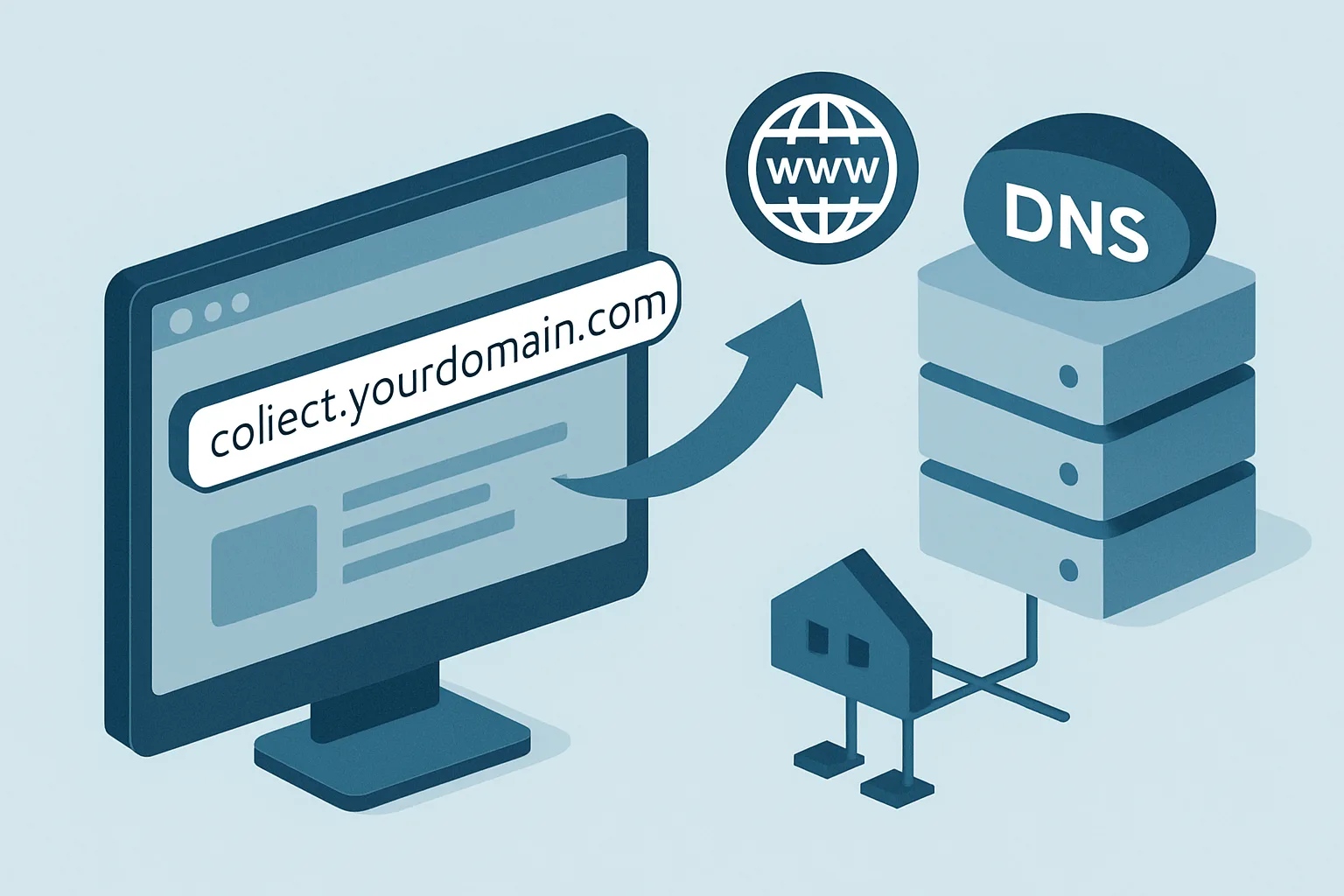
Why the Default Tagging Server URL Is Not Enough
When you first deploy a server-side GTM tagging server on Google Cloud Run, you get a default URL like sgtm-xxxx.run.app. This works technically — events are received and forwarded — but it does not give you the key benefit of server-side tracking: first-party context.
First-party context means the tagging server runs on your own domain (like collect.yoursite.com). This is essential for two reasons:
- Ad blocker resistance: ad blockers block known analytics domains. Your custom subdomain is not on any blocklist, so ad blocker users' events reach your server.
- First-party cookies: cookies set by a server at collect.yoursite.com are first-party cookies. Safari's Intelligent Tracking Prevention only restricts third-party cookies (set by domains other than the site the user is on). A cookie set by your server on your subdomain lasts the full duration you configure — typically 2 years.
What Subdomain to Use
Common naming conventions:
collect.yoursite.com— descriptive, clearly about data collectionanalytics.yoursite.com— clear purposemetrics.yoursite.com— neutralt.yoursite.com— short and clean
Avoid using "tracking" in the subdomain name — some aggressive ad blocker configurations block subdomains containing "track" as a keyword.
Setting Up the Custom Subdomain
Step 1: Add a CNAME Record in Your DNS
- Log into your DNS provider (wherever your domain's DNS is managed — Cloudflare, GoDaddy, Namecheap, Route 53, etc.)
- Create a new CNAME record:
- Name:
collect(or whichever subdomain you chose) - Value: your Cloud Run service URL (e.g.
sgtm-xxxx-uc.a.run.app) or Stape URL - TTL: 300 (5 minutes) for flexibility during setup, then increase to 3600+ once confirmed
- Name:
Step 2: Add the Custom Domain in Cloud Run
- In Google Cloud Console: Cloud Run then your service then Domain Mappings
- Add Mapping: enter your custom subdomain (collect.yoursite.com)
- Google validates the DNS record and provisions an SSL certificate (takes 5-30 minutes)
- Status shows "Active" when ready
Step 3: Configure sGTM to Use the Custom Domain
- In your GTM server container Settings: set the "Default Container URL" to your custom subdomain
- In your web GTM Google Tag: update the
server_container_urlconfiguration parameter to point tohttps://collect.yoursite.com - Publish the web GTM container
Verifying the Setup
- Visit
https://collect.yoursite.com/healthyin a browser — if the server is running, you see a simple "ok" response - In GTM web Preview Mode, browse your website and check the Network tab — GA4 requests should now go to
collect.yoursite.cominstead ofanalytics.google.com - Check the sGTM Preview for incoming requests on your server container
Summary
A custom subdomain is not optional for effective server-side tracking — it is what makes the tracking first-party, ad-blocker resistant, and capable of setting cookies with full lifetimes. Set it up as part of your initial server-side GTM deployment, not as an afterthought.
See our Server-Side Tracking service for complete setup.
Need help setting up server-side tracking with a custom domain? Contact Adslytics.
Need expert tracking setup?
Our Google Tag Manager experts have delivered 500+ tracking setups with a 98% success rate.
Get a Free Consultation →