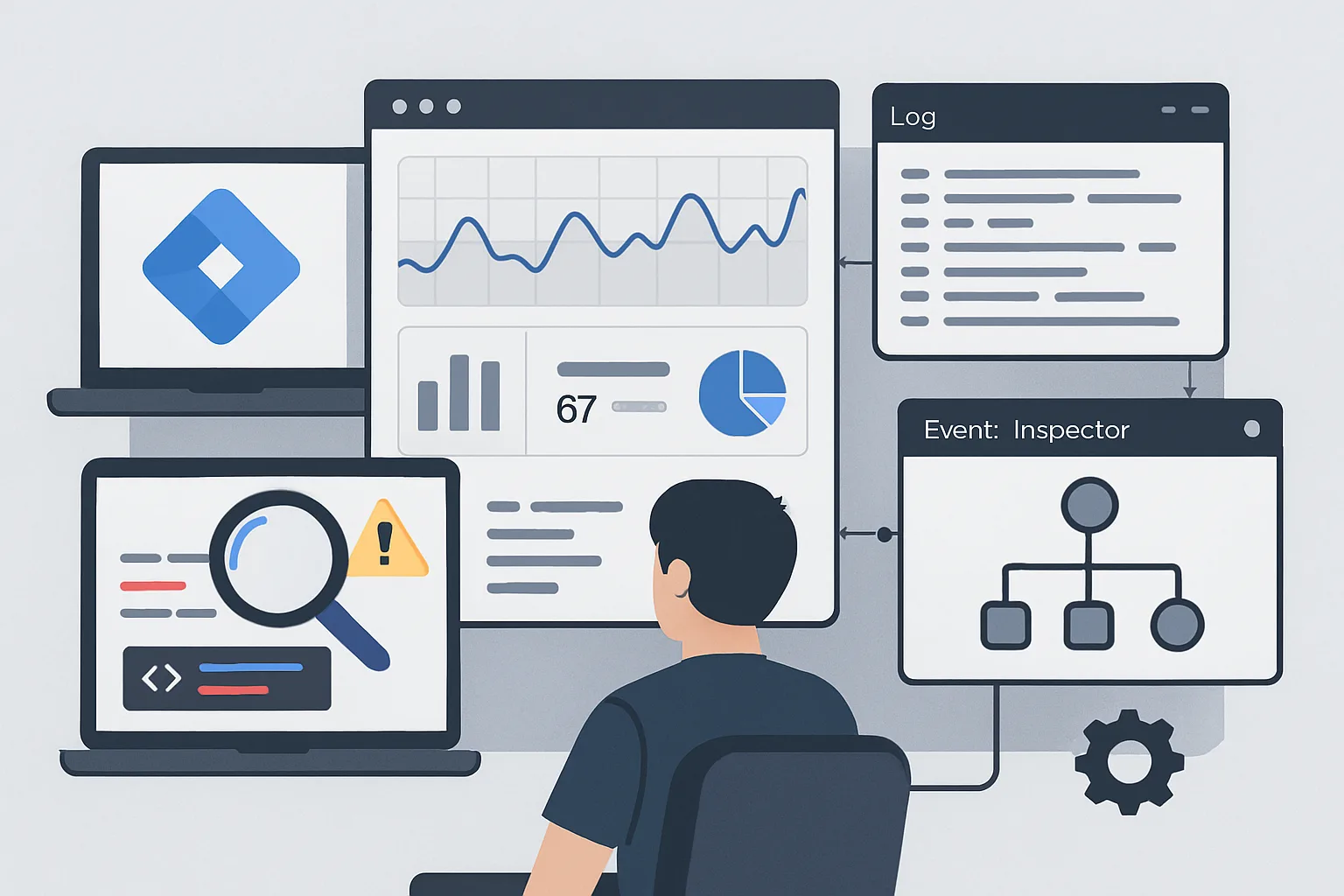
The New Debugging Layer in Server-Side Tracking
Standard GTM debugging happens in your browser using Preview Mode and Tag Assistant. When you add server-side tracking, events now pass through your sGTM server before reaching analytics platforms — creating a new layer where issues can occur.
Debugging sGTM requires tools that let you inspect what the server receives and what it sends — not just what happens in the browser.
Tool 1: sGTM Preview Mode
Server-side GTM has its own Preview Mode, separate from web GTM Preview.
- In your server GTM container: click Preview
- Enter your website URL — sGTM Preview connects to your server, not your website directly
- Browse your website — events sent to your sGTM server appear in the server-side debug panel
- Click any incoming request to see: the raw event data received, which client processed it, which tags fired, and what was sent to which platform
Key things to check in sGTM Preview:
- Are events arriving at the server? (If not, the web GTM server_container_url is not pointing correctly)
- Is the correct client processing the event? (GA4 client for GA4 events, Meta client for Pixel events)
- Are the correct tags firing? (GA4 forwarding tag, Meta CAPI tag)
- What parameter values are being sent to the downstream platform?
Tool 2: Browser DevTools Network Tab
In Chrome DevTools (Network tab), filter for requests to your sGTM subdomain (collect.yoursite.com). You should see:
- Requests to
/g/collect— GA4 events from the GA4 library going to your server - Request timing — how long your server takes to respond (should be under 200ms for a healthy server)
- HTTP status codes — 200 means the event was received; non-200 indicates server errors
If you see no requests to collect.yoursite.com: the web GTM server_container_url is not set, or the Google Tag has not been republished since adding it.
Tool 3: Cloud Run Logs (or Stape Logs)
If hosting on Google Cloud Run: in Cloud Console, navigate to Cloud Run then your service then Logs. You will see a real-time log of all requests to your tagging server, including errors and request details.
Common log entries to investigate:
Error: Could not forward request to GA4— authentication or network issue with Google's endpointCould not parse event body— the incoming request format does not match what the client expects- High response times (>1000ms) — server is under load or has cold-start issues
Tool 4: GA4 DebugView
Enable GA4 debug mode (via the GTM GA4 Configuration Tag or the GA4 debug extension) and monitor DebugView in GA4 (Admin then DebugView). Events processed by your sGTM server and forwarded to GA4 appear here with a "Server" indicator.
If events appear in your browser Network tab going to collect.yoursite.com but do NOT appear in GA4 DebugView: the sGTM server is receiving events but not forwarding them to GA4. Check your server container's GA4 forwarding tag configuration.
Tool 5: Meta Events Manager Test Events
In Meta Business Manager: Events Manager then your Pixel then Test Events tab. Enter your website URL and Meta will show real-time incoming events from both the browser Pixel and CAPI. Use this to verify your sGTM Meta CAPI tag is sending events and confirm deduplication is working.
Common sGTM Issues and Fixes
- Events arrive at server but not forwarded: check the GA4 forwarding tag trigger — it should fire on "All Events" or a specific event name
- Cookies not being set server-side: verify the GA4 client's "Serve cookie" setting and domain configuration
- Events duplicated in GA4: the server_container_url is set but GA4 is also sending directly — check that the GA4 library respects the server routing when server responds
- High server latency: Cloud Run cold starts — add minimum instances configuration to keep at least one instance warm
Summary
Debugging sGTM requires a layered approach: browser DevTools for verifying requests reach your server, sGTM Preview Mode for server-side tag inspection, cloud logs for infrastructure issues, and platform-specific debug tools for verifying end delivery. Always debug methodically from browser → server → downstream platform.
See our Server-Side Tracking service for managed implementation and troubleshooting.
Having issues with your server-side tracking? Contact Adslytics.
Need expert tracking setup?
Our Google Tag Manager experts have delivered 500+ tracking setups with a 98% success rate.
Get a Free Consultation →