What Is a Conversion Window?
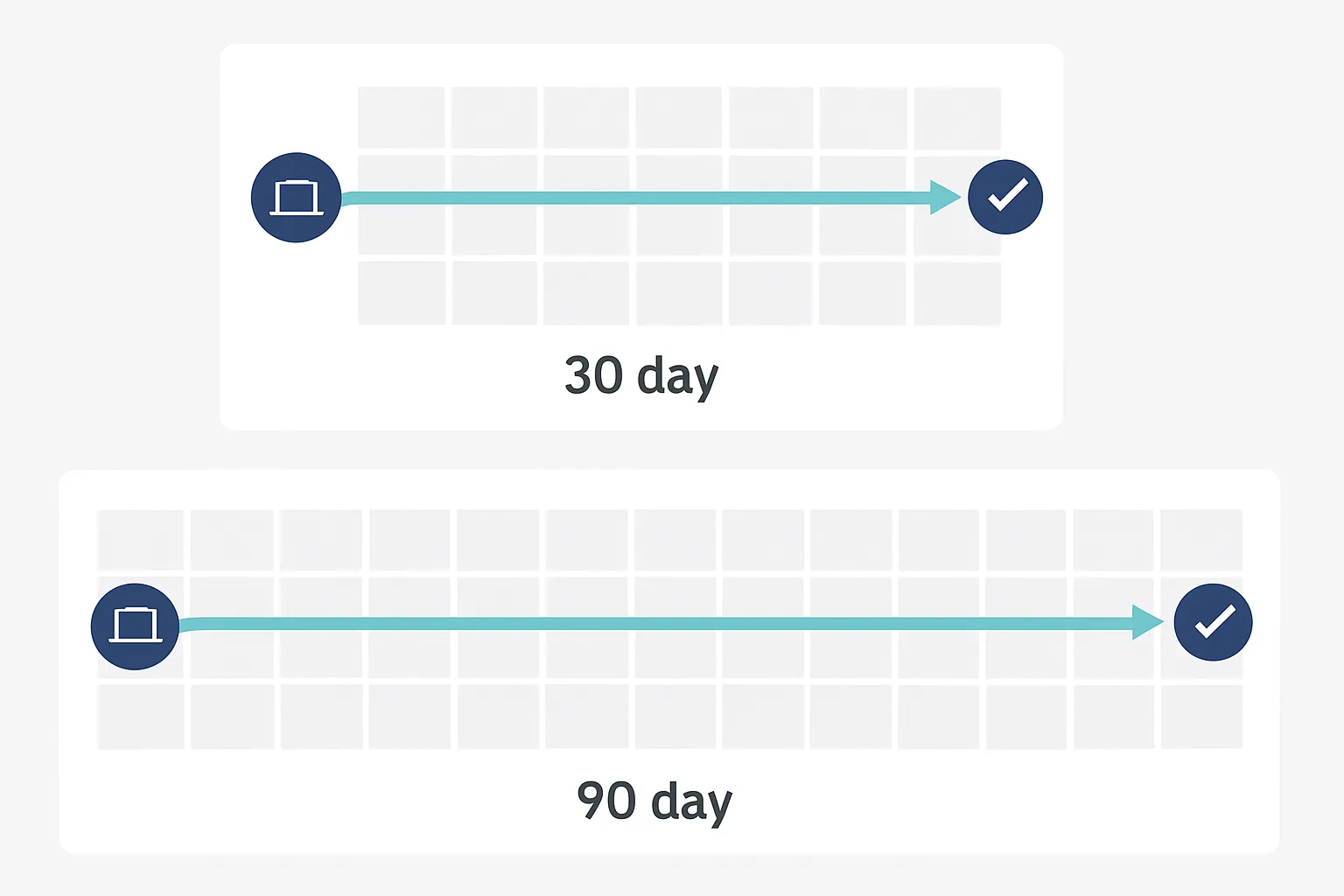
A conversion window in Google Ads is the period of time after an ad click (or impression) during which a conversion can be attributed to that click. If a user clicks your ad and then converts 45 days later, a 30-day window would not count it — a 60-day window would.
Setting the right conversion window is a critical but often overlooked part of Google Ads conversion tracking setup. Too short, and you miss conversions that happen later in the customer journey. Too long on a short sales cycle, and you may attribute conversions to old clicks that were not responsible.
Types of Conversion Windows
Click-Through Conversion Window
The most important window. This sets how long after someone clicks your ad their subsequent conversion can be attributed to that click.
Available options: 1 day, 7 days, 30 days, 60 days, 90 days.
Engaged-View Conversion Window
For video ads (YouTube). Counts conversions from users who watched a significant portion of your video ad then converted, even without clicking.
Available options: 1 day, 2 days, 3 days, 4 days, 5 days, 6 days, 7 days, 10 days, 14 days, 30 days.
View-Through Conversion Window
For Display and YouTube campaigns. Counts conversions from users who saw your ad but did not click it, then converted within the window.
Available options: 1 day to 30 days.
View-through conversions should be used cautiously — they often over-attribute credit to display impressions and should be tracked as secondary conversions only, not used for Smart Bidding.
Choosing the Right Click-Through Window
Match your conversion window to your actual sales cycle — the time between first click and conversion for your typical customer.
7 Days
Use for: impulse purchases, low-cost consumer products, same-day bookings (restaurants, tickets, local services).
If most of your customers decide and buy within a week of clicking an ad, a 7-day window captures the relevant conversions without attributing stale clicks.
30 Days (Default)
Use for: most ecommerce, mid-range consumer purchases, simple SaaS sign-ups, straightforward service bookings.
The Google Ads default. Appropriate when your customers typically take a few days to a few weeks to convert after first seeing your ad.
60 to 90 Days
Use for: B2B software, professional services, high-ticket purchases, complex sales processes with multiple stakeholders.
B2B buyers often take weeks or months from first research to final decision. A 90-day window ensures that customers who clicked an ad in January and signed a contract in March are correctly attributed to that ad click.
If you are running Google Ads for a lead generation business with offline conversions, use a 90-day window for your offline conversion action.
How to Set the Conversion Window
- In Google Ads: Tools and Settings then Conversions
- Click the conversion action you want to modify
- Click Edit settings
- Scroll to Conversion windows
- Set Click-through conversion window to your desired length
- Adjust view-through and engaged-view windows if applicable
- Save
Note: changing the conversion window affects how conversions are attributed going forward, and may also retroactively adjust some historical data within Google Ads reports.
Calculating Your Actual Sales Cycle Length
To find the right window for your business, pull this data:
- From your CRM, find all leads generated from Google Ads in the past 12 months (identified by GCLID or UTM source)
- Calculate the time between lead creation date and deal close date for all closed deals
- Find the median and the 80th percentile
- Set your conversion window to at least the 80th percentile — this captures conversions from 80 percent of your typical customers
Example: if 80 percent of your B2B deals close within 75 days of first contact, use a 90-day conversion window.
What Happens When the Window Is Too Short
Say your actual sales cycle is 75 days but your conversion window is 30 days. What does Smart Bidding see?
- Conversions that happen within 30 days are attributed correctly
- Conversions that happen on day 31 to 75 are not counted at all
- Smart Bidding underestimates campaign performance
- You may cut budget from campaigns that are actually profitable — you just cannot see the conversions they generate
- CPA appears artificially high — you are paying correctly but only seeing a fraction of the results
What Happens When the Window Is Too Long
If your purchase cycle is typically 7 days but you use a 90-day window:
- Conversions from users who converted 45, 60, or 90 days after clicking are attributed to that original click
- These users may have been influenced much more by email retargeting, organic content, or competitor ads in the interim
- The ad click gets credit it may not deserve
- ROAS appears higher than it should be
This is a smaller problem than having too short a window, but it still distorts data.
Conversion Window and Bidding
Smart Bidding uses recent conversion data to make predictions. If your window is 90 days and you only have data from the past 30 days, Smart Bidding is working with incomplete data — many of those 30-day-old clicks have not yet had time to generate conversions.
This is expected and normal. Smart Bidding accounts for recency bias in conversion reporting. However, it is another reason to ensure your conversion window accurately reflects reality — overestimating it creates more noise in the algorithm.
Summary
Your conversion window should match your actual sales cycle — not Google's default. For ecommerce, 30 days is usually right. For B2B with complex sales cycles, 90 days is the standard.
Pull your CRM data, calculate your 80th percentile deal closure time, and set your window accordingly. Then check it quarterly as your business evolves.
For a complete review of your Google Ads attribution settings, see our Google Ads Conversion Tracking service or our Conversion Tracking Fix and Debugging service.
Not sure what window to use for your business? Talk to Adslytics.
Need expert tracking setup?
Our Google Tag Manager experts have delivered 500+ tracking setups with a 98% success rate.
Get a Free Consultation →